
Problem Description
"You are seeing no new Square orders pull into Webgility Desktop, even though the Square sales channel appears connected and orders have gone through on the Square side."
Root Cause
Webgility Desktop's Square connection token has expired or the OAuth session has dropped, and the download quietly stops without raising an error. Reconnecting the Square sales channel through the Manage Sales Channel screen refreshes the token and lets the download resume.
Solution Steps
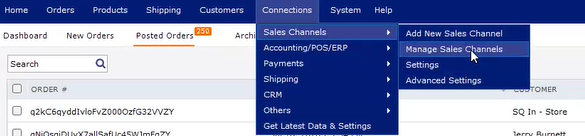
Step 1: In Webgility Desktop, open Connections > Sales Channel > Manage Sales Channel. The My Sales Channels list opens with a row for every connected store.
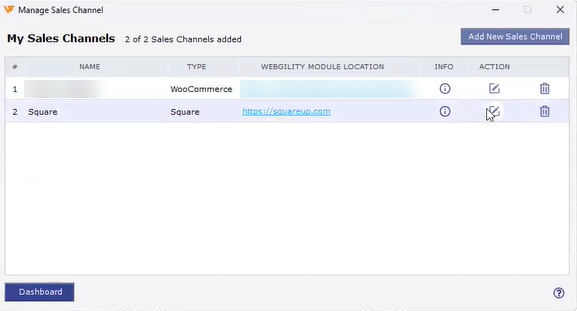
Step 2: Find the Square row, then click the pencil icon in the Action column (Edit Connection tooltip). The Sales Channel Settings dialog opens with your Square store's connection fields. For the full first-time connection walk-through, see How to Connect Webgility Desktop with Square.
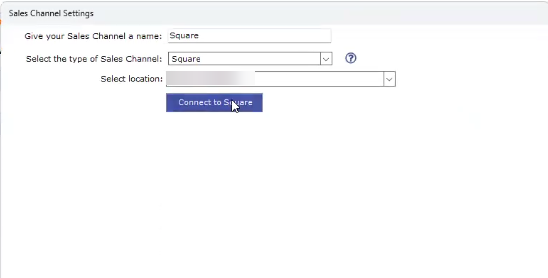
Step 3: Click Connect to Square and complete the Square sign-in prompt in the browser window that opens. Once the authorization completes, the dialog confirms the reconnect and closes.
Step 4: Back on the main window, click Get Latest Data and select your Square sales channel. Webgility Desktop pulls the missing Square orders into the New Orders tab. For the full download flow, see How to Download Orders in Webgility Desktop.
Step 5: Confirm the orders you expected are now present, including today's date range.
Important Note
"If the download still returns no orders after the reconnect, open Preferences for the Square sales channel and confirm the Order Download Start Date is on or before the date the missing orders were placed. A start date after the order date silently excludes older orders."
Further Assistance
If you need any further assistance, please contact Webgility Support. We’ll be happy to help.