
Overview
In this scenario, Webgility downloads a Shopify refund as a line item, so the refund may not appear as expected when posting the payout. Use the steps below to update the refund setting and refresh the order.
Steps1. Set where Webgility records refunds
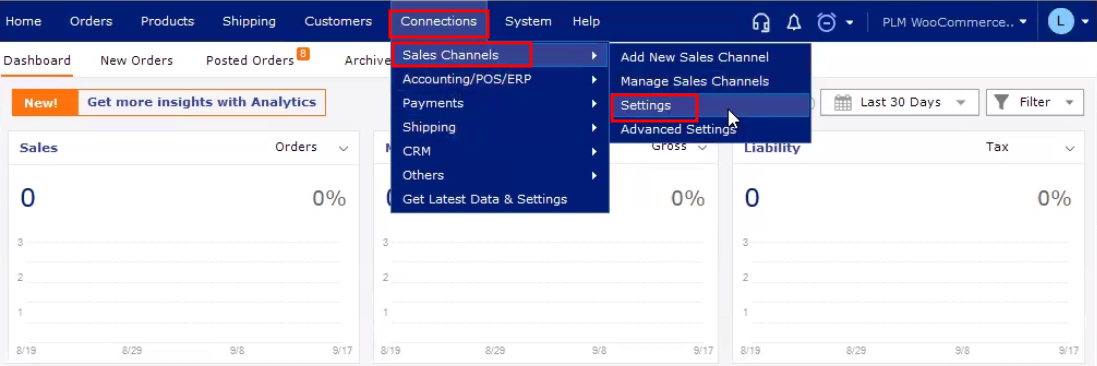
- In Webgility Desktop, go to Connections > Sales Channels > Settings.
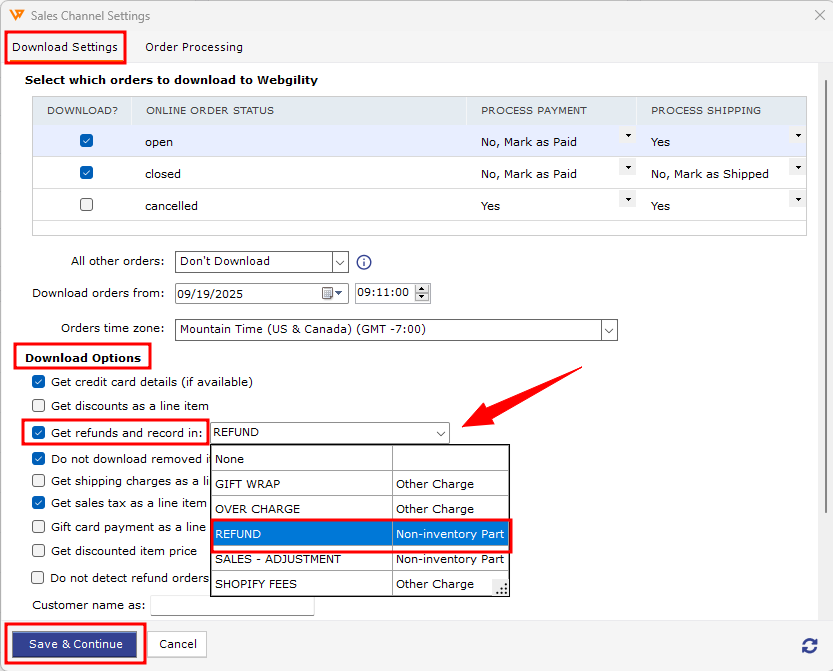
- Select Get Refunds and Record in.
- Choose a QuickBooks Non-Inventory or Other Charge Item, then click Save.
For more information, see How to Process Returns and Refunds with Webgility Desktop.
2. Refresh the Shopify order
- On the dashboard, open Posted Orders.
- Right-click the affected order and select Undo Sync. The order moves to New Orders.
- In New Orders, right-click the order and select Re-download Order.
- Open the order and confirm the refund appears.
For details about Undo Sync, see How to Use the “Undo Sync” Feature in Webgility Desktop.
3. Post the payout again
Retry posting the Shopify payout and confirm it completes successfully with the refund included.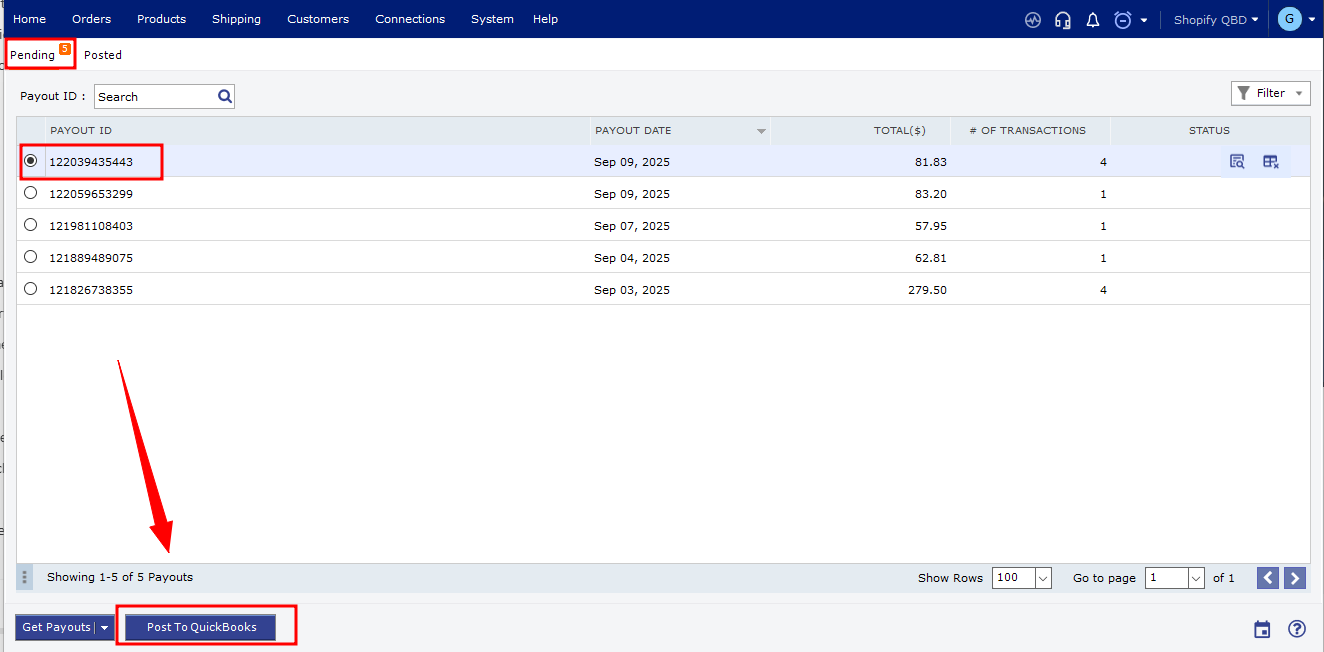
For more payout troubleshooting, see Troubleshooting Shopify Payout Posting Issues Caused by Incomplete Order Downloads.
If you have any questions or need more help, please contact our support team.