
When This Applies
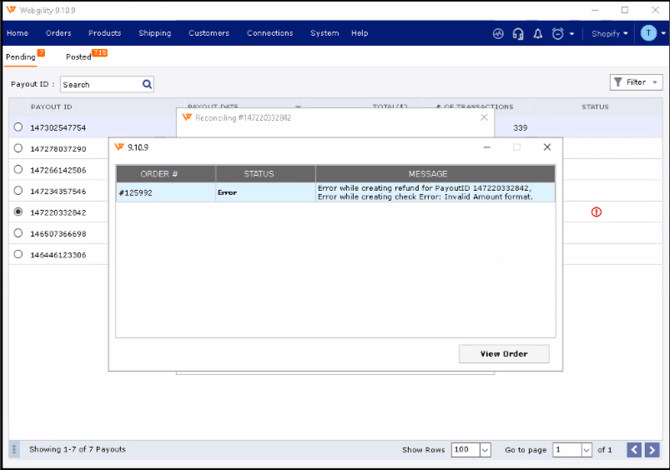
You post Shopify payouts into QuickBooks Desktop through Webgility Desktop, you have Marketplace Tax posting enabled in Sync Settings, and a specific payout stops on the refund step with the "invalid amount format" error.
Why This Happens
When Marketplace Tax posting is on, Webgility includes a Marketplace Tax amount on each order. For some refunds Shopify sends back, the recorded Marketplace Tax amount does not reconcile to the refund amount — the total mismatch bubbles up as "invalid amount format" when Webgility tries to create the refund in QuickBooks (for the setup side of this feature, see Webgility Desktop Shopify Marketplace Tax in the helpcenter).
Steps to Clear the Error and Post the Payout
- Update Webgility Desktop to the latest version by following the steps in the help article How to Update Webgility Desktop.
-
Note the Payout ID the error references so you can retry the right payout at the end. In Webgility go to Orders then Shopify and Payout, in the Pending Tab click on the upper left-hand side to copy the payout ID automatically if required.
-
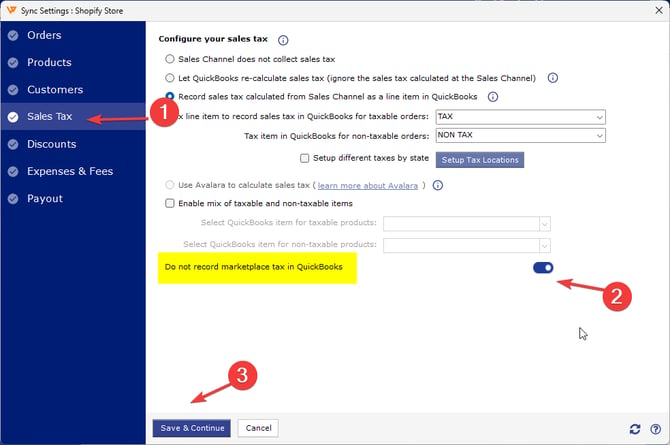
In Webgility Desktop, go to Connections then Accounting/POS/ERP then Sync Settings and open Sales Tax Settings (see Recommended Settings for Sales Tax for Webgility Desktop & QuickBooks Online)
-
In the same Sales Tax settings Disable Marketplace Tax posting for the Shopify sales channel and Save the settings.
-
Re-sync the Shopify payout from Step 1 (see Shopify Payout Reconciliation in Webgility Desktop with QuickBooks Desktop Integration). The refund step should complete and the payout posts.
Important Note:
"Disabling Marketplace Tax posting means Webgility no longer carries a separate Marketplace Tax line on orders. If you need marketplace tax recorded, work with your accountant on an alternative treatment (for example, a periodic journal entry) rather than leaving the toggle on and hitting this error on every refund."
Key Recommendation:
Before you enable Marketplace Tax posting on any Shopify sales channel, do a dry run with one payout that contains a refund — if that refund posts cleanly, the setup is right for your data; if it hits "invalid amount format", you know the toggle is the cause and can plan around it.
If the error persists on the retried payout after Marketplace Tax posting is off, write to support@webgility.com with the Payout ID and the exact error message.