
Problem Description
You are seeing the QuickBooks Online invoice from a Shopify order posted at the net amount after the processing fee was deducted, but the payment attached to that invoice posted at the full gross order amount — so QuickBooks Online marks the invoice overpaid and the surplus lands in your deposit account or as an unapplied credit on the customer.
When This AppliesUse these steps when Webgility Online posts Shopify orders to QuickBooks Online with the Shopify processing fee set to post as a line item inside the invoice, and the invoice totals do not match the Shopify payout amounts your bookkeeper is trying to reconcile.
Why This HappensWith the payment fee set to post as a line item on the invoice, Webgility Online subtracts the fee from the invoice total but still records the payment at the gross order amount Shopify charged the shopper. The invoice total is lower than the payment, so QuickBooks Online marks the invoice overpaid and parks the difference as a surplus on the deposit or as an unapplied credit.
Steps to Switch Payment Fee Posting From Line Item to Expense
Step 1: Sign in to Webgility Online and open the left sidebar's Sync Settings section (the full posting flow is in Post Orders to Your Accounting Solution with Webgility Online).
Step 2: Open the Fees page, scroll to Settings for Posting Payment Fees for the Shopify store, change Record the Payment related fees as from Line item within the Order transaction to the expense option, and click Save — the full fee-posting walk-through is in Sync Payment and Shipping Fees in Webgility Online.
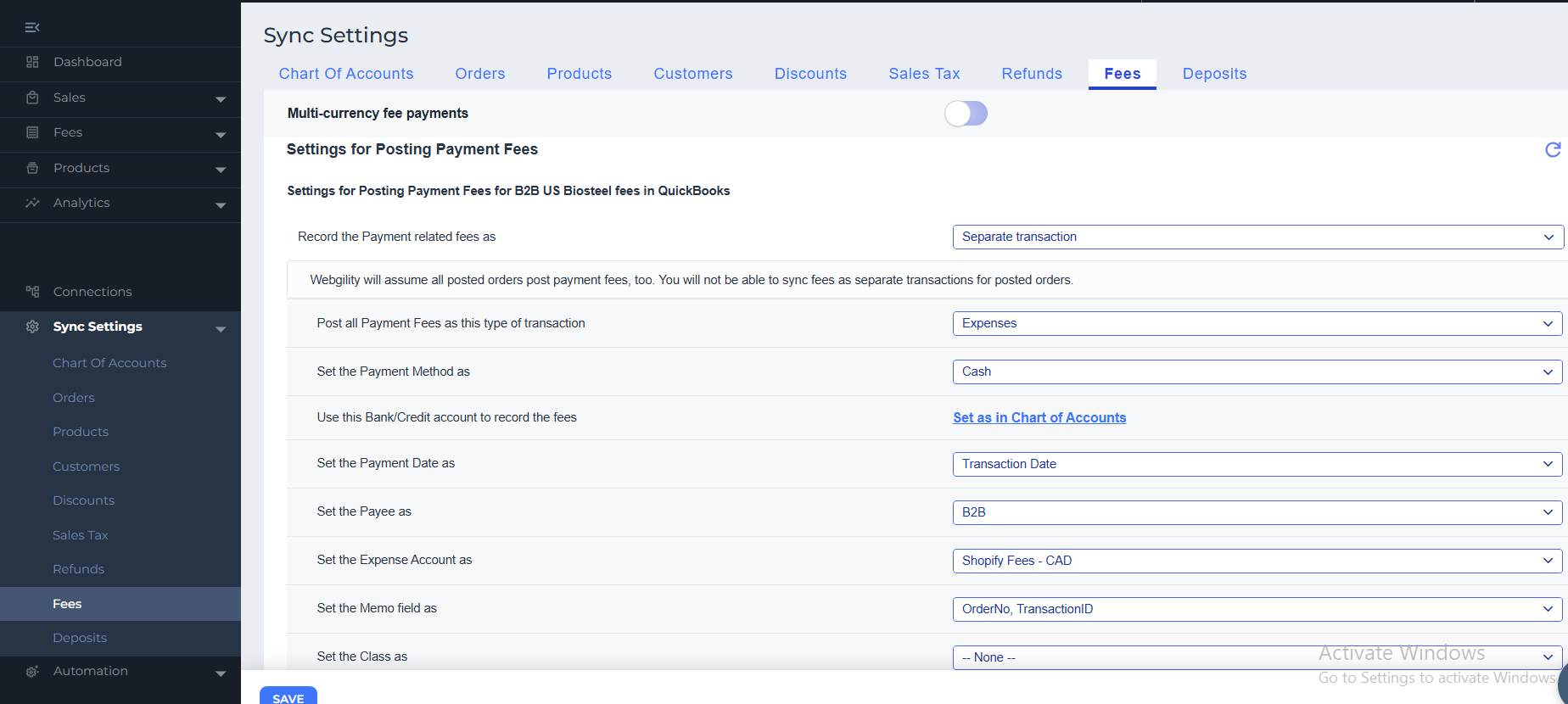
Step 3: Unpost the affected orders, re-download them from Shopify, and re-post them to QuickBooks Online so the new invoices post at the gross order amount and the payment matches exactly.
Important Note
Note: Invoices already posted before the setting change stay as they were in QuickBooks Online. Only the orders you unpost and re-post pick up the new expense-based fee posting.
Keep the Shopify payment fee posting as an expense for every store so invoices always match the payment and your deposit account stays clean; refresh your QuickBooks Online data (see Download the Latest Data from QuickBooks in Webgility Online) before saving the expense account on the fee setting so the dropdown shows your current chart of accounts.
Additional SupportIf the invoices still post overpaid after the setting is saved and the orders are re-posted, email support@webgility.com with your subscriber ID, the Shopify store name, and one example order number so the team can confirm the fee posting on your channel.