
Overview
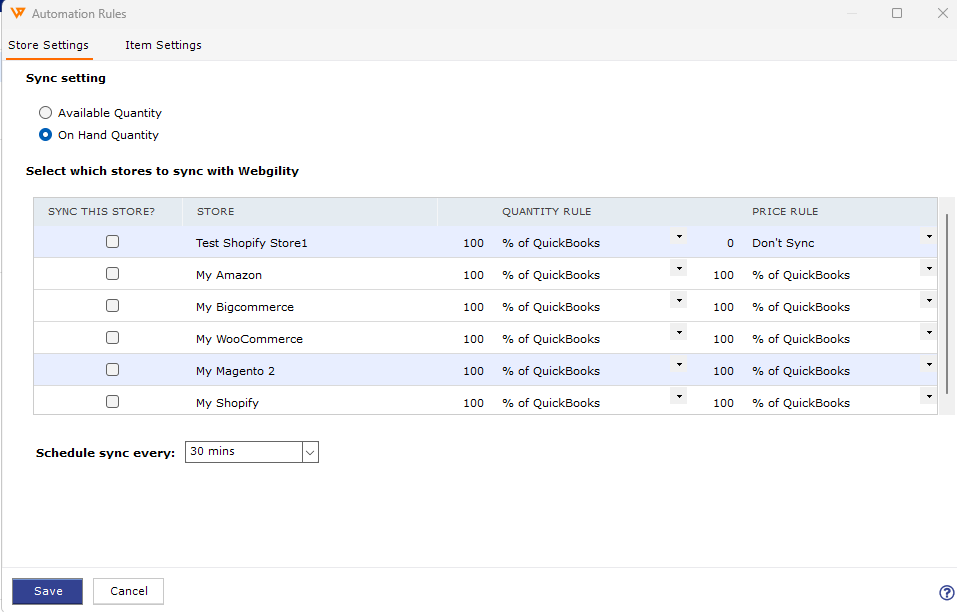
Webgility Desktop can push either the Available Quantity or the On-Hand Quantity from QuickBooks to Amazon. If the Available Quantity is sent while customer-order reservations are open, Amazon sees more stock than you physically have and oversells. This article shows how to switch the setting to On-Hand Quantity and refresh the data so Amazon matches your real stock.
When This Applies
Use this when Amazon buyers are placing orders you cannot fulfill because the Amazon listing shows more units than you actually have on the shelf, and QuickBooks and Webgility Desktop show a higher Available number than your physical On-Hand count.
Why This Happens
By default, Webgility Desktop may be set to sync the Available Quantity. In QuickBooks, Available Quantity equals On-Hand minus the units already committed to open sales orders or demos. If several items are reserved, Available can be higher than what is physically in the warehouse, and that higher number is what Amazon receives.
Steps to Switch to On-Hand Quantity Sync
Step 1: In Webgility Desktop, go to Products > Settings > Sync Settings.
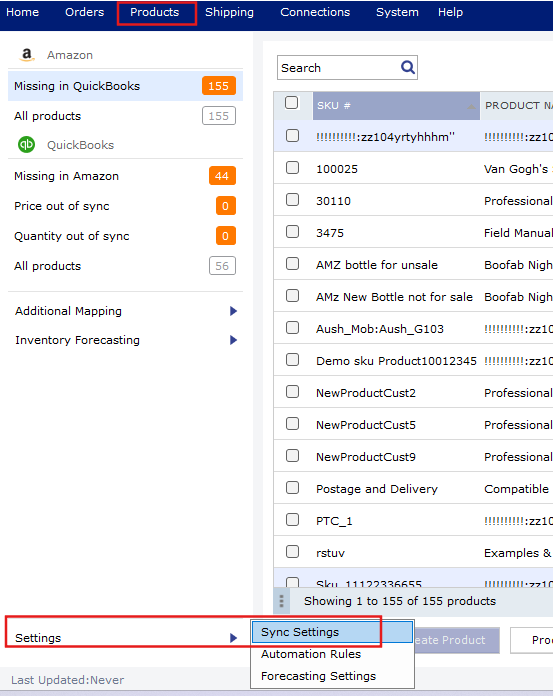
Step 2: Locate the quantity-source option(Automation Rules) and change the selection from Available Quantity to On-Hand Quantity, then save. This setting is global and applies to every synced item, so you do not need to change items one by one. For the full product-sync walkthrough see How to Sync Products with Webgility Desktop.
Step 3: Re-download the latest product data from QuickBooks so Webgility uses the new quantity source, then run a manual product sync to push the corrected numbers to Amazon, refer to this help article for assistance with downloading the QuickBooks data.
Step 4: Open one previously affected SKU and confirm that the quantity now shown in Webgility matches the physical On-Hand count in QuickBooks and in your Amazon listing.
Important Note
Note: If a SKU still shows the wrong number after the switch, confirm the SKU in QuickBooks matches the SKU in Amazon exactly, and that the Amazon listing is Active. An inactive Amazon listing appears under Missing in Amazon in Webgility and will not sync until it is activated in Amazon Seller Central. For the full troubleshooting flow see Troubleshoot Available Sales Channel Quantity Does Not Match QuickBooks.
Key Recommendation
Keep automatic product sync enabled in Scheduler so On-Hand changes in QuickBooks reach Amazon on the next run instead of waiting for a manual push. For mapping new or renamed items while you are in Sync Settings, see How to Map Products or Inventory in Webgility Desktop.
Additional Support
If your On-Hand number still does not match after switching the setting and refreshing data, contact Webgility Support with the affected SKU, the number shown in QuickBooks, and the number shown on your Amazon listing.