
Overview
An Amazon settlement report can include a refund or another transaction tied to an older order. If that order falls outside your Webgility download range or Amazon has archived it, the report may fail to download or post.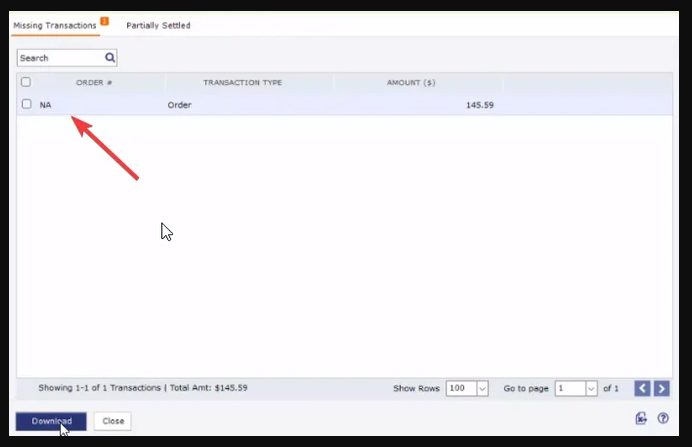
- Check when the order was placed. Use the order ID shown in Webgility to look up the order in Amazon Seller Central and check its order date.
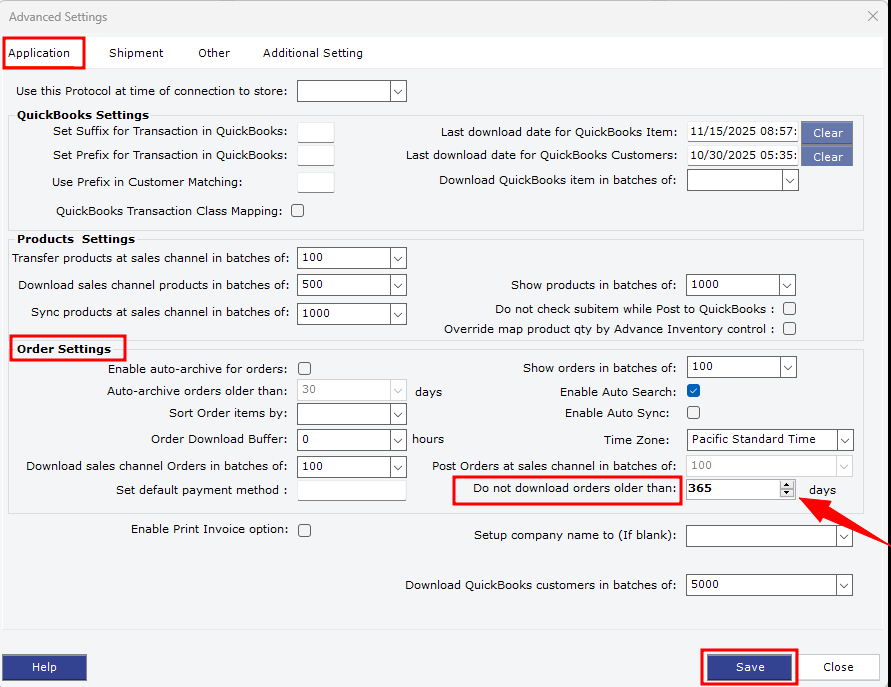
- Adjust the download range if needed. If the order is outside your current range, use the Advanced Settings section of this guide to include its order date. The setting allows a maximum of 365 days.
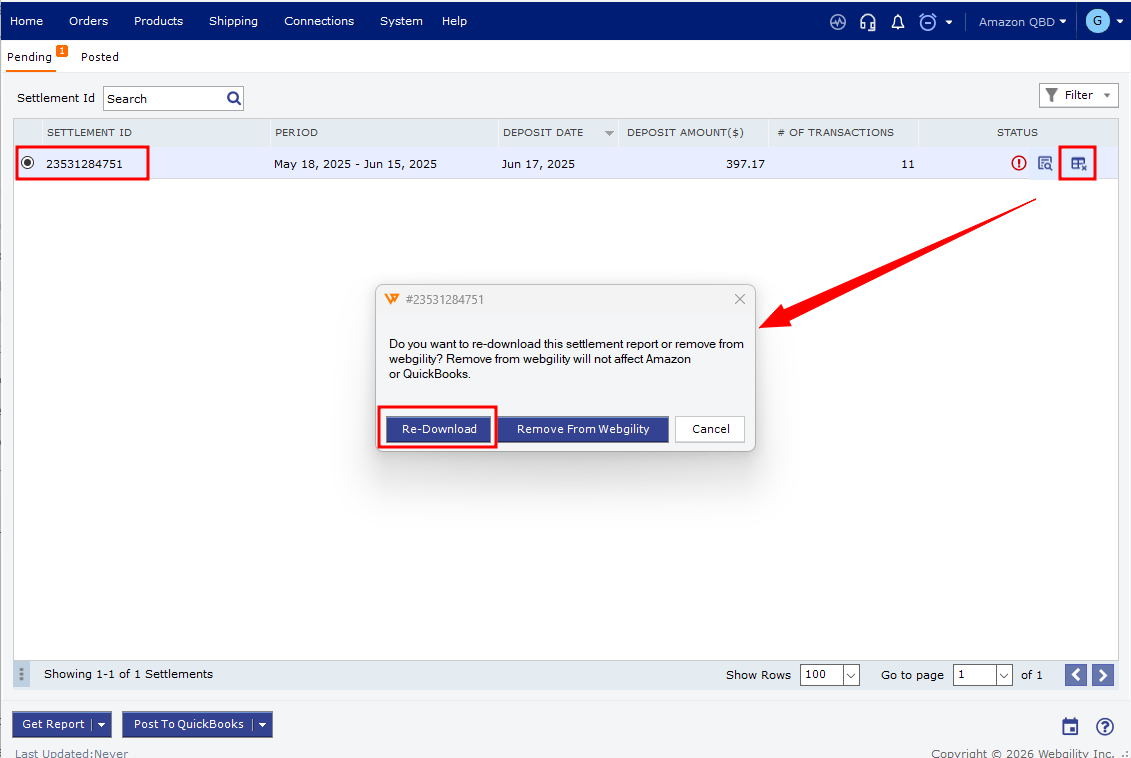
- Re-download the affected report. Follow the instructions for an existing report. Re-download an Amazon settlement report
- Post the report to QuickBooks. Once the download finishes, follow the QuickBooks posting section of this guide. Post an Amazon settlement report to QuickBooks
If the message still appears, share the affected order ID with Webgility Support. Include the order date if you have it, especially if Amazon archived the order or it was placed before your Webgility license started.
If you have any questions or need more help, please get in touch with our support team.