
Root Cause:
When an order is downloaded into Webgility Desktop, one or more address fields are empty on the channel-side — commonly because the channel had not finished populating them. Webgility Desktop downloaded & posted the order details it received, so the in QuickBooks transaction, customer record, and addresses are blanks.
Steps to Restore the Missing Address Fields
-
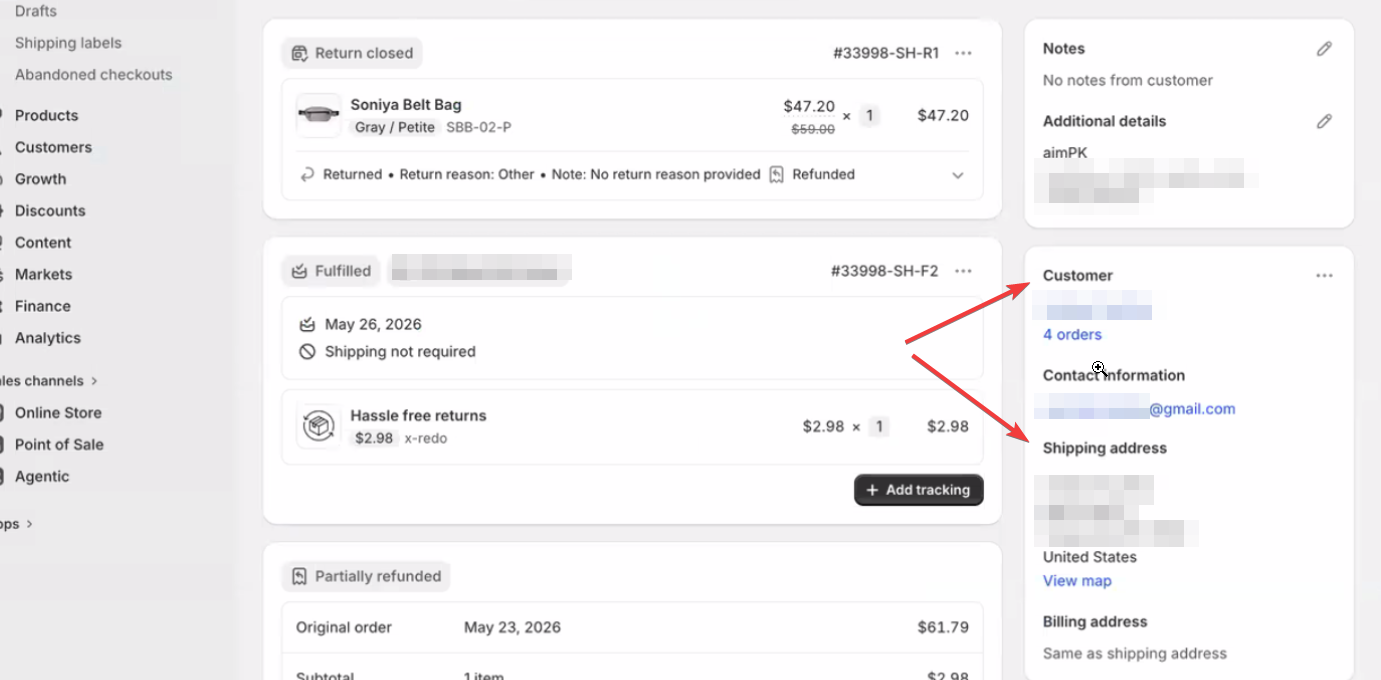
Open the order on your sales channel's own dashboard and confirm the billing address, shipping address, email, and phone number are all present now. Attached screenshot of an order in Shopify
-
In Webgility Desktop, open the New Orders , right-click the affected order, and choose Re-download Order. For the full download walkthrough, see How to Download Orders in Webgility Desktop.
-
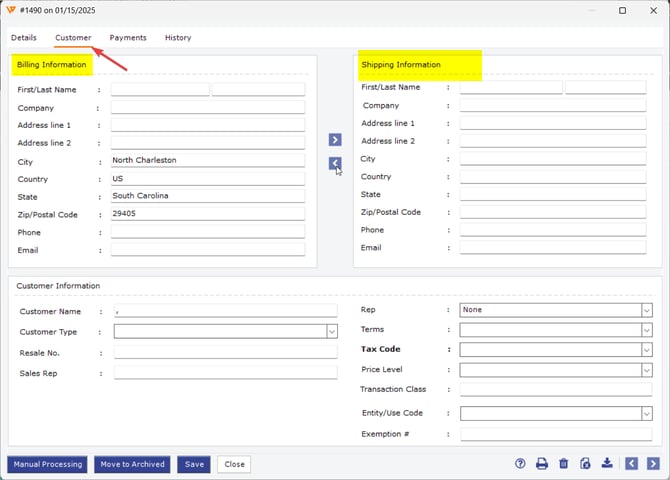
Open the order's details in Webgility Desktop by double-clicking on the order and go to the Customer Tab to verify the Billing Address and Ship To fields are now filled in.
-
If the order was already posted with the blanks, unsync the order first, re-download the order & click on Post To QuickBooks so QuickBooks picks up the restored address. See How to Unpost Transactions from Webgility Desktop with Undo Sync.
Important Note
Note: If the sales channel itself still shows the address fields blank, Webgility cannot pull data that was never captured there. In that case, update the order on the sales channel first, then run the re-download step.
Feel free to reach out to support@webgility.com.