
When This Applies
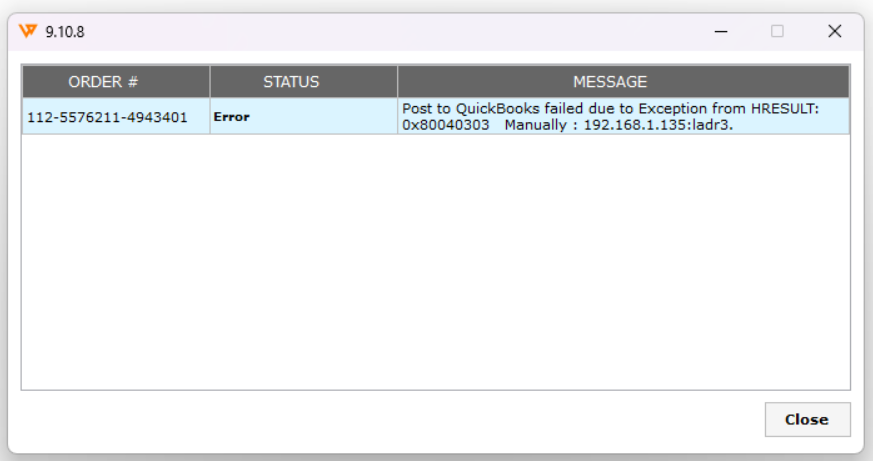
Use these steps if you click Post to QuickBooks on an order and Webgility Desktop returns an Exception from HRESULT message, and the same machine is low on free space on the C: drive.
Why This HappensWhen the machine running Webgility Desktop runs low on disk space, the QuickBooks connection cannot write its working files reliably and posting fails with the generic Exception from HRESULT message. Once space is freed, Webgility also needs a fresh copy of the QuickBooks item list so any recent QuickBooks-side changes (such as a shipping item that was renamed) resolve on the next post.
Steps to Clear the Error
Step 1: On the machine running Webgility Desktop, free up space on the C: drive (empty the Recycle Bin, clear the Downloads folder, uninstall large apps you no longer use) until Windows reports at least a few gigabytes free, then reopen Webgility Desktop.
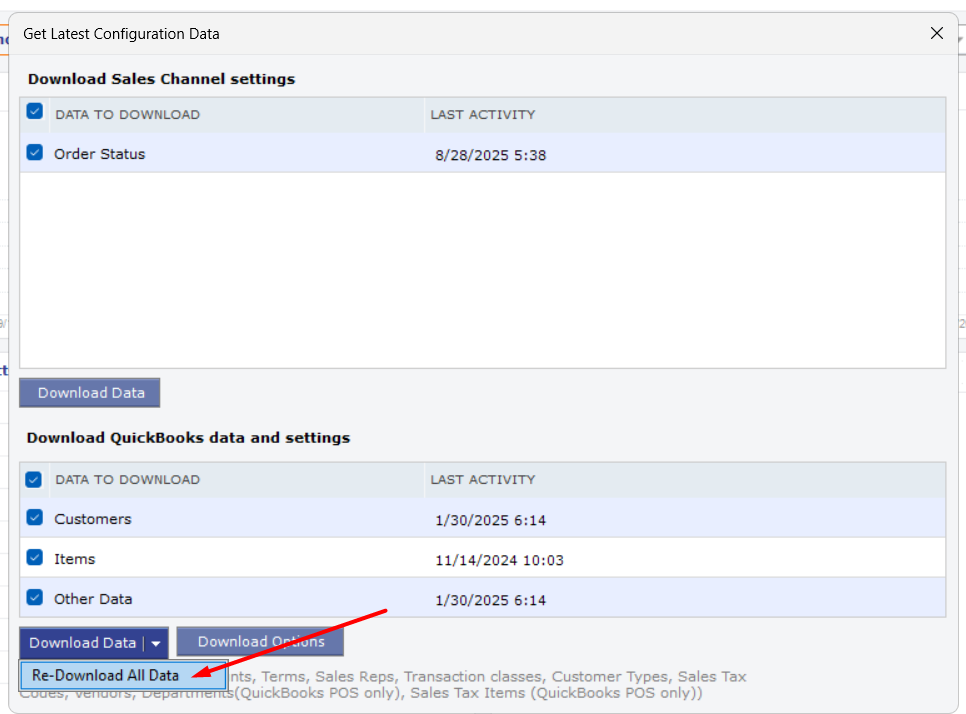
Step 2: Refresh Webgility's copy of the QuickBooks data so any recent QuickBooks-side changes reach the posting flow, using the QuickBooks section of the Get Latest Data window — the walkthrough is in How to Download the Latest Accounting Data from Scratch in Webgility Desktop.
Step 3: Open Sync Settings and confirm the shipping item on the order is still mapped to a valid QuickBooks item, using the mapping steps in How to Map Shipping Methods with QuickBooks. Repeat the mapping for every sales channel that carries the same shipping type.
Step 4: Return to the order in Webgility Desktop and click Post to QuickBooks again. The order now posts without the Exception from HRESULT message.
Key RecommendationKeep the C: drive on the Webgility Desktop machine with headroom to spare, and refresh the QuickBooks data after any change you make on the QuickBooks side — the two together prevent most posting errors that show up as a generic Exception from HRESULT.
Additional SupportIf the same error returns after these steps, contact Webgility Support with the order number, the exact error text, and a screenshot of Windows Explorer showing the free space on the C: drive so the team can look further.