
Overview
When an Amazon settlement report posts from Webgility Desktop but the Amazon Clearing account in QuickBooks does not match the figure Webgility shows, deposits created in QuickBooks before the settlement was posted are almost always the cause. Clearing those early deposits, undoing the sync on the affected orders, re-downloading them, and reposting the settlement brings the Amazon Clearing balance back in line.
When This Applies
You are seeing the Amazon Clearing account in QuickBooks carry a balance that does not match the value in Webgility Desktop immediately after posting one or more settlement reports. The Amazon Clearing account was at zero before the settlement posting, and the discrepancy only appeared once the settlement moved through.
Why This Happens
If deposits were created in QuickBooks before Webgility Desktop posted the settlement, Webgility Desktop cannot undo-sync those orders cleanly — the settlement posting then layers on top of the earlier deposits, and the Amazon Clearing balance drifts from the Webgility figure by the amount of the pre-existing deposits.
Important Note
Removing the pre-existing deposits from QuickBooks is the right move only when you are planning to repost the same settlement cleanly — once the settlement is posted again, Webgility Desktop recreates the correct deposits in the Amazon Clearing account.
Steps to Realign the Amazon Clearing Account
Step 1: In QuickBooks, identify and delete the manual deposits that were created in the Amazon Clearing account before the settlement was posted, so Webgility Desktop can re-run the posting without the double-counting.
Step 2: In Webgility Desktop, locate the affected settlement reports and Undo Sync them.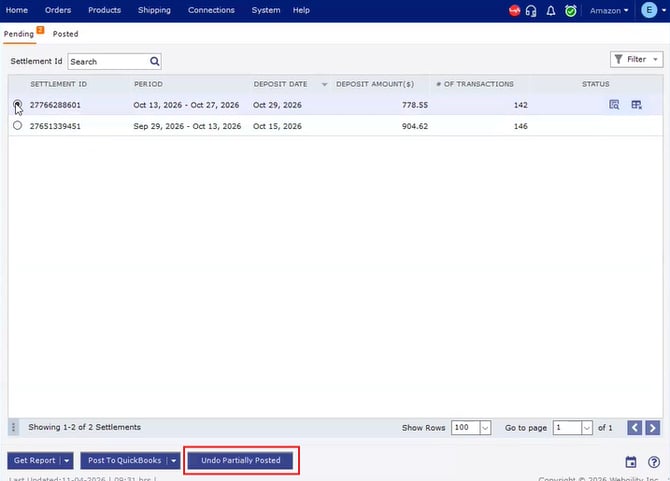
Step 3: Re-download those settlement reports so Webgility Desktop pulls the current figures from Amazon.
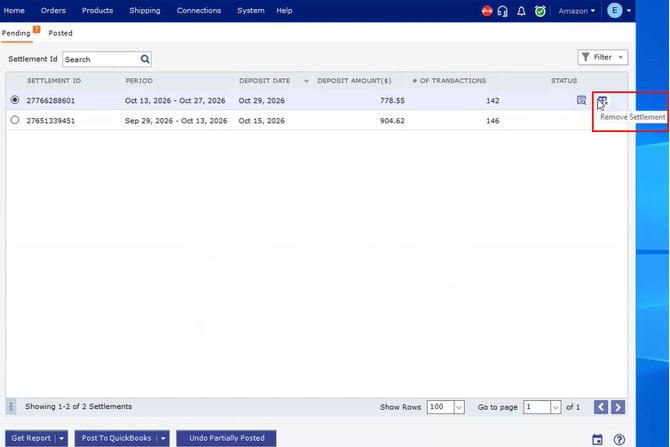
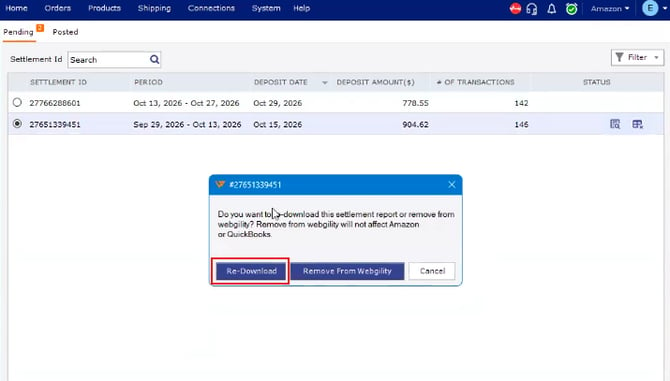
Step 4: Repost the settlement reports (see Download and Post Amazon Settlement Reports with Webgility Desktop for the end-to-end flow) and confirm the Amazon Clearing account in QuickBooks matches the Webgility figure.
Step 5: If the balance still differs by a small amount, verify no unrelated manual journal entries are touching the Amazon Clearing account for the same period.
Key RecommendationKeep the Amazon Clearing account reserved for Webgility Desktop's own postings — manual deposits or journal entries in that account before a settlement is posted are the single most common reason the two balances drift apart later.
Additional SupportIf the Amazon Clearing account still does not match after the repost, contact Webgility Support with the settlement period and the specific discrepancy amount so the team can trace the posting log.