
Amazon settlement reports have not posted to QuickBooks for weeks. The Scheduler is running and regular orders post fine, but no settlement reports come through.
Root CauseThe Webgility Desktop Scheduler posts each object type — orders, refunds, settlement reports, inventory — based on its own toggle in Scheduler Settings. If the toggle for settlement report posting is not selected, the Scheduler will not include settlement reports in its runs, even though every other automation on the same schedule keeps working.
Solution StepsStep 1: Open Scheduler Settings. If the Scheduler is already running, right-click the Scheduler icon in your Windows system tray and open its settings; otherwise click the Scheduler clock icon in the Webgility Desktop toolbar. The full option map is in Scheduler Settings Overview.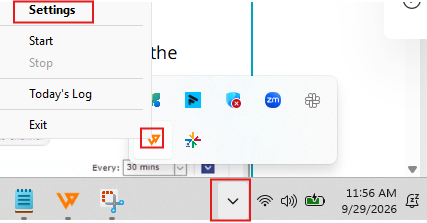
Step 2: Find the toggle for posting settlement reports and select it. Save the Scheduler Settings.
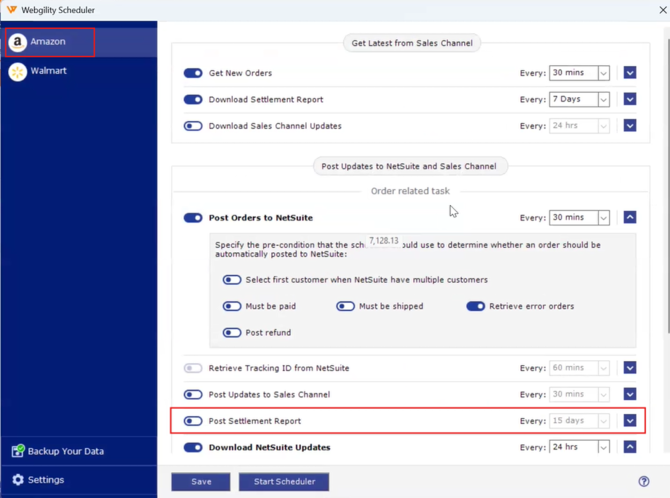
Step 3: Restart the Scheduler so it picks up the updated configuration. Confirm the Scheduler icon returns to its running state.
Step 4: Wait for the Scheduler's next run window and confirm that the next available settlement report posts to QuickBooks. For the full Amazon settlement workflow, see Download and Post Amazon Settlement Reports with Webgility Desktop.
Important NoteIf you had settlement reports queued during the period the toggle was off, they wait as pending. Once the toggle is enabled and the Scheduler runs, they post in order — verify the deposit totals in QuickBooks before reconciling.
Key RecommendationWhen one specific object type stops posting through the Scheduler while others keep working, always check its individual toggle in Scheduler Settings first. This is a faster diagnosis than reconnecting sales channels or refreshing data.
Additional SupportIf the toggle is enabled and the Scheduler still does not post settlement reports on its next run, email support@webgility.com with your subscriber ID, the Scheduler's run interval, and the date range of the pending settlement reports.