
When This Applies
Use these steps when the Out of Sync tab shows items whose prices actually match on both sides, when you recently finished a bulk price update and the tab did not refresh, or when a successful item sync still shows the row as out of sync.
Why This Happens
Webgility Desktop compares the item snapshot it holds for QuickBooks against the item snapshot it holds for the sales channel. When one of those snapshots is stale — for example, if a sync was interrupted or an item was updated outside Webgility Desktop — the comparison still runs against the old value, so the items stays on the Out of Sync tab. Downloading item data from scratch rebuilds those values from the live source and clears the already synced items (see Item Syncs Successfully But Still Shows Up in the Out of Sync Tab).
Steps to Clear the Stuck Items
-
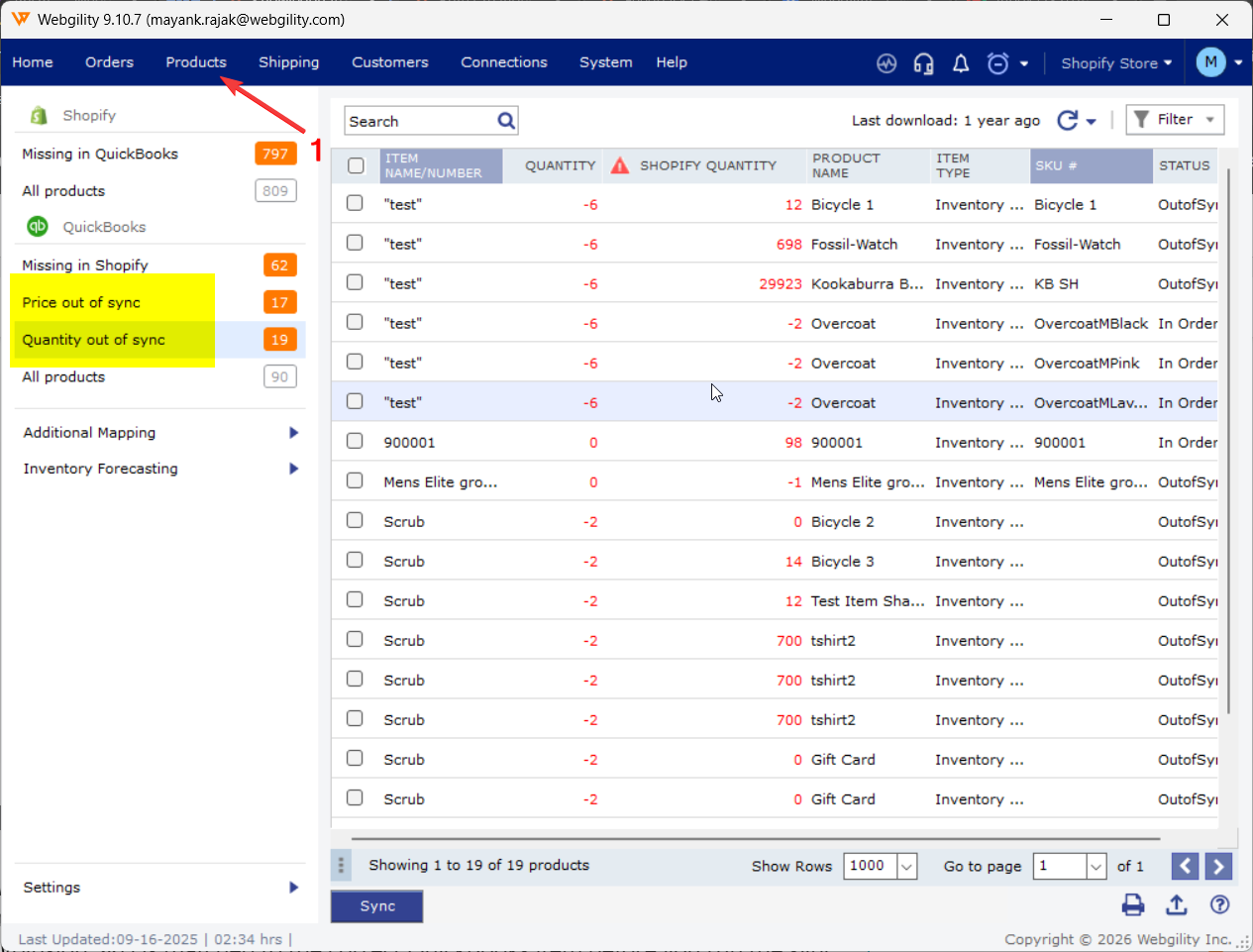
In Webgility Desktop, open the Products module and switch to the Out of Sync tab so you have a baseline of the rows that are currently listed.
-
Confirm that the price on each affected item actually matches between QuickBooks and your Sales Channel. If they match, continue; if they do not, resolve the real by syncing the item, then downloading items data from scratch for Sales Channel & QuickBooks, please refer to Download Items from Scratch from Both QuickBooks & Sales Channel
-
Open Get Latest Data > Re-download all data and run the download for both the QuickBooks side and the sales channel side. Walk through the download flow in How to Download the Latest Accounting Data from Scratch.
-
Return to the Out of Sync tab and refresh it. The items whose prices match should no longer appear. If a few items remain, open them to confirm the price fields really match on both sides, since How to Sync Products with Webgility Desktop shows which fields Webgility Desktop compares.
Important Note
Note: A full download from scratch can take several minutes on a large catalog. Run it when the Scheduler is paused so a background sync does not race with the download.
Feel free to reach out to support@webgility.com.