
Overview
Webgility syncs inventory according to the location and product settings in your account. Use these checks to confirm that the correct Shopify location is selected and that the product quantity is synchronized.
Steps1. Check the Shopify connection
In Webgility Desktop, go to Connections > Sales Channels > Manage Sales Channels, select Edit beside your Shopify store, and test the connection. Follow How to Test Your Store Connection in Webgility Desktop if you need help.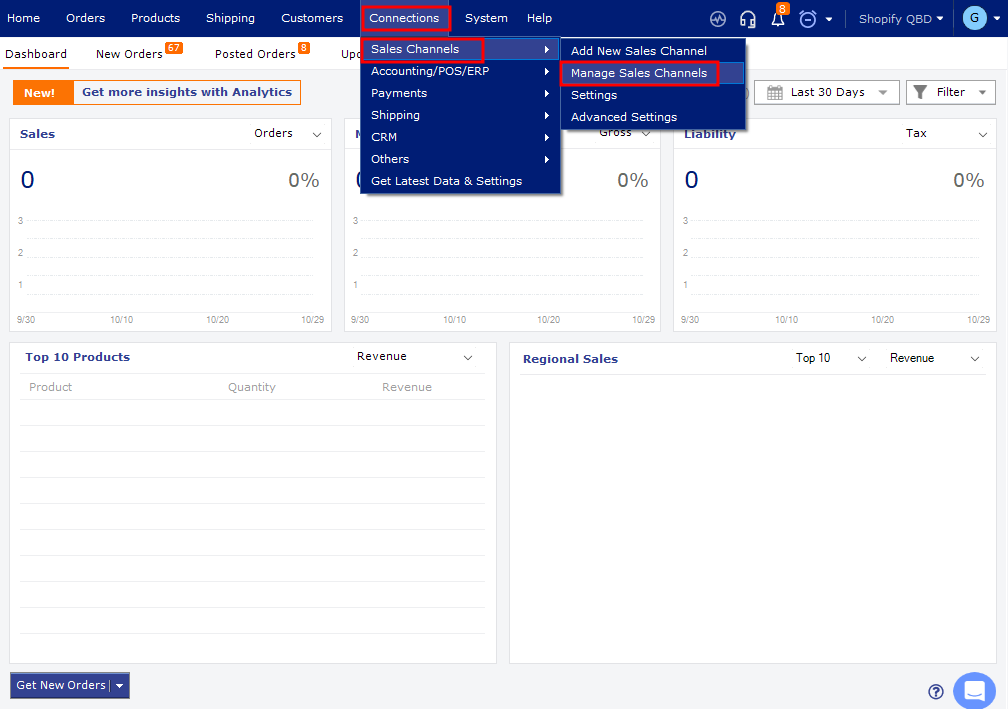
2. Confirm the inventory location
Go to Products > Settings > Sync Settings and check that Sync Location matches the Shopify location where inventory is managed. Save any changes. For more guidance, see How to Sync Products with Webgility Desktop.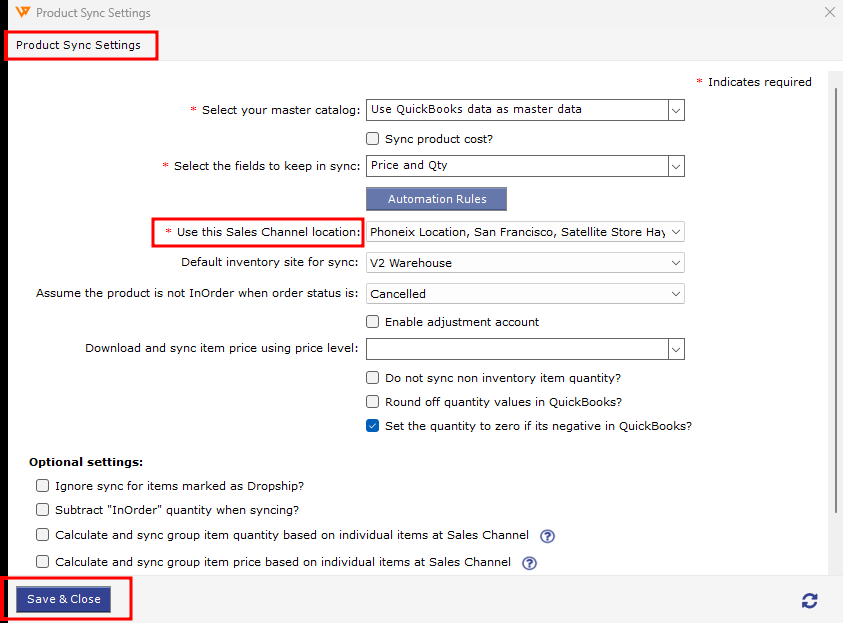
3. Refresh product data and sync
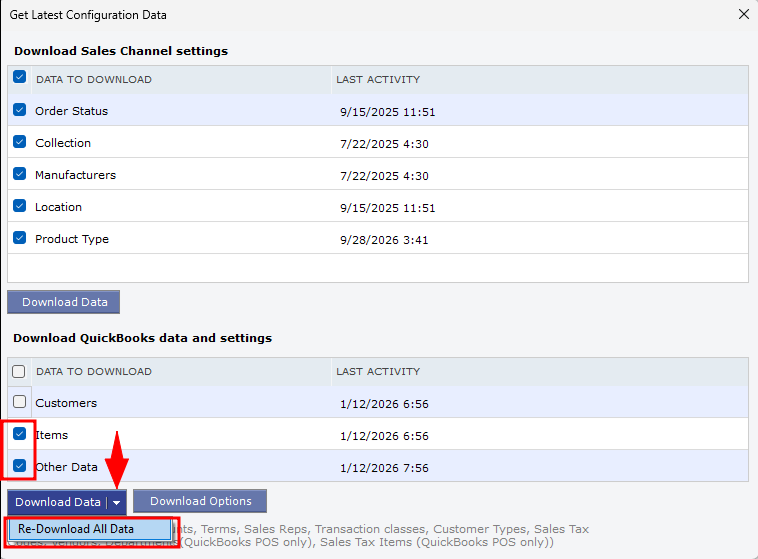
If needed, download the latest Sales Channel data and products.
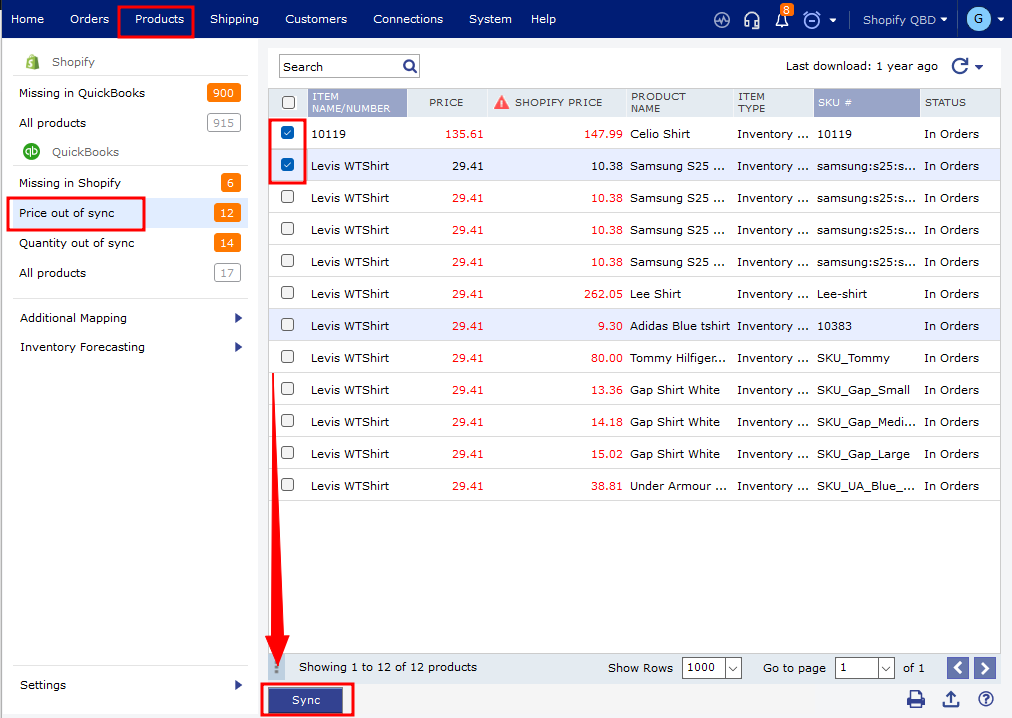
Then open Products > Price/Quantity Out of Sync, select the product, and click Sync.
If QuickBooks data is involved, you can also test the QuickBooks connection.
If you have any questions or need more help, please contact our support team.