
Part of How to Configure Your Channel Settings in Webgility i.
Chart of accounts tab
This tab sets the clearing accounts that hold the money of the channel's orders, refunds and fees until it reaches your bank. A clearing account tracks undeposited funds, or funds in transit from your payment gateway to your checking account.
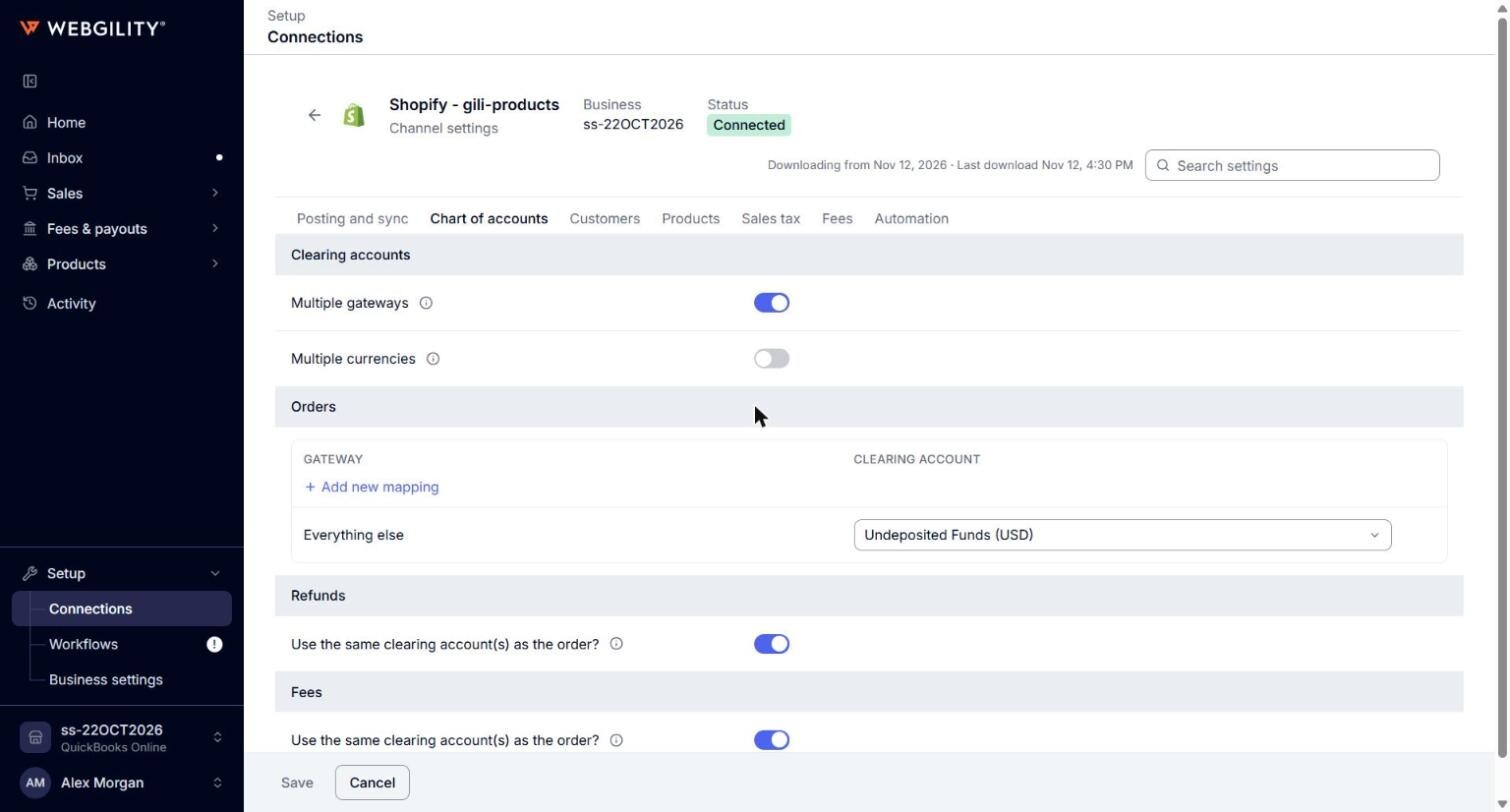
- Multiple gateways: gives each payment gateway its own clearing account. When off, every order uses the Everything else account. Options: on or off.
- Multiple currencies: gives each currency its own clearing account. It may need the Multicurrency setting of QuickBooks Online to be on, which Webgility i does not check. See How to Turn On Multicurrency in QuickBooks Online. Options: on or off.
- Orders: the clearing account for each gateway and currency, and an Everything else account for any payment that matches no row. Default: the Undeposited Funds account of your QuickBooks Online company for Everything else.
- Use the same clearing account(s) as the order? (under Refunds): when on, refunds use the order accounts above. Turn it off to set refund accounts of their own, by gateway and currency, with Everything else for the rest. Options: on or off.
- Use the same clearing account(s) as the order? (under Fees): when on, payment processor fees are paid from the order accounts above. Turn it off to set fee accounts of their own. Options: on or off.