
Overview
When you connect a new sales channel to Webgility Desktop, Webgility downloads your store's existing orders starting from the date you set. If your store has thousands of archived historical orders and you leave the start date too far back, Webgility pulls them all in — which can push you over your plan's monthly order limit and trigger an overage charge.
When This Applies
You are about to connect a new store (Shopify, Shift4Shop, BigCommerce, WooCommerce, Amazon, etc.) to Webgility Desktop, and that store has months or years of previous orders in it — including orders you have archived.
What You'll Need
A clear idea of the earliest date you actually want Webgility to post orders from. Older orders stay in your store; Webgility just does not pull them. Archiving on the store side does not hide orders from Webgility (for how archiving works inside Webgility, see How to Archive Orders).
Steps to Set the Start Date Before Downloading History
Step 1: Add the new store in Connections > Sales Channels > Add New Sales Channel and complete the connection wizard (see How to Connect Your Sales Channels).|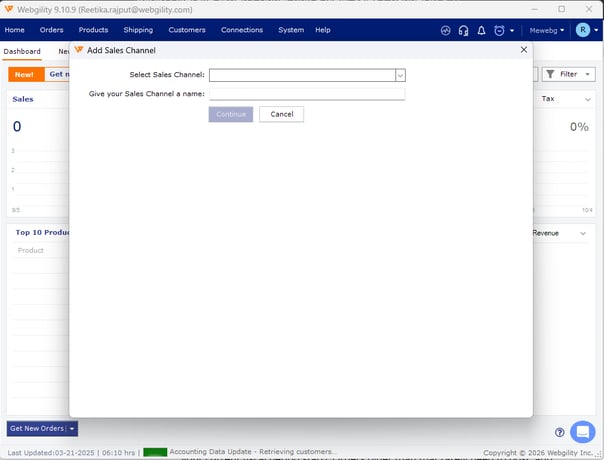
Step 2: Immediately after the connection completes — before Webgility starts the first download — open Preferences for the new channel and set Download Orders Start Date to the earliest date you want orders from (see How To Download Orders From a Backdate).
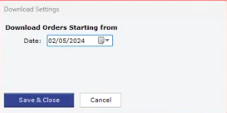
Step 3:
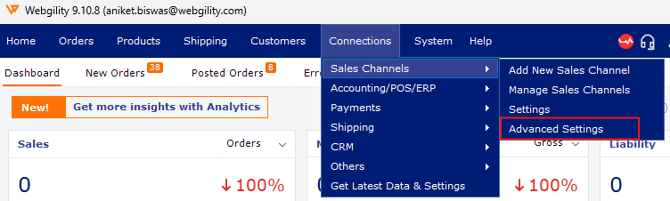
- In Webgility, navigate to Connections > Sales Channels > Advance Settings.
- Under the Application tab, locate the field "Do not download orders older than: [ ] days" (under the Order Settings section).
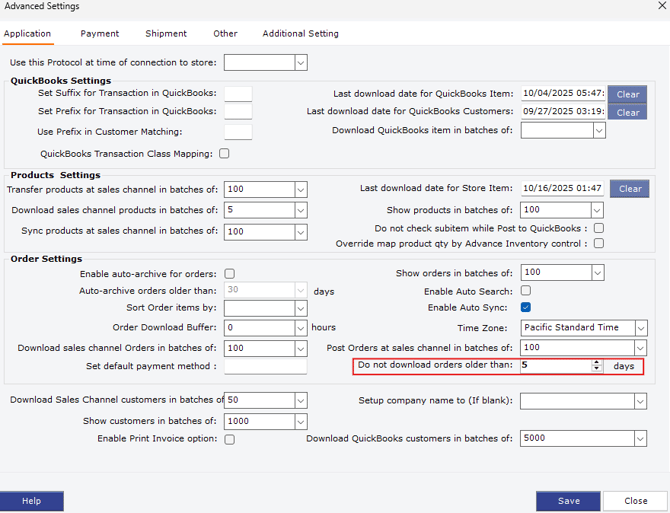
- Update this value to a number of days greater than or equal to the age of the orders you need to download (e.g., if you need orders from 60 days ago, set this to 60 or higher).
- Click Save, then close the Advanced Settings window.
Step 3: Save the setting and let Webgility complete the first download. Only orders dated at or after the start date are pulled; older archived orders are skipped and will not count toward your plan's order volume.
Important Note
"If you need to pull some older orders in a second pass later, you can move the start date back and re-download. Doing it in planned batches keeps you under the monthly limit."
Key Recommendation
Set the start date to the date you actually started your accounting in QuickBooks (or your current fiscal period start). Orders older than that rarely need to post, and keeping them out of Webgility avoids both overage and the cleanup work later.
Additional Support
If you have already triggered an overage from a first-time connection and need help resetting the download, write to support@webgility.com with the store name and the connection date.