
Overview
You can see an order in Shopify, but searching for its order number in Webgility Online turns up nothing. If Shopify shows the order as Archived, Webgility Online may skip it when that status is unchecked in your download preferences. This can happen even if the order is paid and fulfilled.
Bring in the missing orders- Enable the Archived status. In Webgility Online, go to Connections → Sales Channel. Find your Shopify store and open Preferences. Under Status, check Archived and select Save.
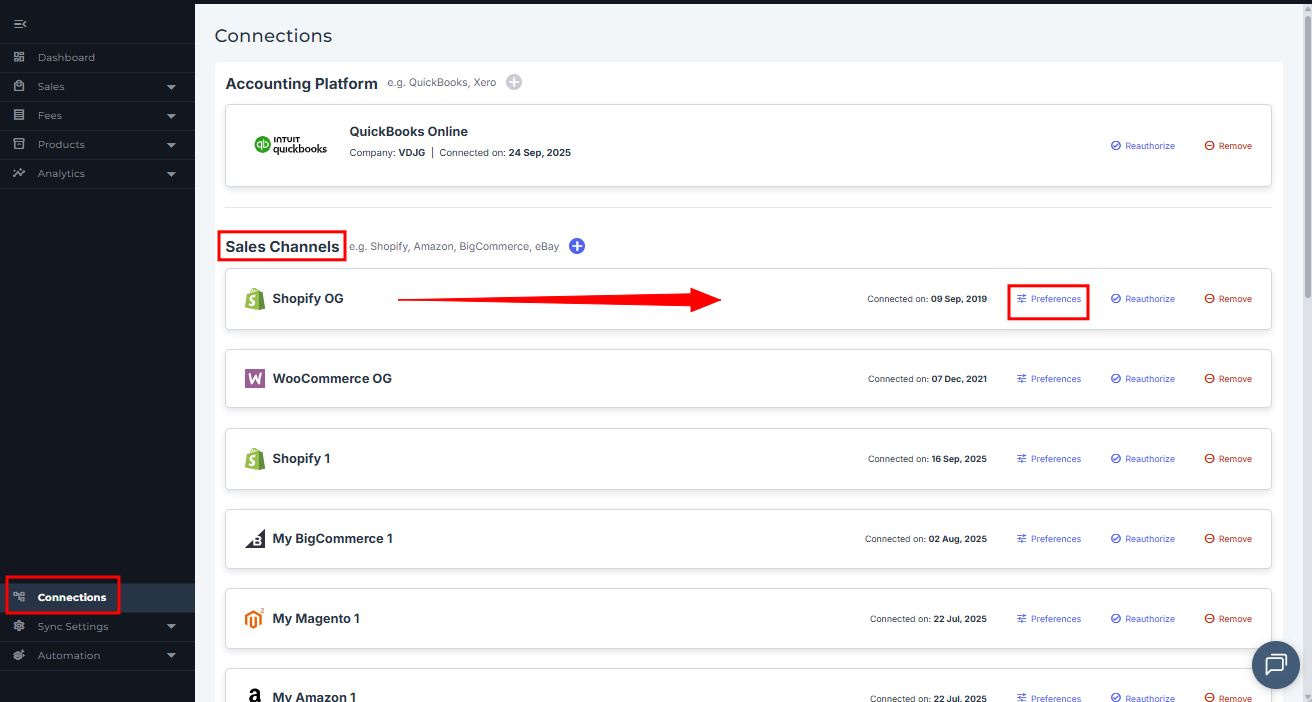
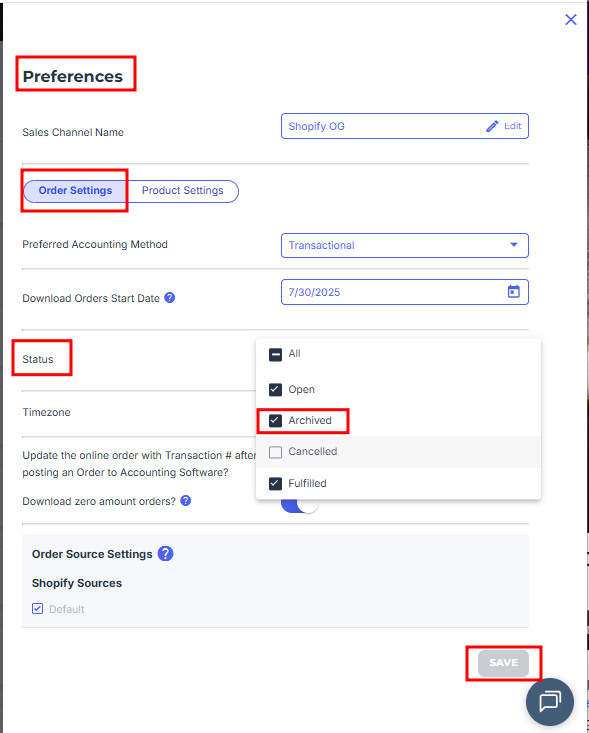
- Download and check your orders. Wait for your next scheduled download or follow the manual order download guide. Once the download finishes, go to Sales → Orders and search for the missing Shopify order number.
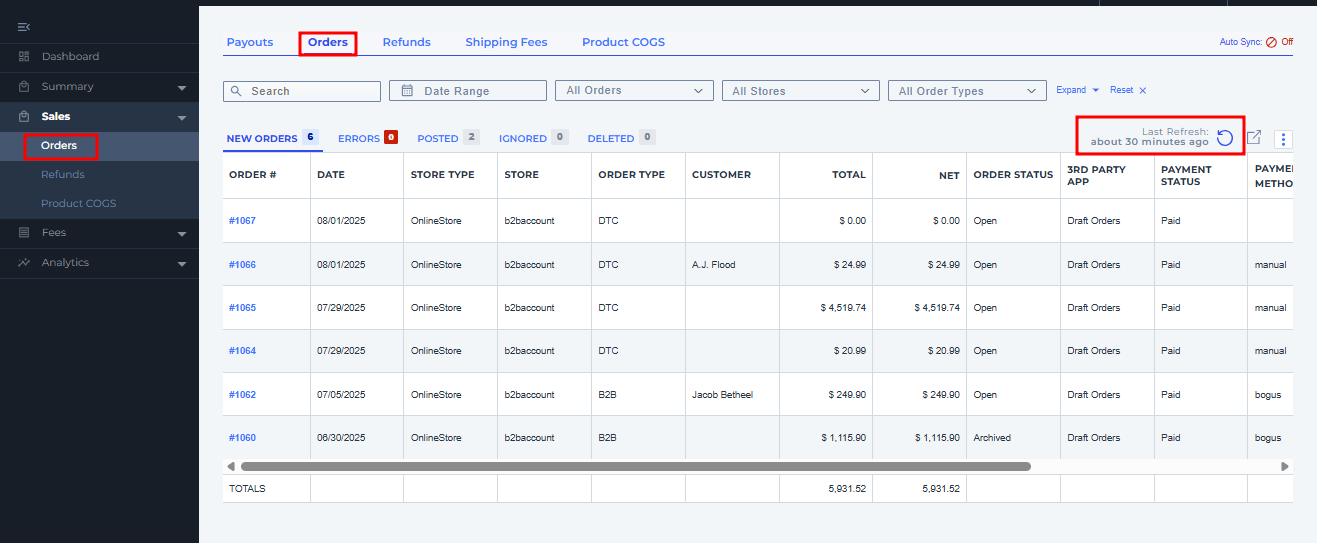
If the order still doesn’t appear, see Shopify Orders Not Downloading in Webgility Online for help checking the download date and finding orders in the Errors or Ignored tabs.
If you have any questions or need more help, please contact our support team.