
When This Applies
You use Webgility Online with one or more connected sales channels and want to control the date range of the orders that flow into Webgility. You want your recent orders to sync every day, and you do NOT want orders from before a specific date — for example, orders from before your Webgility account was connected — to appear in your Orders, Errors, or Flags tabs.
How the Cutoff Works
Webgility Online reads orders from each connected sales channel starting from the Download Order Cutoff date and moving forward. Any order dated before that cutoff is ignored on future syncs and will not appear in your workspace. Two cutoffs work together on your account: a per-channel Order Download Date that you set yourself for each connected store, and an account-level Download Order Cutoff date that Webgility Support manages behind the scenes to keep the routine payout-and-order-matching check from reaching back further than it should. In most cases the per-channel date is the one you use day-to-day; the account-level cutoff is a safety net Support adjusts if unexpected old orders start appearing.
Steps to Set the Per-Channel Order Download Date
Step 1: Open Webgility Online and go to Connections.
Step 2: Under the list of connected sales channels, click Preferences for the store you want to configure. The Webgility Online Order Download Settings for Amazon article shows the full Order Preferences page with every screen you will see.
Step 3: On the Order Preferences page, set the Download Orders Cutoff Date
to the earliest date you want Webgility to import for that channel — a common choice is the date the channel was connected to Webgility.
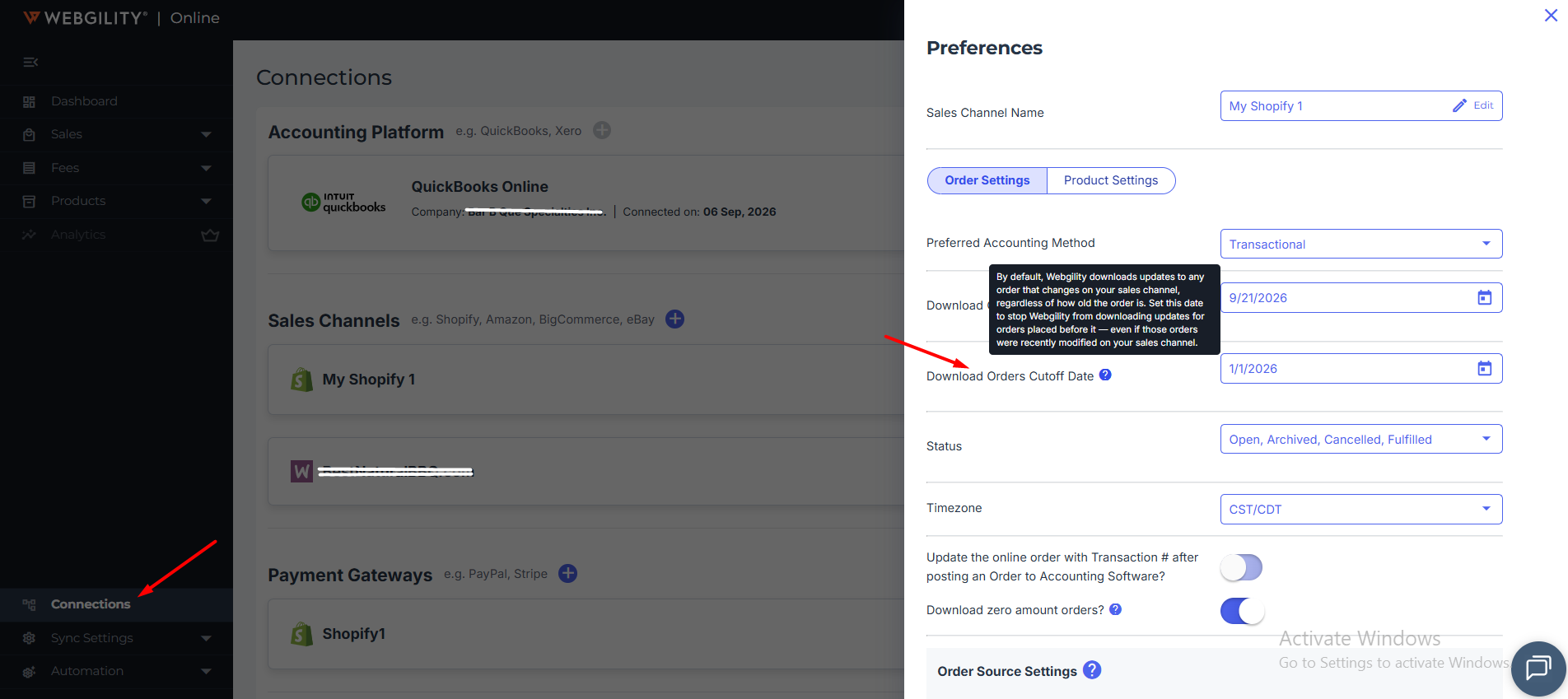
Step 4: Save the change. Webgility applies the new cutoff on the next sync, and any order dated before that date is skipped going forward.
Step 5: Repeat Steps 2 through 4 for each connected sales channel so the same cutoff rule applies to every store on your account.
Key Recommendation
Set the per-channel Order Download Date to the date each channel was connected to Webgility. That keeps your workspace scoped to real, actionable orders and prevents pre-connection orders from flowing in. If your business genuinely needs to import orders older than 90 days, the historical order add-on is the right tool — see Historical Order download with Webgility Online for how that add-on works.
When to Contact Support About the Account-Level Cutoff
The account-level Download Order Cutoff date is managed by Webgility Support and applies alongside the per-channel setting. Reach out to Support if pre-connection orders continue to appear in your Errors or Flags tab even after your per-channel Order Download Date is set correctly. Share your Webgility-to-channel connection date and the earliest order date you are seeing in the affected batch, and Support will align the account-level cutoff so those orders do not return on future syncs.
Additional Support
If the Order Download Date field is unavailable or the setting does not save on a specific channel, share the channel name and a screenshot of the Order Preferences page with Webgility Support so the channel's configuration can be reviewed on your account.