
Overview
If your Shopify POS orders appear in QuickBooks Desktop but the Payment Method field is blank for cash or check sales, check your payment mappings in Webgility Desktop. Each Shopify POS payment method needs a matching QuickBooks payment method.
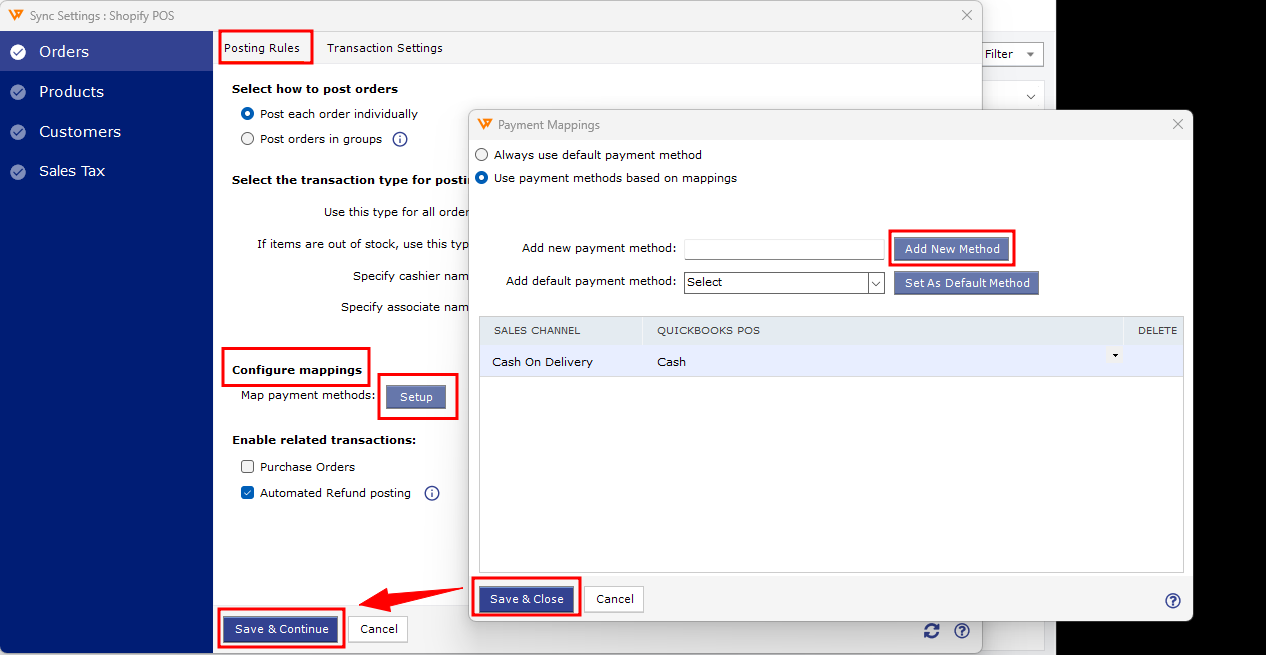
Fix the missing payment methods- Open payment mapping. Follow the first step in Map Payment Method with QuickBooks to find the mapping screen in Webgility Desktop.
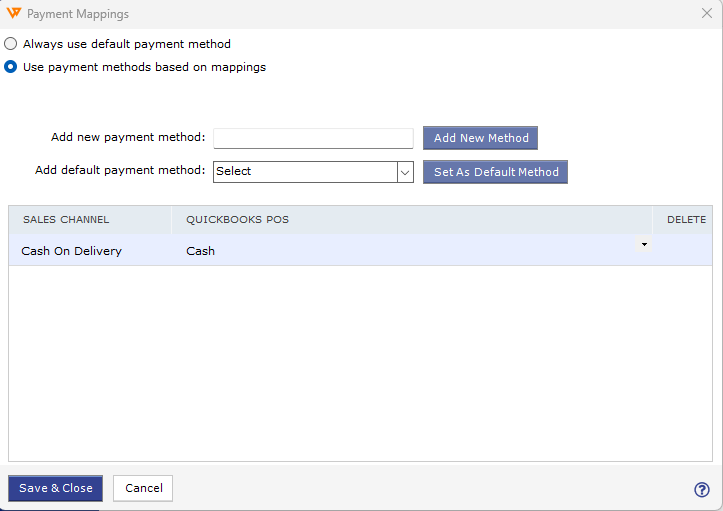
- Map Cash and Check. Add either Shopify POS payment method if it’s missing. Select Cash in QuickBooks for the Cash row and Check for the Check row, then save. If either option is missing from the dropdown, follow the QuickBooks setup and refresh steps in Webgility’s payment method troubleshooting guide.
- Verify the fix. Post one cash order and one check order. Open each sales receipt or invoice in QuickBooks Desktop and confirm that the Payment Method field shows the expected value.
The new mappings apply to orders posted after you save them.
If you have any questions or need more help, please contact our support team.