
Overview
If a payout or order fails to post with the error “There is an invalid reference to QuickBooks Payment Method 'Credit Card' in the Receive Payment,” the payment method mapped in Webgility Desktop may be inactive, renamed, or missing in QuickBooks.
Follow the steps below to reactivate the payment method, refresh the list, and update the mapping.
Step 1: Reactivate the Payment Method in QuickBooks
- Open QuickBooks and navigate to Lists > Customer & Vendor Profile Lists > Payment Method List.
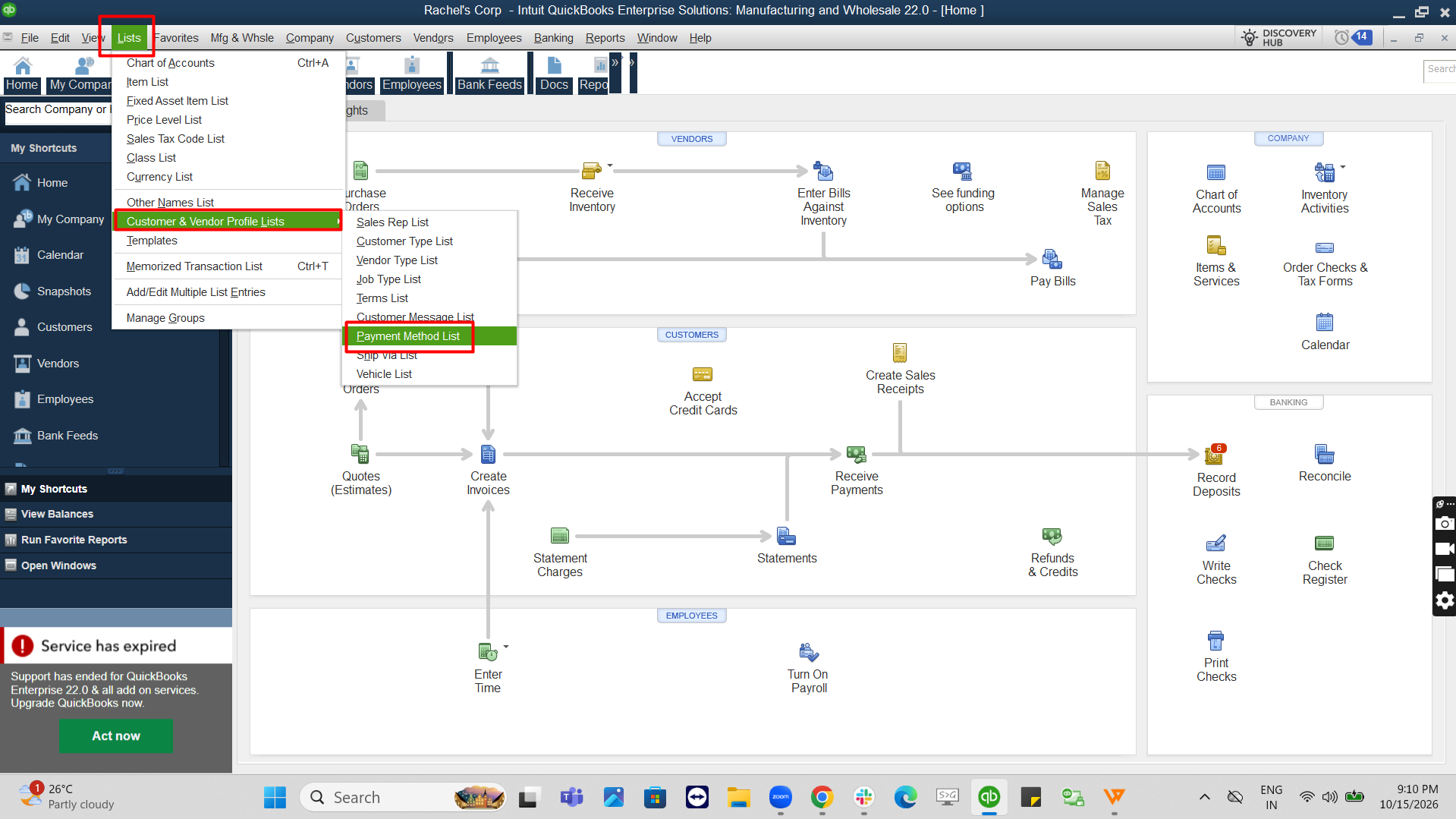
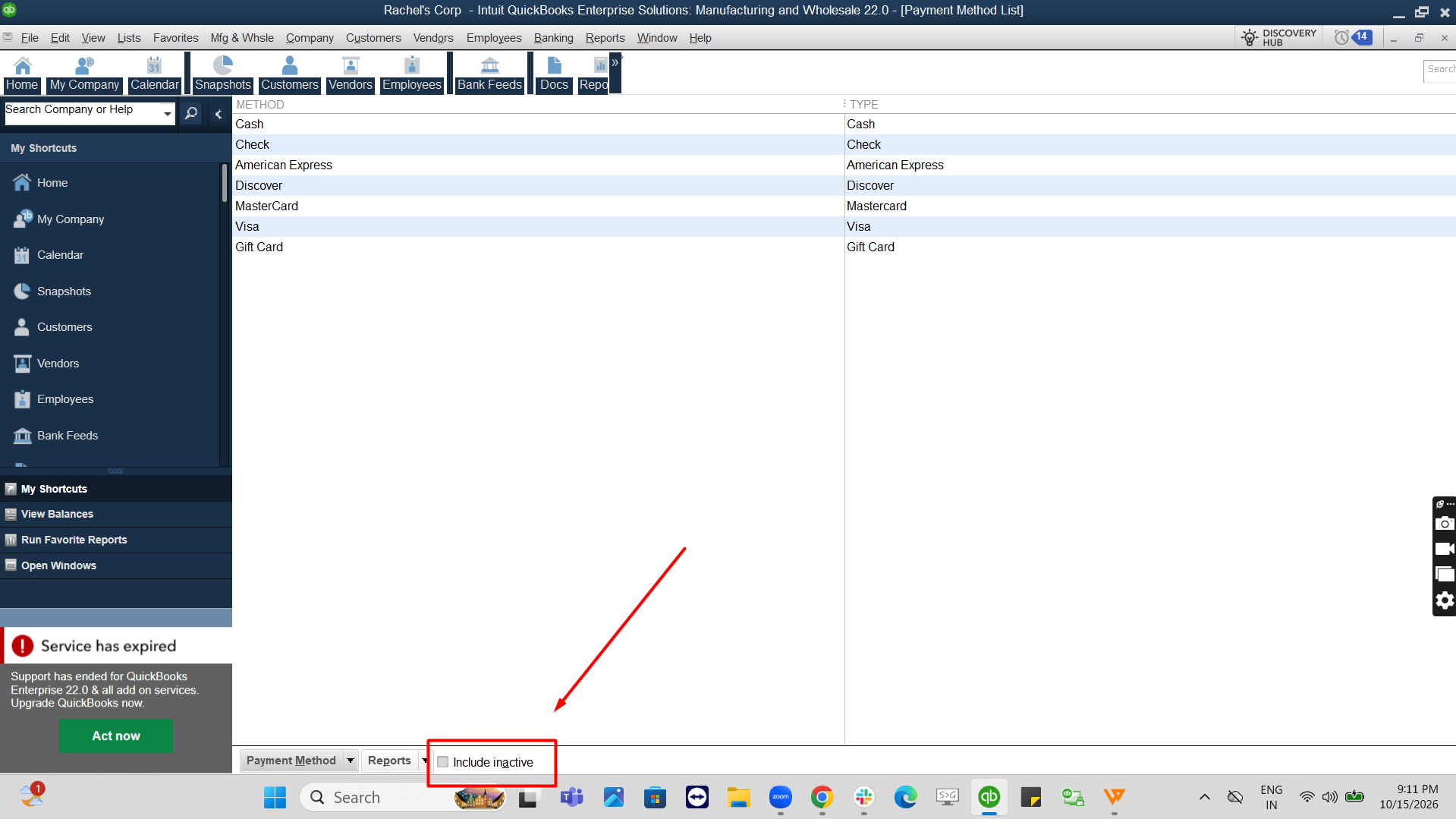
- Check the box 'Include Inactive' to see the hidden inactive payment methods.
- Right-click the affected payment method and clear Make Inactive.
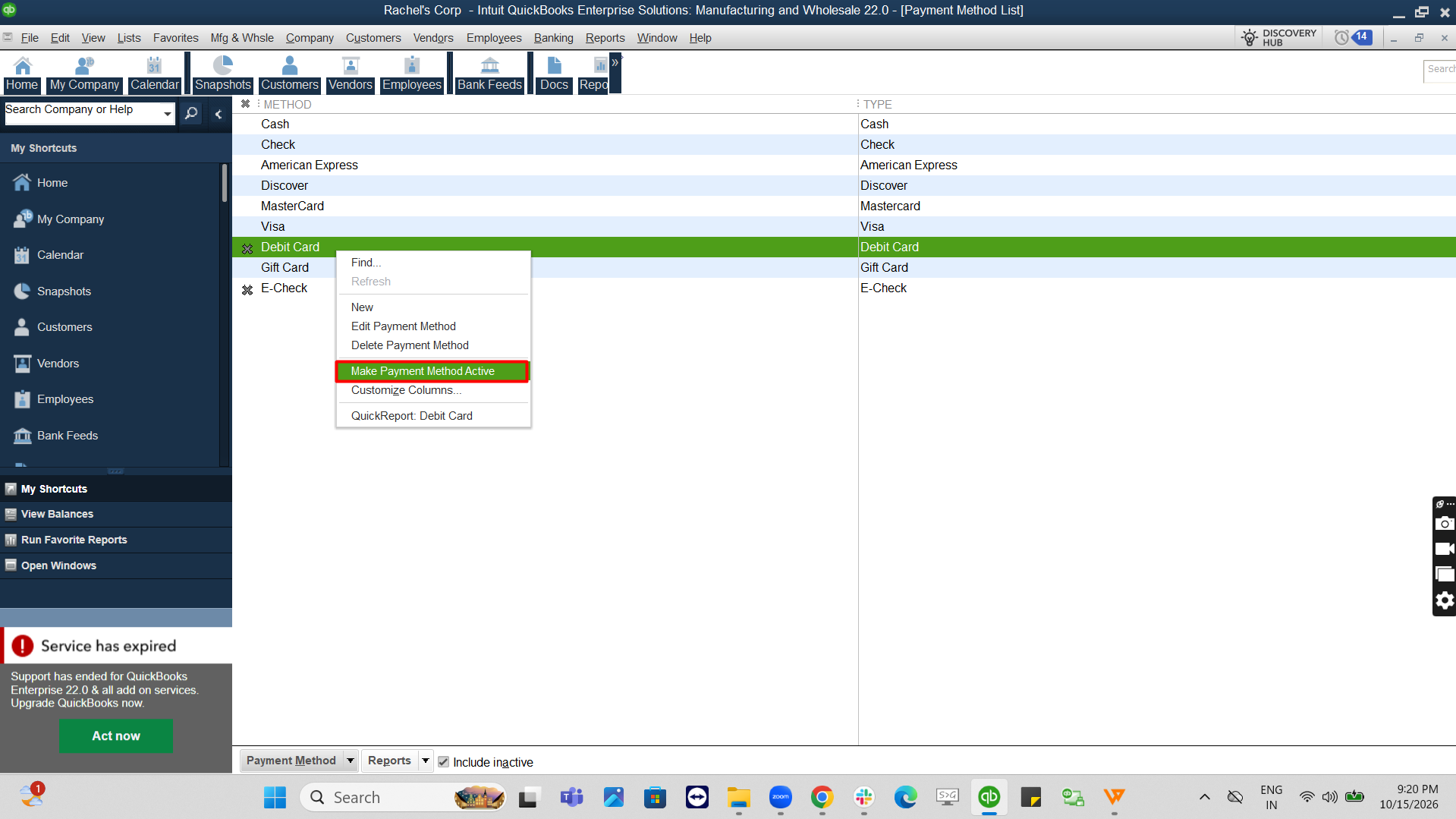
- Repeat for any other affected payment methods.
Step 2: Refresh Payment Methods in Webgility Desktop
- Go to Connections > Accounting/POS/ERP > Sync Settings.
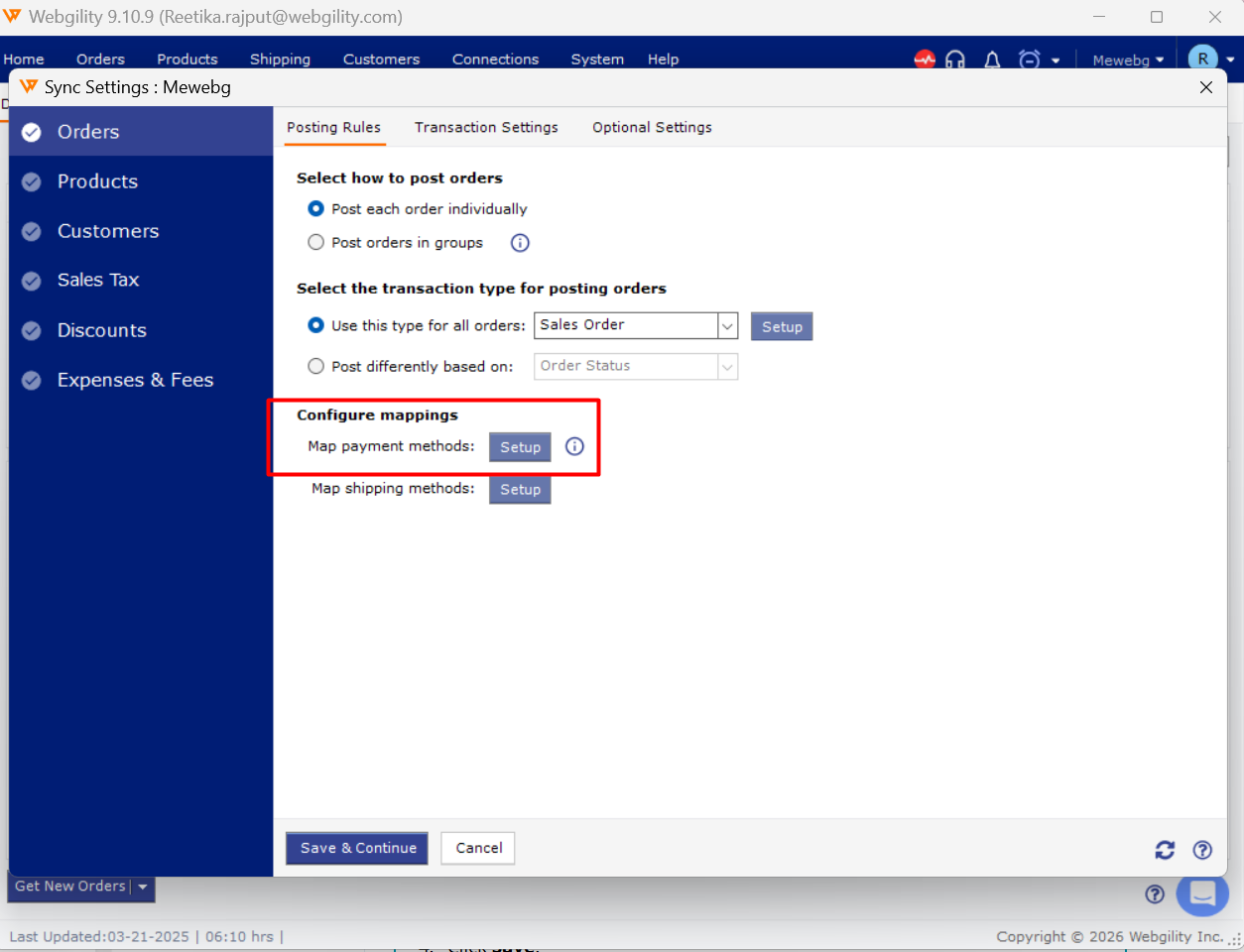
- Click Refresh to retrieve the latest payment methods from QuickBooks.
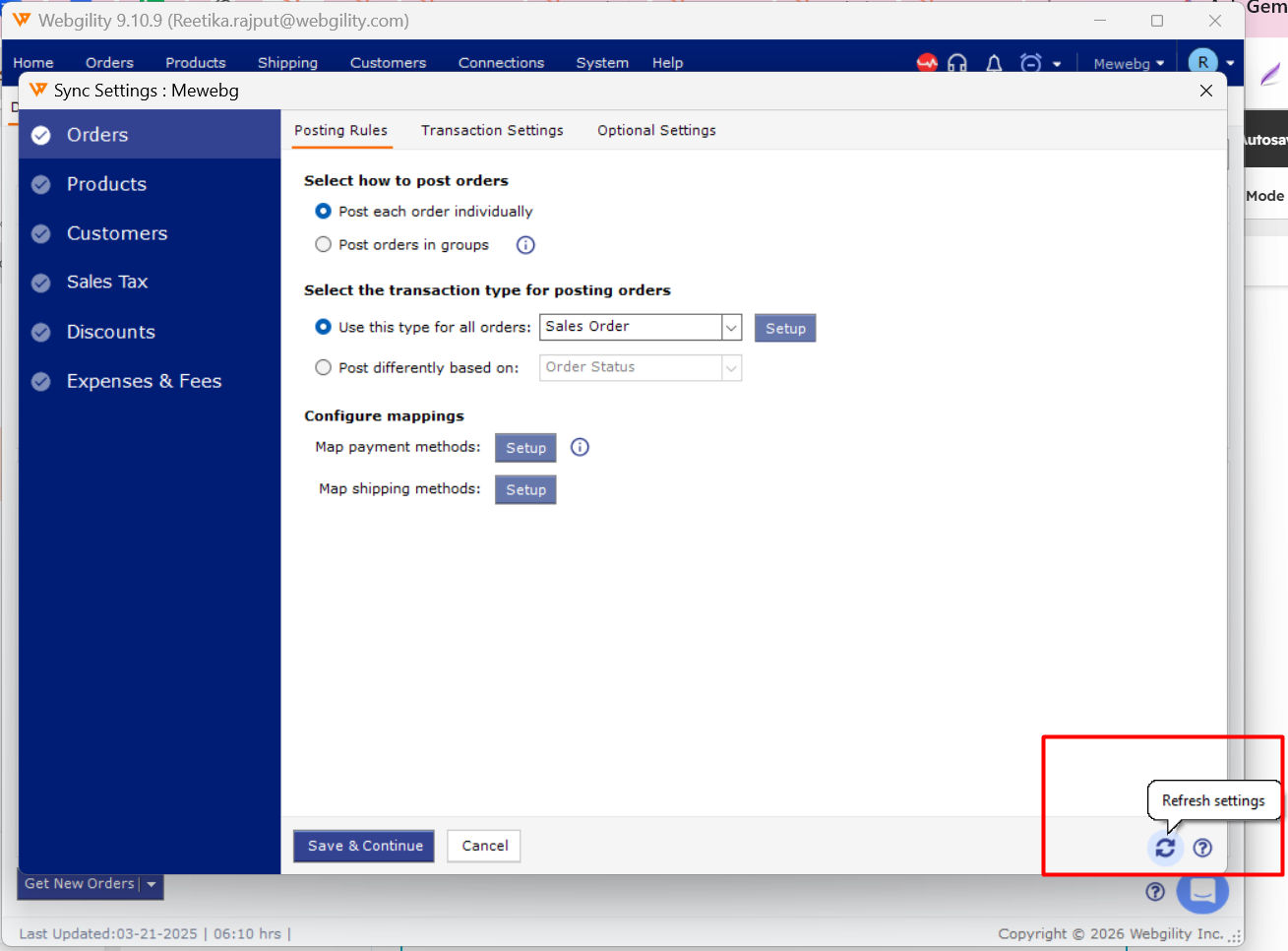
Step 3: Update the Payment Method Mapping
- Open the Payments sub-tab under Sync Settings.
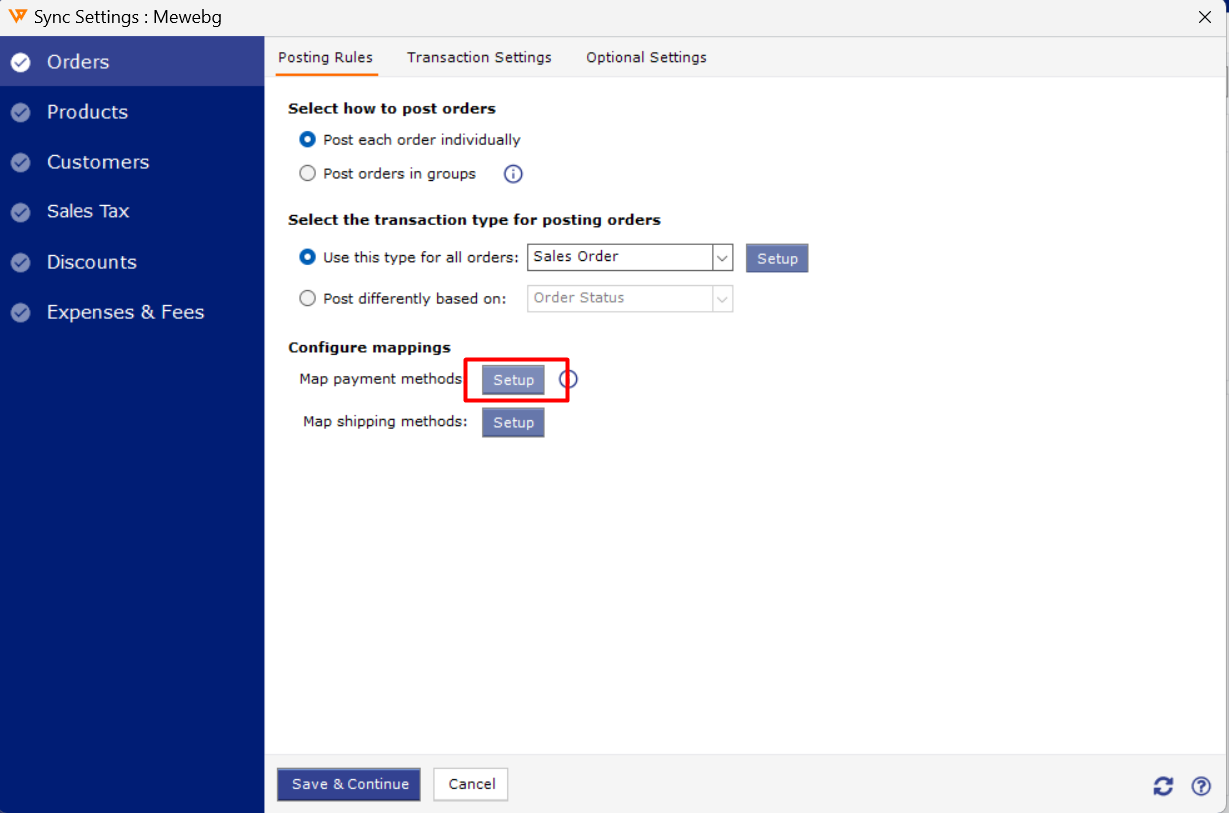
- For each affected row, select the correct QuickBooks payment method from the dropdown.
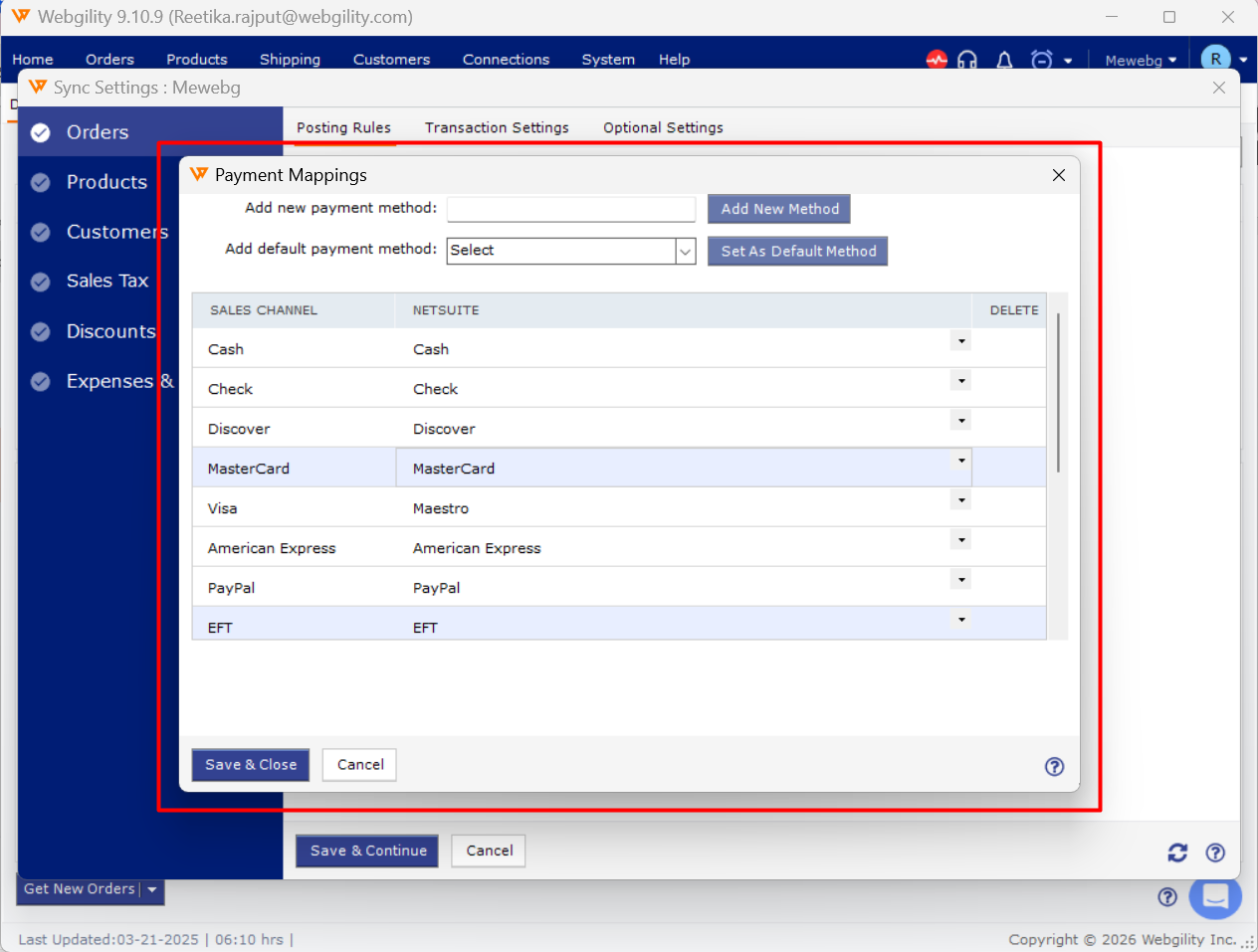
- Ensure the mapping matches the payment method name in QuickBooks.
- Click Save.
Step 4: Retry the Failed Transaction
Open the failed payout or order and retry posting it to QuickBooks. If the order remains locked, refer to Warning: The Order Is Already Locked By.
Important Notes
- Keep payment methods active in QuickBooks until all pending transactions using them are posted.
- When adding a new payment method, create it in QuickBooks first and map it in Webgility Desktop.
- If a payment method is still missing, refer to Map Payment Method with QuickBooks.
- For fee-posting configurations, see How to Post / Not Post Payment Fees Along With Orders.
Still Need Help?
If the error persists, contact Webgility Support and provide:
- The Webgility Desktop payout ID.
- The exact payment method name in QuickBooks.
- A screenshot of the Payments sub-tab mappings.