
Open the Multi-currency settings panel in Sync Settings, pick the correct Standard customer for the affected currency, save, and your next posted order lands against that customer.
When This AppliesYour connected QuickBooks file has multi-currency enabled, and one of two symptoms shows up. Either orders in one currency are posting under the wrong customer (for example a USD order showing against a Euro customer). Or orders in a specific currency fail to post with the error "Unable to find the specified AR account" because no Standard customer is set for that currency.
How It WorksWhen multi-currency is on in QuickBooks, each enabled currency carries its own Standard customer in Webgility Desktop. Webgility uses that customer whenever it posts an order in that currency and the order itself does not match an existing QuickBooks customer. If the Standard customer is wrong or missing, posting lands on the wrong record or fails.
Steps to Change the Standard Customer
Step 1: Go to Connections > Accounting/POS/ERP > Sync Settings.
Step 2: Open the Customers tab, then expand Multi-currency settings, then click Set up Standard customer.
Step 3: Find the row for the currency you need to change, then pick the correct customer from the dropdown for that currency. If you have not set up multi-currency on this profile before, complete the first-time setup in Multiple Currency Settings in Webgility Desktop first.
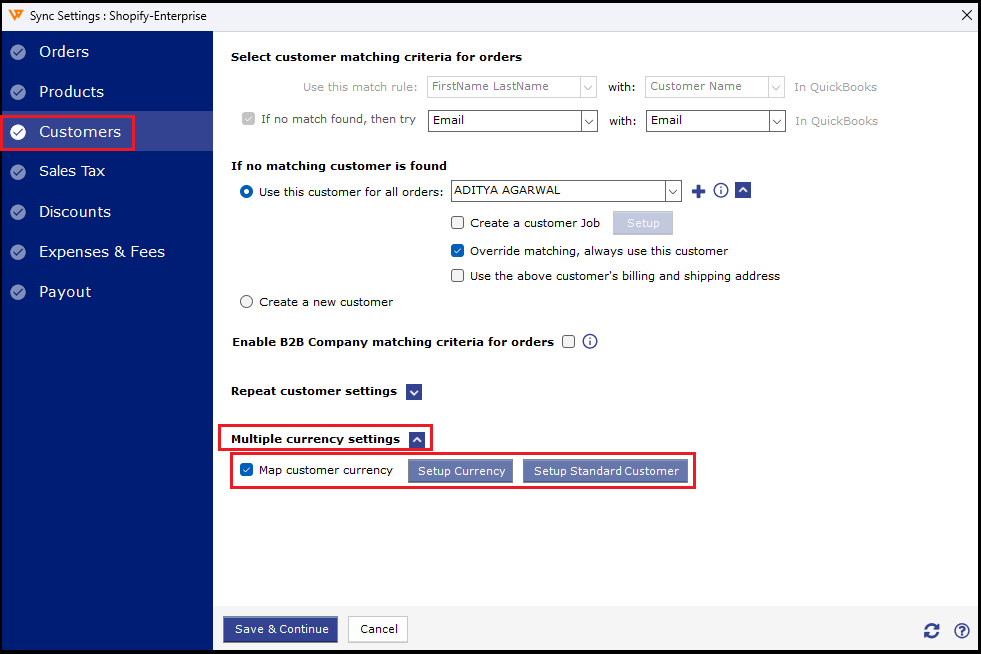
Step 4: If the customer you want is not in the dropdown, click Refresh (at the bottom right) on the Sync Settings screen to pull the latest customer list from QuickBooks, then open the dropdown again.
Step 5: Click Save, then click Save and continue to commit the change.
Step 6: Restart Webgility Desktop, then re-download or re-post one order in the affected currency to confirm it now lands against the correct customer.
Key RecommendationReview your Standard customer for every currency whenever you add a new currency in QuickBooks, add a new sales channel to Webgility, or clean up the QuickBooks chart of accounts. One missing or wrong selection is enough to misroute every future order in that currency, and the earlier you catch it, the less re-posting work you have.
Additional SupportIf posting still lands on the wrong customer after the change and a restart, email support@webgility.com with these details. Share the sales channel name, the currency, one affected order number, a screenshot of the Multi-currency settings panel showing your current Standard customer selection, and the customer name you expect the order to land against.