Part of How to View and Search Your Orders in Webgility i.
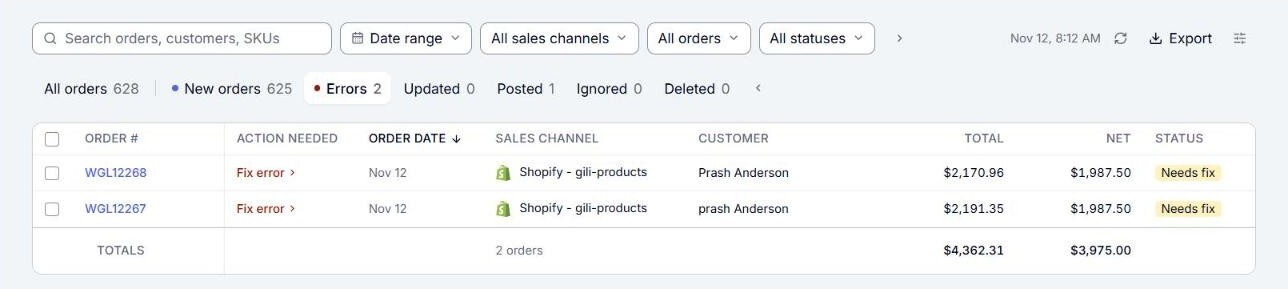
What each order shows
- Order #: the order number at the sales channel.
- Order date: the date the order was placed.
- Sales channel: the store the order came from.
- Customer: the buyer's name.
- Total: what the customer paid, including shipping and tax, less discounts.
- Net: what the order earned after discounts, fees, postage, cost of goods and refunds.
- Status: where the order stands in posting: Not posted, Posting, Posted, Needs fix, Error, Held by rule, Updated, Ignored or Deleted.
- Details: for a posted order, the QuickBooks Online document it became, such as Sales receipt or Invoice. Click it to open the document in QuickBooks Online. For an order that could not post, the reason. This column shows on the All orders and Posted tabs.
- Action needed: on the Errors tab, what to do next: Map product, Fix error, or View rules for an order a rule holds. Point to it to read the reason.
Under the last order, the totals row shows how many orders match and what their customers paid. When you tick orders, it adds up the ticked orders instead.