Part of Understanding and Using the Inbox in Webgility i.
What appears in the Inbox
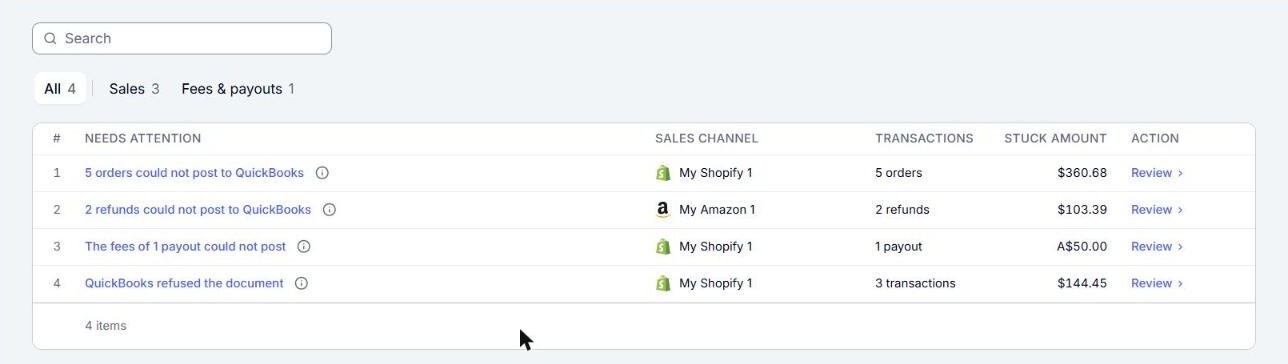
The Inbox has one row for each kind of problem in each sales channel. The kinds are:
- Orders that could not post: the row reads, for example, "3 orders could not post to QuickBooks". QuickBooks Online refused these orders, or they could not be sent to it, and none of them is in QuickBooks Online yet. Most orders that cannot post are in a flag instead (see Flags below), so you see this row only for orders no flag covers.
- Orders changed after posting: the row reads, for example, "2 orders changed on the channel after posting". The sales channel changed these orders after they posted, and Webgility i holds each change until you apply it or keep the posted document as it is.
- Refunds that could not post: the row reads, for example, "1 refund could not post to QuickBooks".
- Shipping fees that could not post: the row reads, for example, "2 shipping fees could not post as Bills".
- Fees and deposits of payouts that could not post: the row reads, for example, "The fees of 1 payout could not post" or "The deposits of 2 payouts could not post".
- Held payouts: the row reads, for example, "2 payouts are held for you". Webgility i holds these payouts until you decide what to do with them.
- Flags: one row for each thing you need to fix, such as "A product isn't mapped to a QuickBooks item" or "The sales channel needs to be re-authorized". A flag can cover orders and refunds from more than one sales channel, in which case its sales channel reads All channels. See Understanding Inbox Flags in Webgility i.
For each row the Inbox shows these columns:
- Needs attention: what happened, and under it more detail or what to do.
- Sales channel: the store the transactions come from.
- Transactions: how many orders, refunds or payouts the row holds. A flag about a sales channel's sign-in holds no transactions: its Transactions column shows a dash.
- Stuck amount: what those transactions add up to. A row of changed orders shows a dash, because those orders are already posted. A row of payouts in more than one currency shows Mixed currencies.
- Action: a link to the page that lists the transactions.
Under the last row, a totals row shows how many items are listed and their stuck amount added up.