
Overview:
You might experience this error because another user of your QuickBooks is modifying the item while Webgility Online is trying to post the order. Modified item data needs to be downloaded in Webgility Online from QuickBooks to resolve the error.
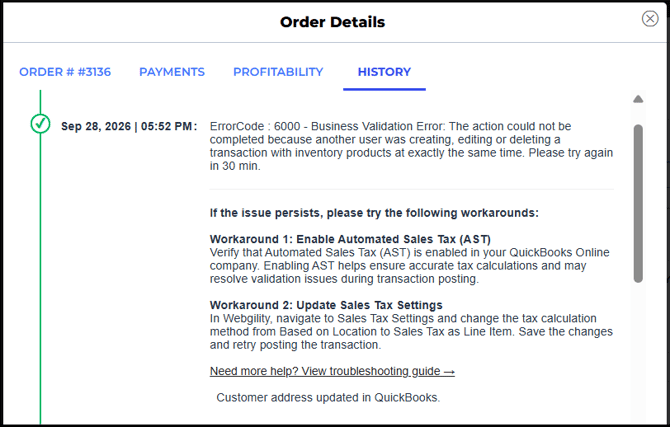
To download latest accounting data in Webgility Online, follow the help article: Download the Latest Data from QuickBooks in Webgility Online
Note 1: Since the release of Webgility Online v8.40.0, it is capable of automatically downloading all items from QuickBooks Online, so no manual action is required.
Note 2: None of the QuickBooks users are modifying the items in QuickBooks till the errored orders is successfully posted
If the error persists after retrying the order, try the following workarounds.
Workaround 1: Enable Automated Sales Tax
Verify that Automated Sales Tax (AST) is enabled in your QuickBooks Online company.
Automated Sales Tax helps QuickBooks Online calculate taxes based on the applicable tax rules and may resolve tax-related validation issues during posting.
Workaround 2: Update the Sales Tax Settings in Webgility
You can change the tax calculation method in Webgility Online:
- Open Webgility Online.
- Navigate to Sales Tax Settings.
- Change the tax calculation method from Based on Location to Sales Tax as Line Item.
- Save the changes.
- Return to the Error tab.
- Select the affected order.
- Click Post to QuickBooks.
For more information about this QuickBooks business validation error and additional troubleshooting steps, please refer to the following article:
Business Validation Error Code 6000 – Unexpected Internal Error 30000