
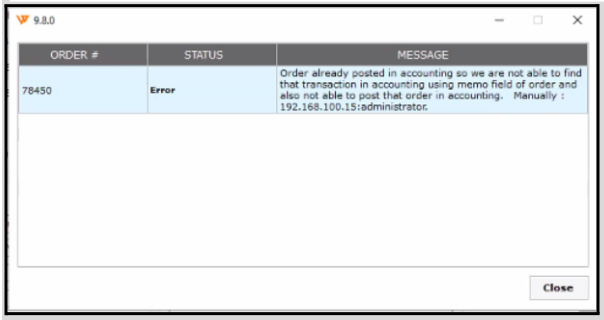
Error Message:
Order already posted in accounting so we are not able to find that transaction in accounting and also not able to post the order in accounting.
Root Cause:
This error occurs when an order is redownloaded in Webgility without unsyncing the previously posted transaction in accounting. This leads to issues where the order is not found in accounting and cannot be posted again.
-
Redownloading Orders Without Unsyncing:
If an order is redownloaded without first unsyncing the existing transaction or if the order update is accepted without selecting "Undo Sync" when prompted, Webgility treats the order as new. However, when attempting to post it again, it detects the original transaction in QuickBooks via its internal GUID.
Solution:
1). Check Webgility Order History:
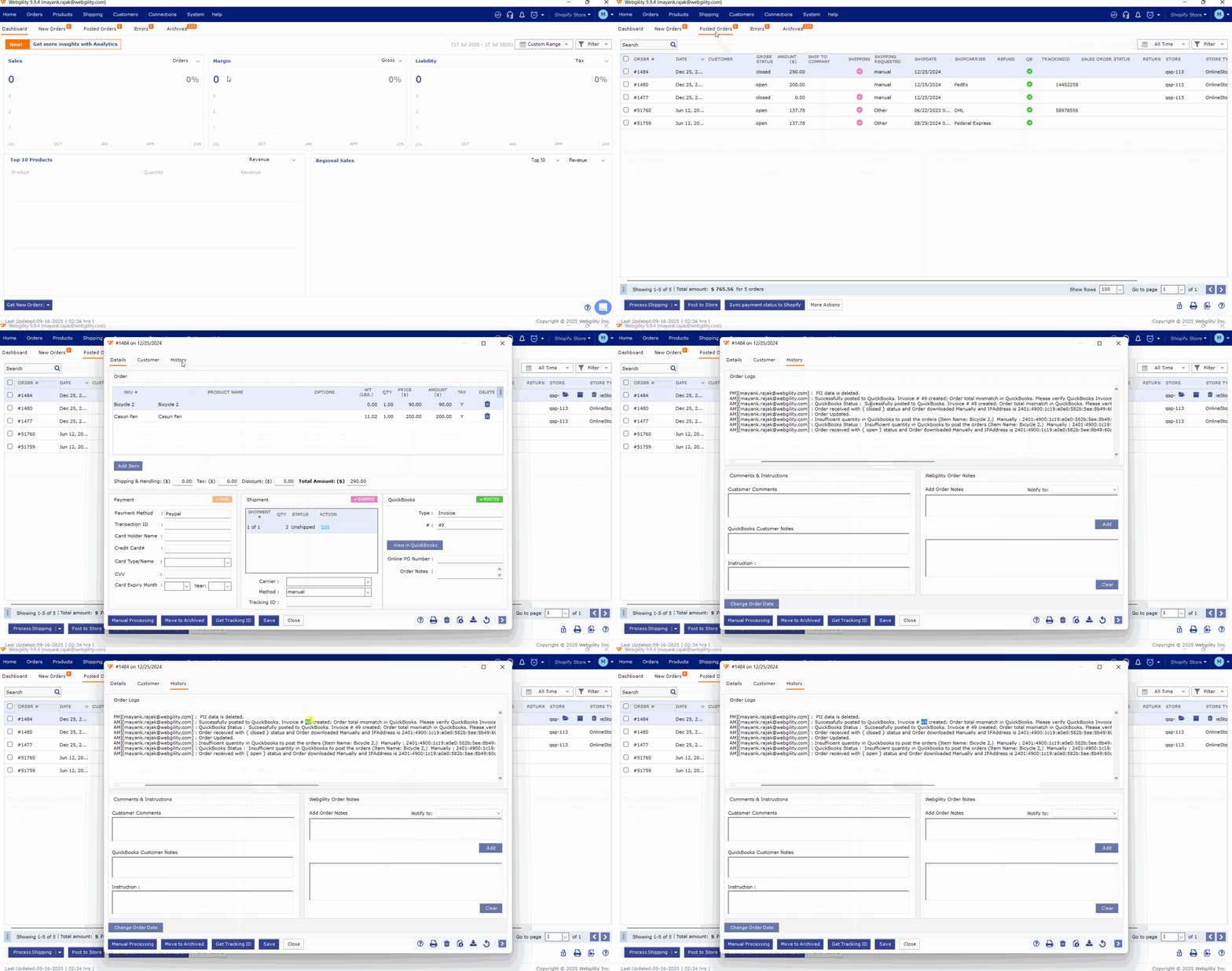
- In Webgility Desktop go to the Posted Orders Tab.
- Double click on the affected order and click on the Order History Tab.
- Check the time stamp for when this order was synced over to QuickBooks, there should be a history stamp by Successfully posted order to QuickBooks.
- Copy the transaction number of that order and search it in QuickBooks.
- Find the old invoice number associated with the order.
2). Locate and Delete the Transaction in QuickBooks:
-
Use the invoice number found in Webgility to locate the original transaction in QuickBooks.
-
Delete the transaction in QuickBooks.
3). Repost the Order:
- After deleting the transaction in QuickBooks, go back to Webgility Desktop and re-try posting the order again.