
Overview:
This error usually occurs when you are trying to sync product quantities with QuickBooks to store or vice-versa.
Note: This error specifically occurs on Shopify store integration.
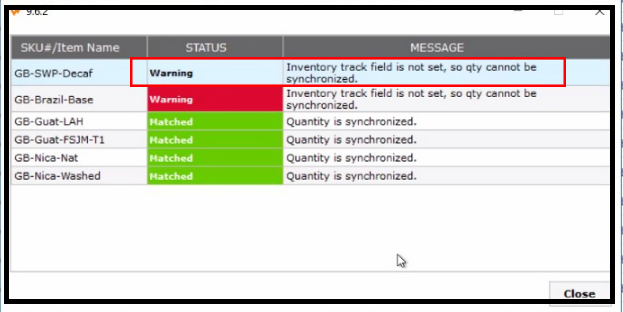
Troubleshooting Steps:
-
Login to Shopify with the Admin/Owner credentials.
- Click or search for the product that you want to track inventory for.
- Optional: If the product has variants, then click the variant that you want to track inventory for.
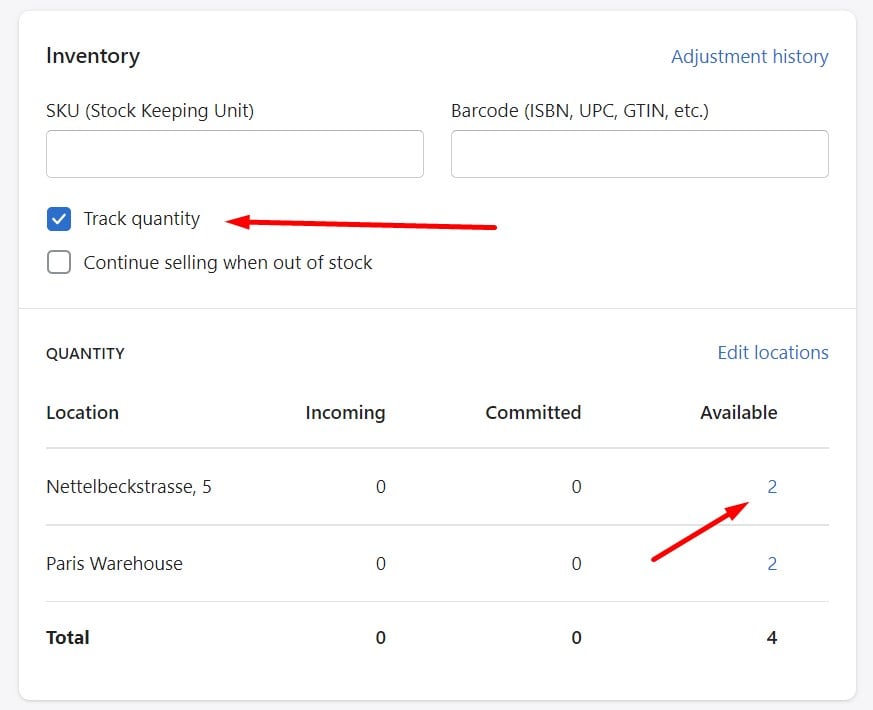
- In the Inventory section, check the Track Quantity option as shown in the screenshot below & click Save.
-
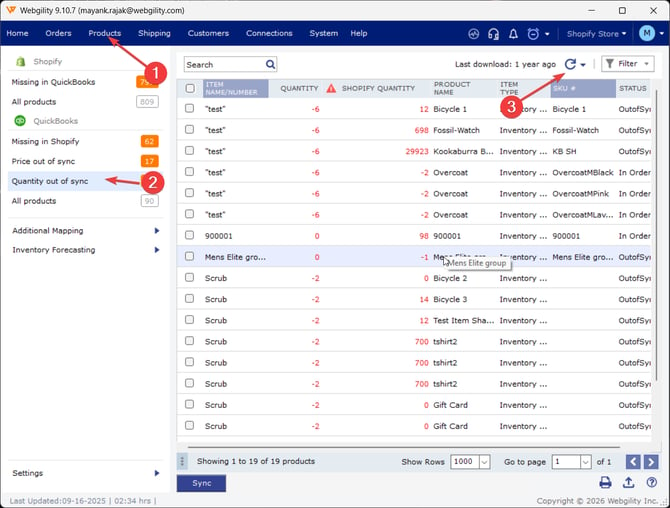
Once the Tack Inventory option is enabled on your Products, In Webgility Desktop navigate to the Products Tab go to Quantity out of Sync Tab and hit the Refresh icon on the upper right hand-side.
-
After refreshing the Products retry syncing an item and this time quantities will be synced for products.