
Symptoms:
You may notice one or more of the following symptoms:
- Webgility Desktop closes while downloading data from QuickBooks Desktop.
- Webgility Desktop is unable to connect to QuickBooks Desktop.
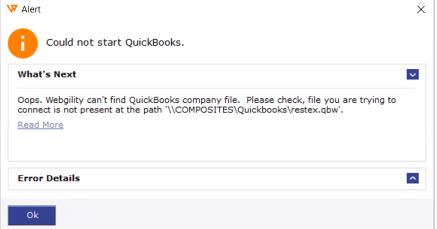
- The connection attempt displays “Could not start QuickBooks.”
- Webgility Desktop closes when attempting to post orders to QuickBooks.
- The issue continues after retrying the connection.
Root cause:
There are multiple versions of QuickBooks desktop applications installed on the computer as shown below in the screenshot.

Resolution:
Remove unused QuickBooks Desktop versions
- Close Webgility Desktop and QuickBooks Desktop.
- Open Control Panel in Windows.
- Go to Programs and Features.
- Review the QuickBooks Desktop versions currently installed on the computer.
- Identify the QuickBooks Desktop version that is not currently being used with Webgility.
- Uninstall any older or unused versions of QuickBooks Desktop
Before uninstalling software, confirm the active QuickBooks version with your accounting or IT administrator. Keep the active version and make sure your QuickBooks company file and its backup is available before continuing.
Important: Do not uninstall a QuickBooks Desktop version until you have confirmed that it is not the version currently being used by your business.
Note: We recommend ensuring that the backup and uninstallation processes are completed correctly. If you are unsure about any of the steps, please contact your IT support team or Intuit Support for assistance.
Reconnect Webgility to QuickBooks Desktop
After removing the unused or the older version of QuickBooks Desktop:
- Open the remaining active QuickBooks Desktop version.
- Open the QuickBooks company file that is connected to Webgility.
- Sign in to Webgility Desktop.
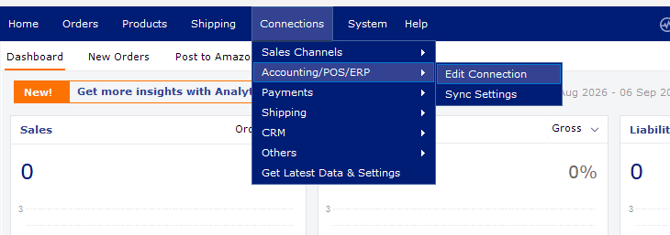
- In Webgility Desktop, go to Connections > Accounting/POS/ERP. Click Edit Connection and reconnect Webgility to QuickBooks Desktop.
- Test the connection and confirm that Webgility Desktop remains open while QuickBooks data is being loaded.
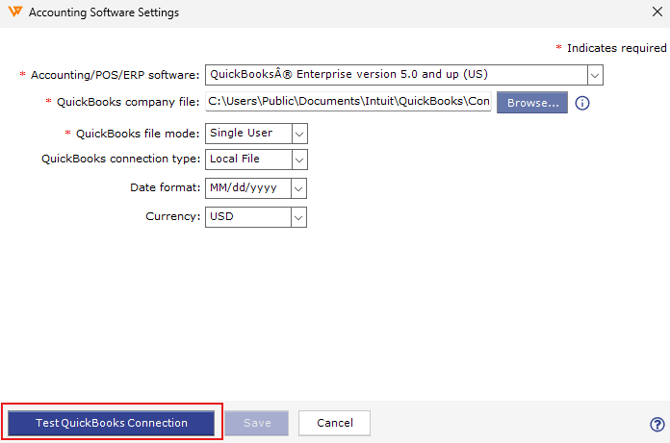
For detailed, step-by-step instructions, refer to the following help article: How to Test QuickBooks Connection in Webgility Desktop