
Overview
Choose Online Order Number in Webgility Desktop’s transaction settings before posting orders. To update orders already posted with a different number, undo their sync and post them again.
Set the transaction number- In Webgility Desktop, navigate to Connections > Accounting/POS/ERP > Sync Settings.
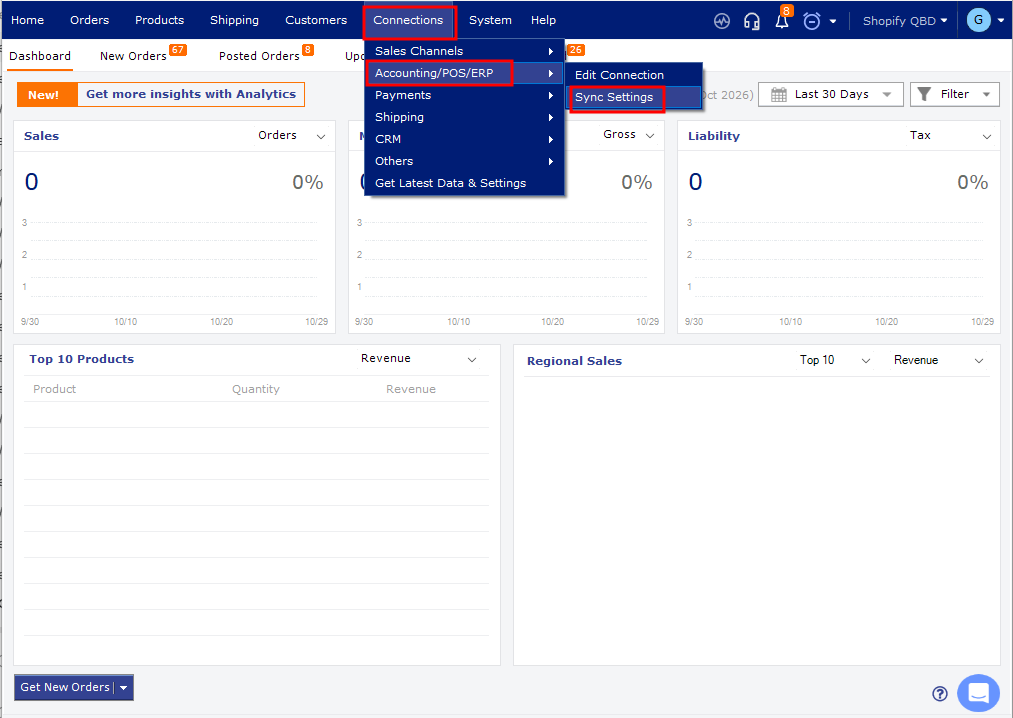
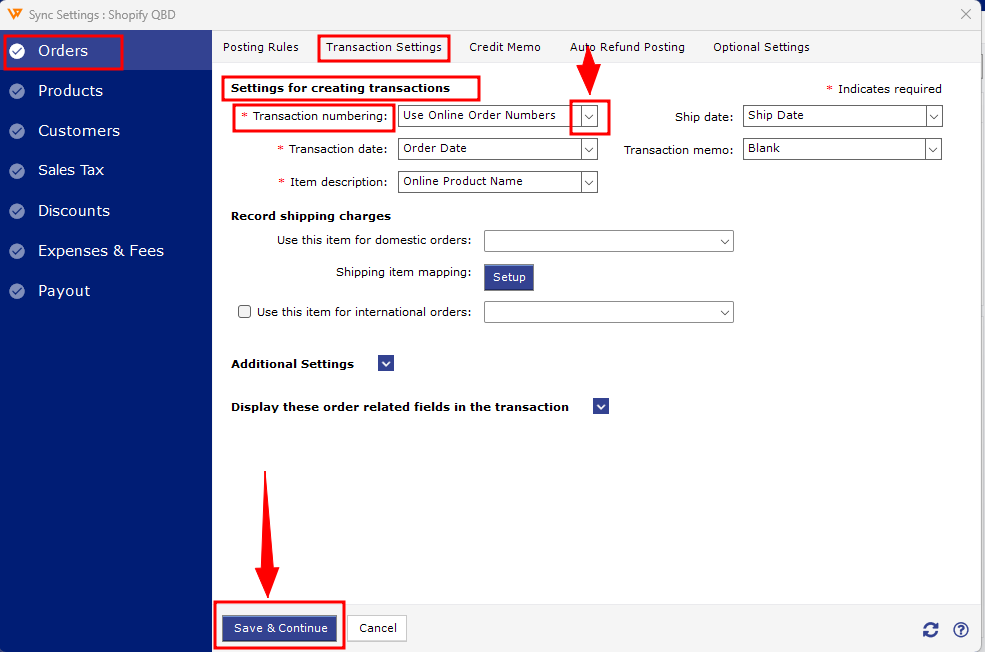
- Orders > Transaction Settings.
- Under Settings for creating transactions, locate Transaction Numbering and select Online Order Number.
- Click Save to apply the changes.
Update previously posted orders
If you want to apply the new format to orders already posted:
- In Posted Orders, select only the orders you want to update.
- Right-click and select Undo Sync, then confirm.
- Select those orders again and choose Post to QuickBooks.
- Check QuickBooks Desktop to confirm the transactions show the online order numbers.
Important: Undo Sync removes the posted transaction from QuickBooks. Review the Undo Sync guide before unposting transactions.
If you have any questions or need more help, please contact our support team.