
Note: Webgility Desktop should be on the latest version (at least v9.9.8) before upgrading this connection.
Step 1: Upgrade the Webgility Desktop app to the latest version on all the required machines.
- Before proceeding, it's important to ensure you're on the latest version of Webgility Desktop. Follow the steps outlined in this guide: How to Update Your Webgility Desktop Software to upgrade the application.
Step 2: Upgrade Walmart integration to OAuth.
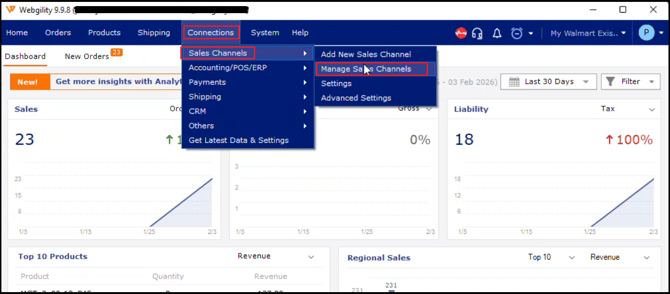
- In Webgility Desktop navigate to Connections → Sales Channel → Manage Sales Channels.
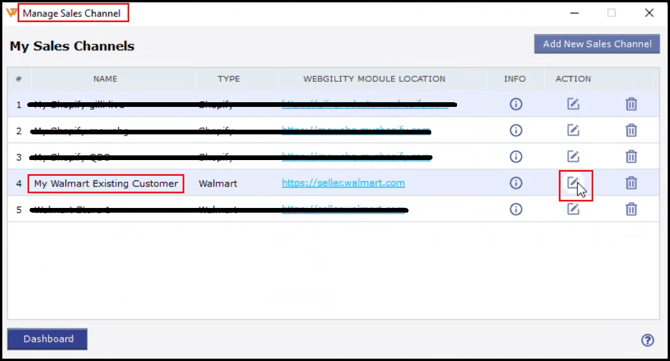
- This will open the list of all the sales channel you have connected, so click on ‘Edit’ button under the Action column for your Walmart channel.
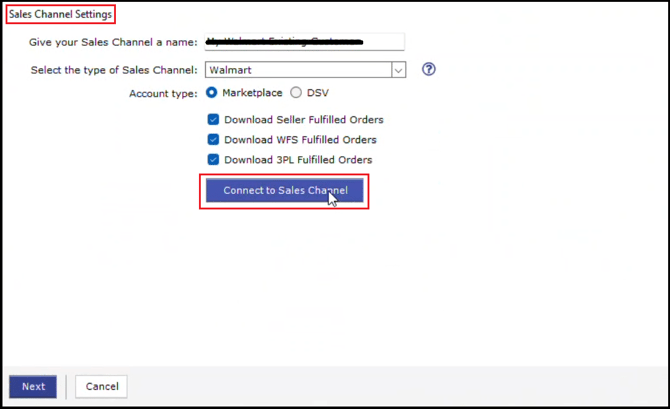
- Click on Connect to Sales Channel
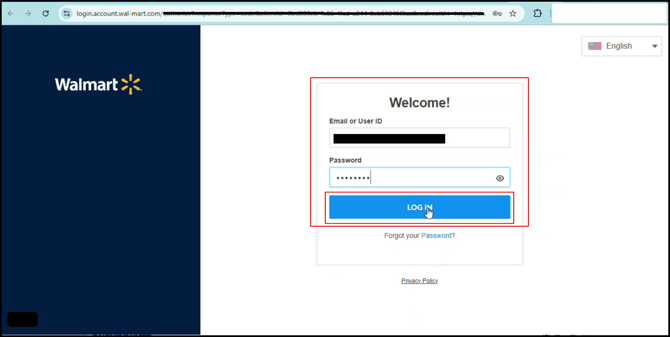
- This will redirect you to your default browser asking you to enter your Walmart marketplace credentials. So update the credentials and click on Login.
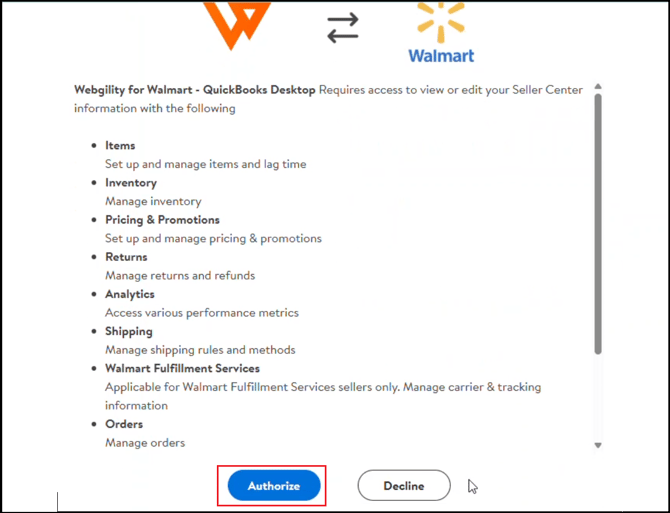
- Now you need to authorize the connection, so click on Authorize.
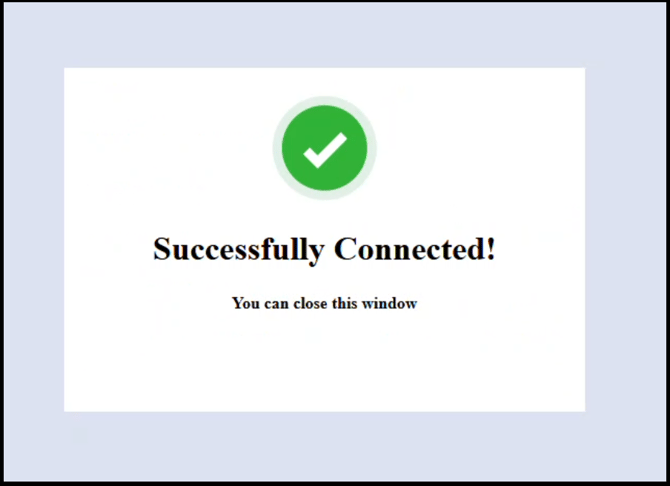
- After a minute of two you shall receive success message ‘Successfully connected’ so you can close that browser window.
- Also Webgility Desktop shall generate its own success message in the meantime ‘Successfully connected to Walmart’.
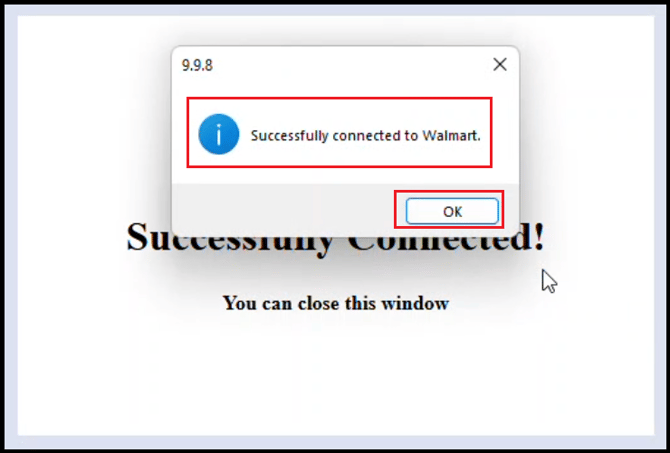
- So now click on Ok > Next > Update your Sales Channel information > and click on Save Sales Channel.
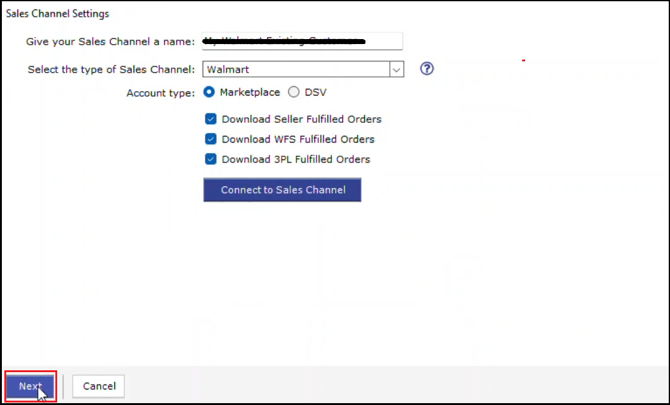
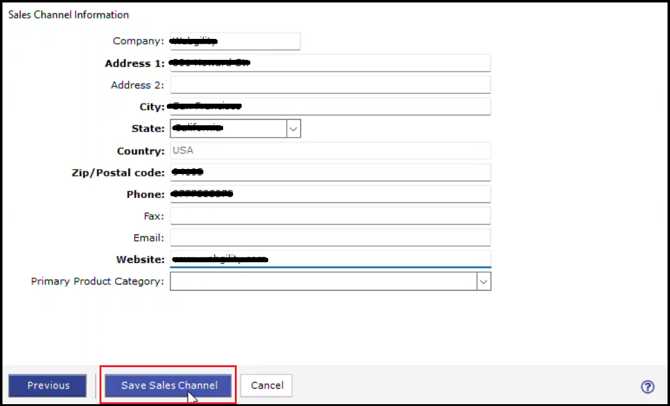
- Now you can continue with the order download from Walmart with the new OAuth flow.