
Part of How to Manage Your Account and Subscription in Webgility i.
Steps: Update your account details
- Click your name at the bottom of the left menu, then click My account. The page opens on the Account details tab.
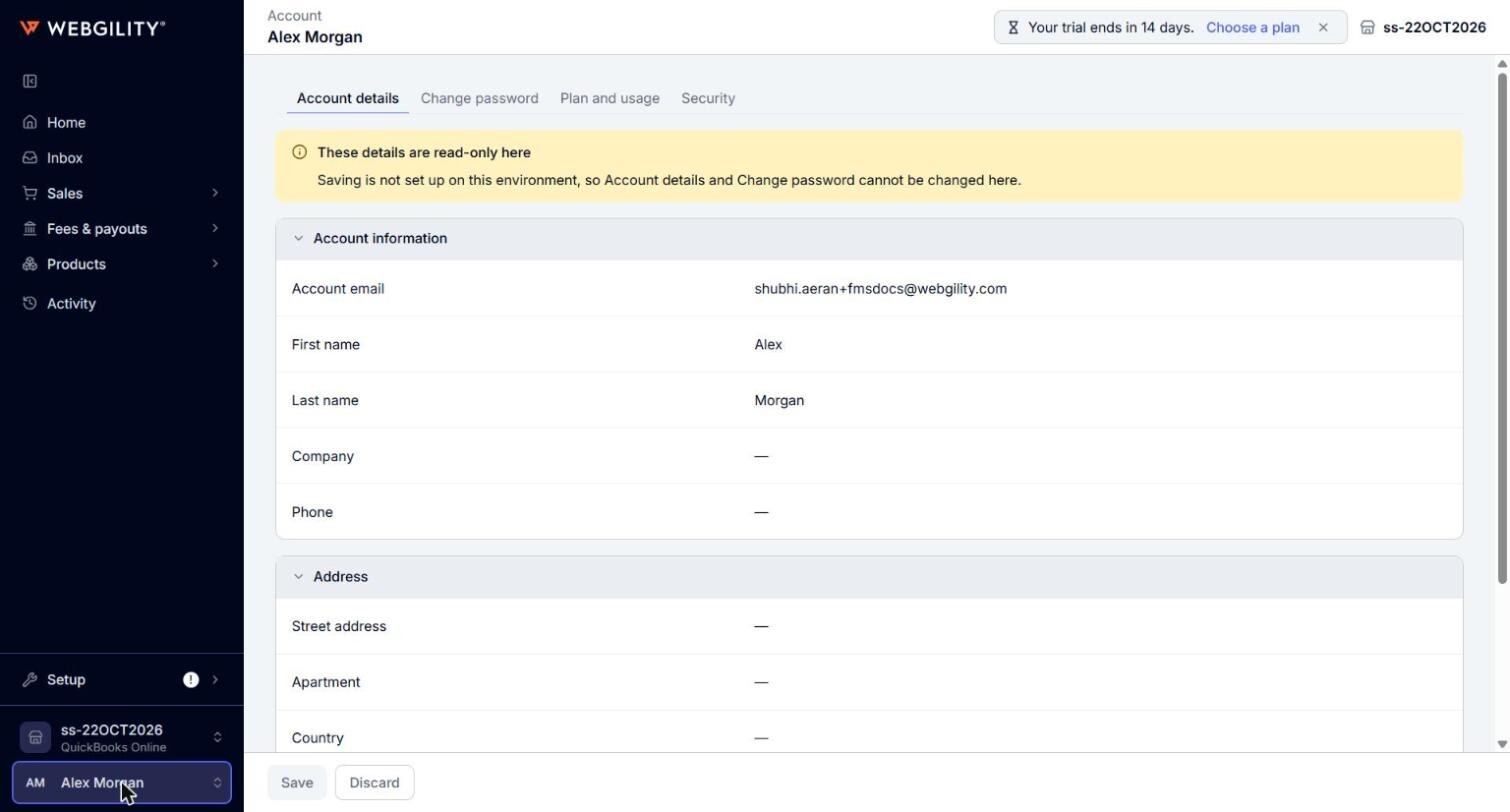
- In Account information or Address, click Edit.
- Change the details you need: First name, Last name, Company, Phone, and the address fields from Street address to Zip code.
- Click Save. The page shows "Account details saved." To leave without saving, click Discard.
Note: Only the primary user of the account can change the account email. When you change your email, Webgility i asks you to confirm: click Save again. You are then signed out and sign in again with the new email.