Part of How to Manage Your Account and Subscription in Webgility i.
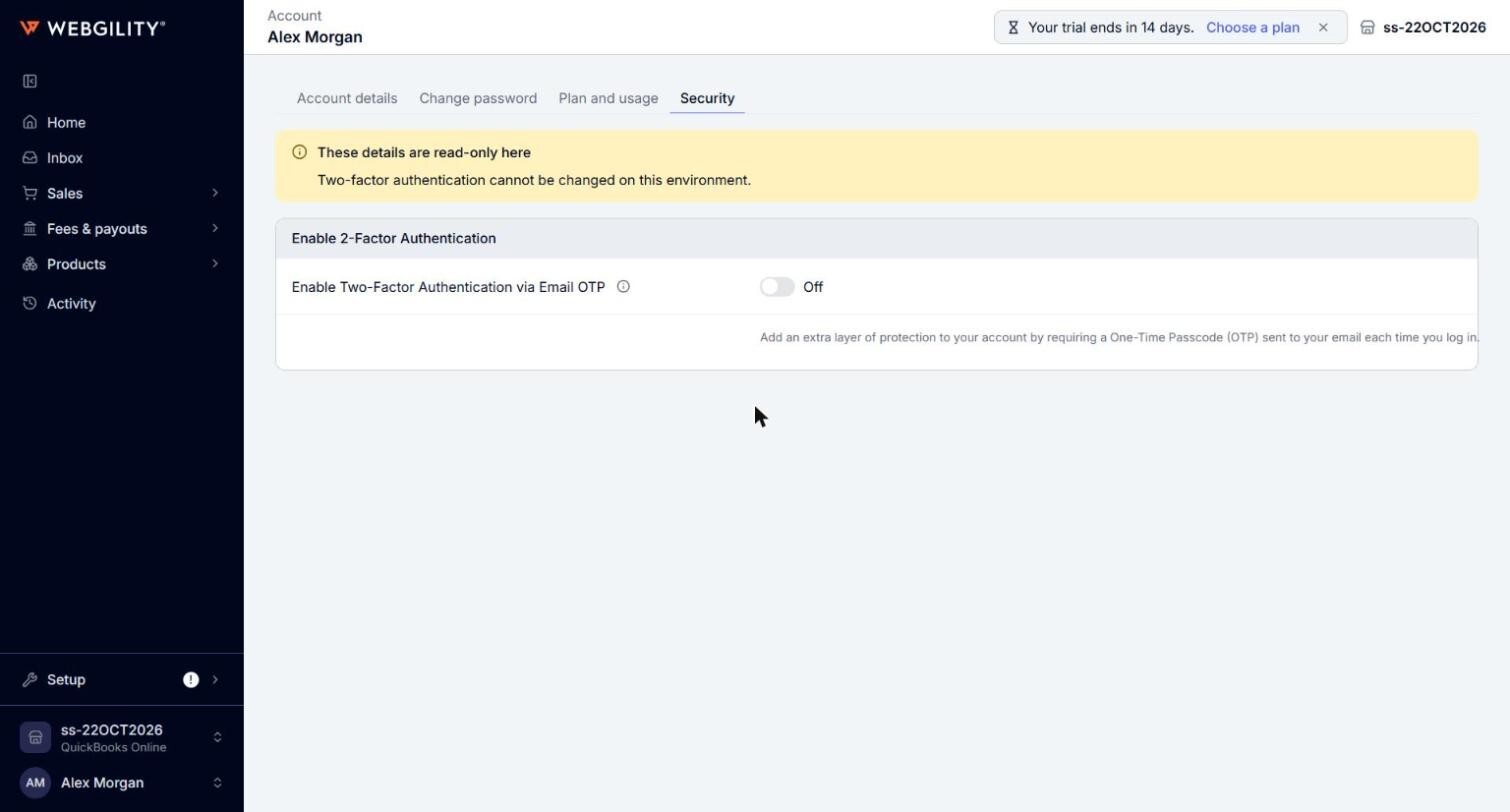
Steps: Turn on two-factor authentication
- On My account, click the Security tab.
- Under Enable 2-Factor Authentication, turn on Enable Two-Factor Authentication via Email OTP. You then receive a 6-digit one-time passcode at your registered email each time you sign in.
- Click Save. The page shows "Account settings updated".
Note: Only the primary user of the account can change two-factor authentication.