
Issue Summary
You might have experienced an error when attempting to post payout reports in Webgility Desktop. The error could be linked to downloading a specific order with a particular option enabled.
Root Cause
The issue can be triggered by a specific download option selected during the order download process. This option conflicted with the payout report posting process, resulting in an error message.
Resolution Steps
The following solution successfully resolved the issue:
1. Identify Affected Order
- Determine which order triggered the payout report error.
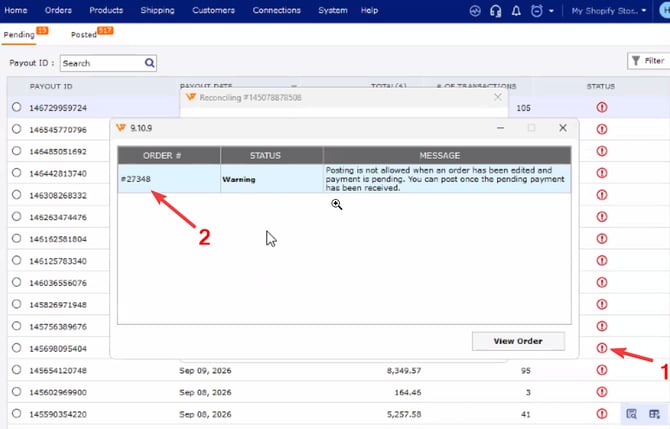
- Click on the Error Prompt for the Payout & note down the order numbers as shown in the screenshot below.
2. Enable Conflicting Download Option in Webgility Desktop
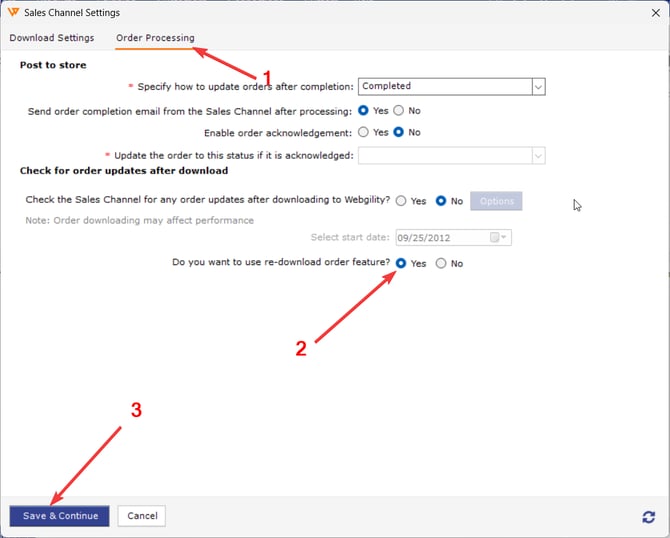
- Please locate and enable the specific download option disabled. (Connections > Sales Channel > Settings > Order Processing)
- Enable the Do you want to re-download the order featue and click on Save.
3. Re-download the Order
- In the New Orders Tab search the order number which is coming in the Payout Erorr & re-download
- Please refer to Order Re-download in Webgility Desktop.
4. Attempt to Post Payout Report Again
- Go back to Orders >> Shopify >> Payouts.
- Retry posting the payout.
Feel free to reach out to support@webgility.com.