
Overview
Webgility Desktop records order activity and posting messages in the order’s History tab. Use these steps to review an order’s status and find details that can help you decide what to do next.
Review the order history
- In Webgility Desktop, open Errors tab.
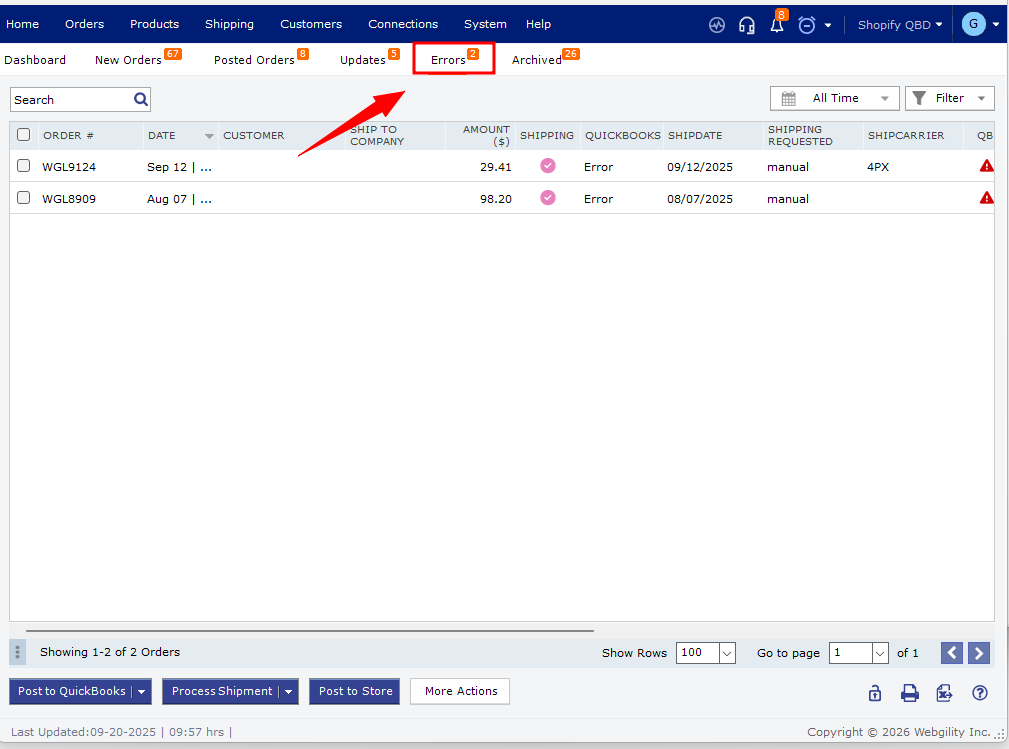
- Double-click the order you want to review.
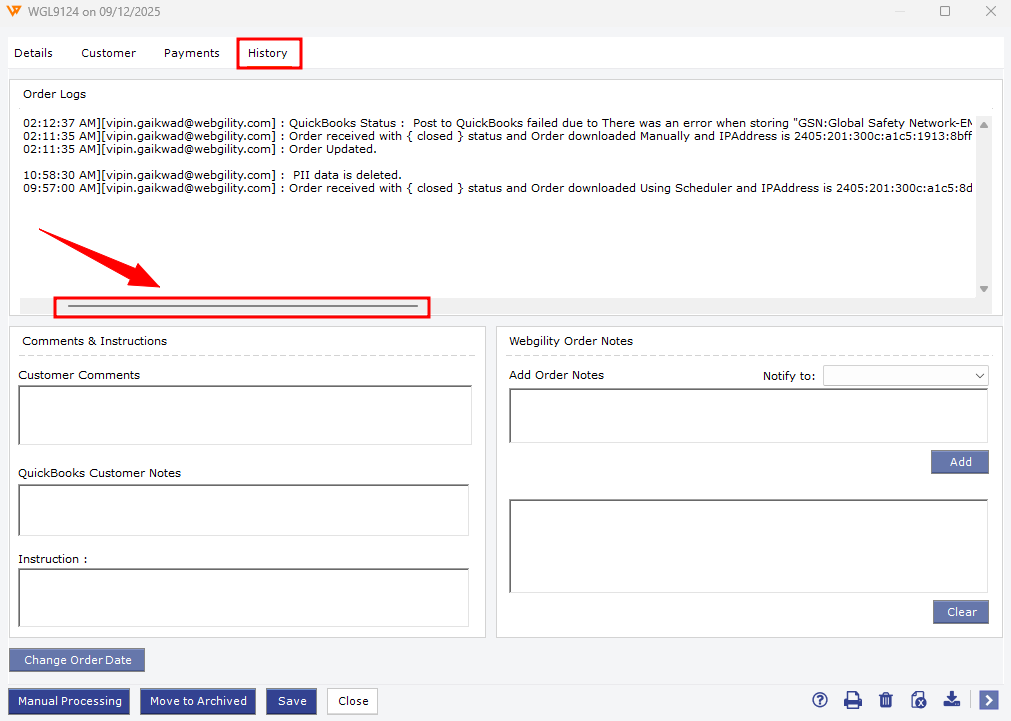
- Open the History tab and read the message in Order Logs.
- If the message is cut off, use the horizontal scroll bar below the logs to view the full text.
The log includes timestamps and details about order processing. A message such as “Multiple Customers found in QuickBooks” means Webgility found more than one matching customer.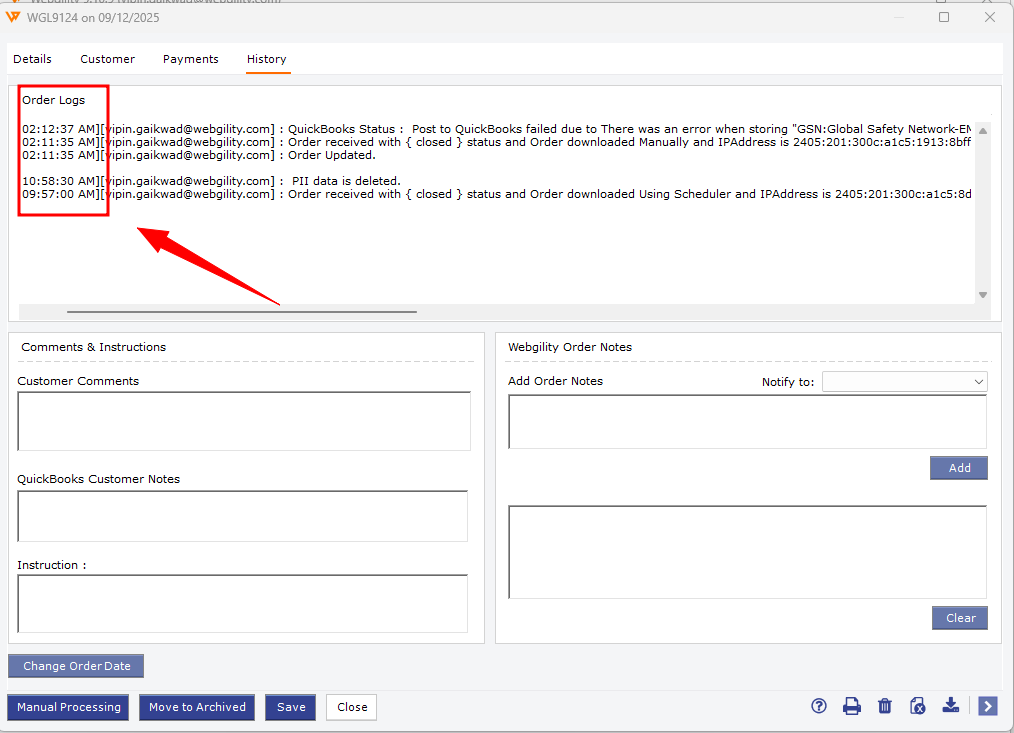
Decide what to do next
Use the complete log message to identify the relevant issue and follow the instructions for that issue. For more guidance, see Errors View in Webgility Desktop or Resolving Common Order Posting Issues in Webgility Desktop.
After addressing the issue, return to the order and try posting it again. Check its status to confirm whether posting succeeded. For additional error-specific instructions, see Orders With Errors Not Being Posted From Webgility Desktop.
If you have any questions or need more help, please contact our support team.