
Part of Understanding the Header, When and Then Sections of a Rule in Webgility i.
The Then section
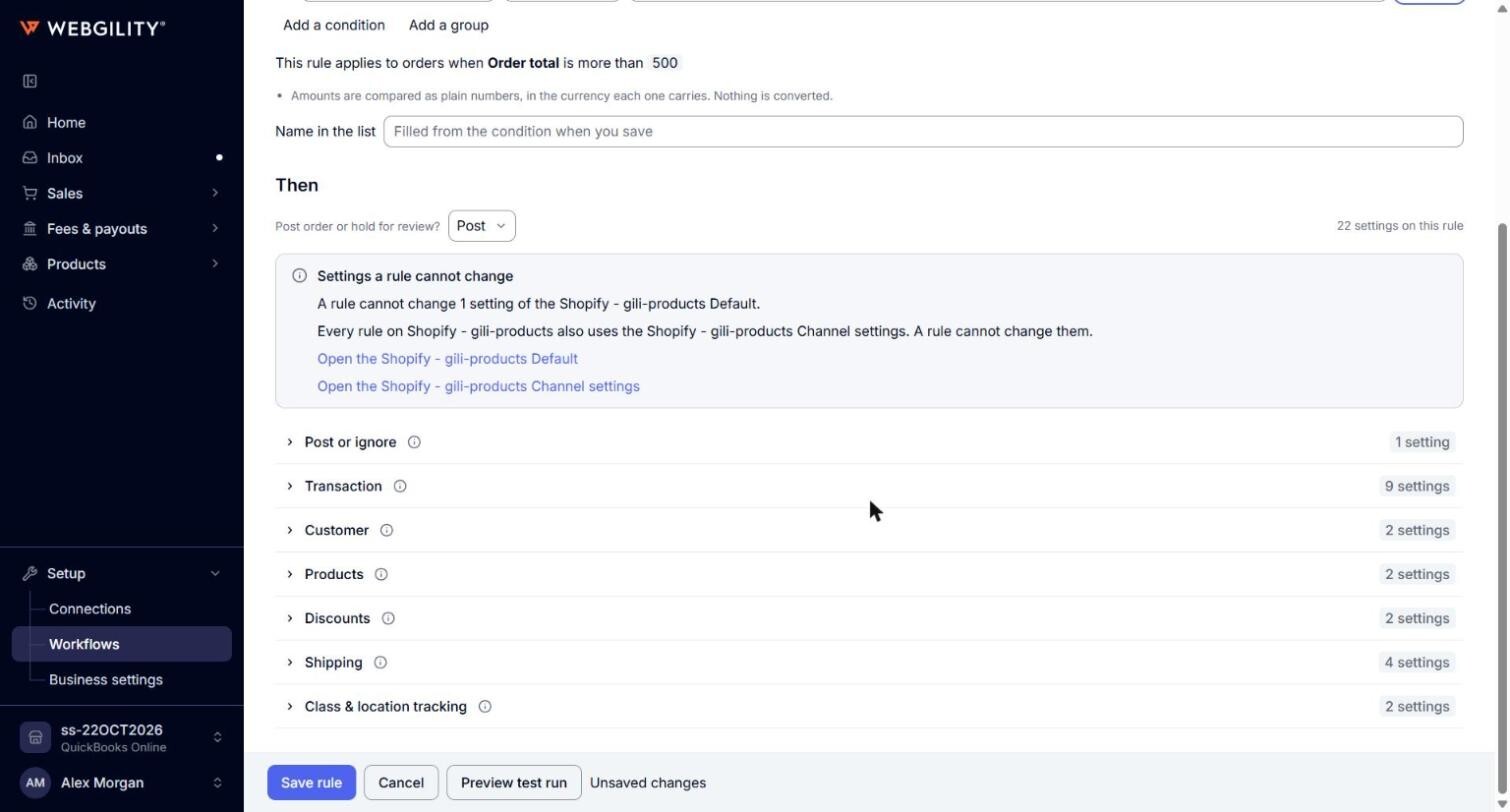
The Then section holds what the rule does with the orders it matches.
- Post order or hold for review?: select Post to post the orders with this rule's settings, or Hold to keep them from posting. With Hold, the section shows the note This rule does not post in place of the settings: the orders wait on the Orders page with the status Held by rule, and once you change or delete the rule, Webgility i checks them against the rules again.
- Settings count: the number at the right, for example "12 settings on this rule".
- Settings a rule cannot change: a note that says how many settings only the Default sets, and that every rule also uses the channel settings. Its links open them, for example Open the Shopify US Default and Open the Shopify US Channel settings.
- Sections: the settings are grouped in sections, such as Transaction, Customer, Products, Discounts, Shipping, Deposit account, Payments and Class & location tracking. Click a section to open or close it. Point to the info icon next to a section or a setting to read what it covers.
Note: The sections you see depend on the workflow. A refund rule, for example, shows the settings that refunds post with. On a refund rule the question reads Post refund or hold for review?.