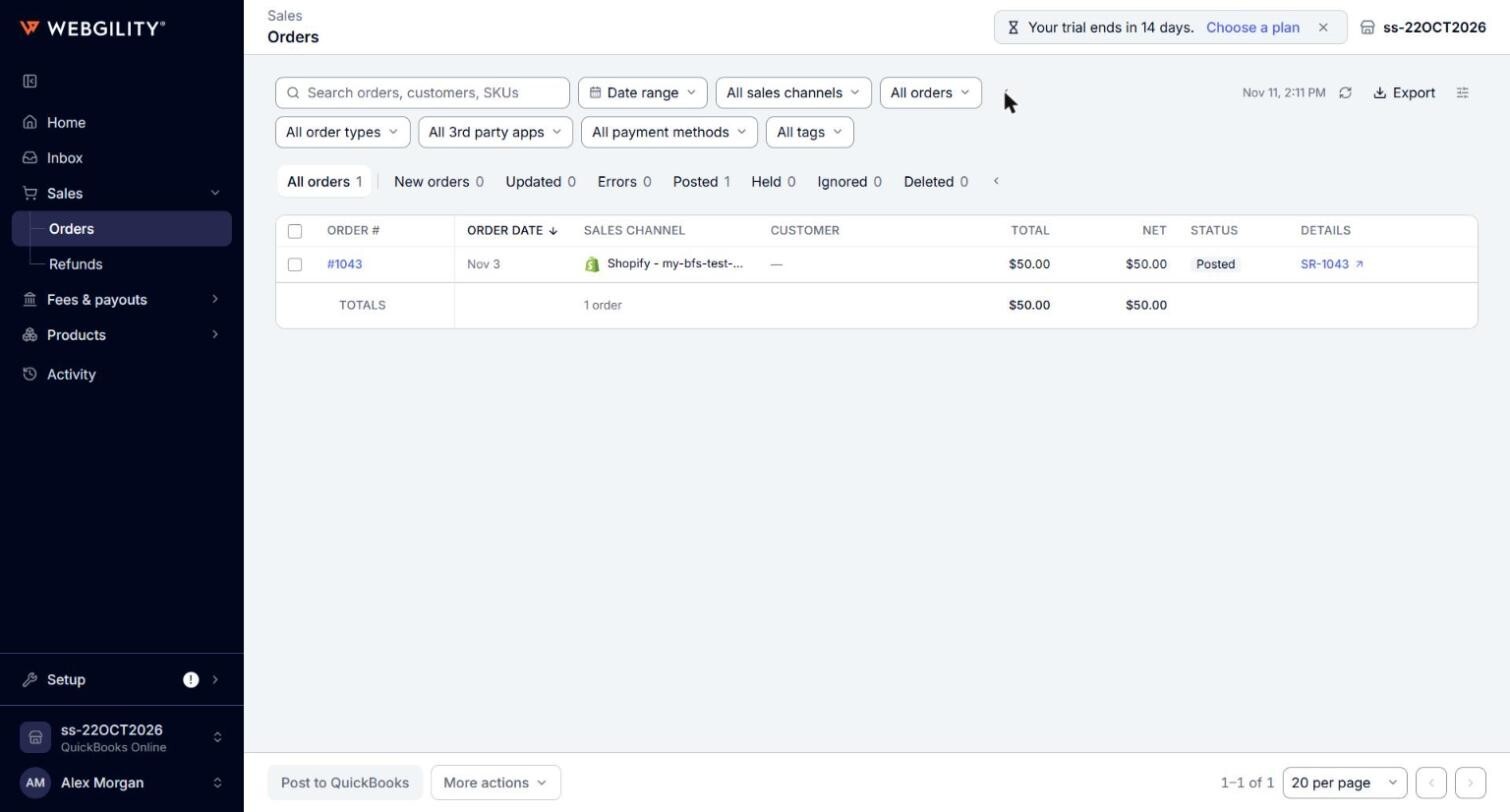
Part of How to View and Search Your Orders in Webgility i.
The filters
- Date range: choose Last week, Last month, Month to date, Last year or Year to date, or choose Custom range, enter the From and To dates and click Apply.
- All sales channels: choose one sales channel to see only its orders. This filter shows when the business has more than one sales channel.
- All orders: choose the order's status at the sales channel: Open, Fulfilled or Cancelled.
- All statuses (on the Errors tab only): choose Needs fix, Error or Held by rule to see one kind.
- Show filters: opens a second row of filters for All order types, All 3rd party apps, All payment methods and All tags, and All sales channel types when you have more than one store of the same type. A filter you choose moves up to the first row.
Each filter you choose shows an x that clears it. The status tabs count the orders that match your search and filters.