Part of Understanding the QuickBooks Catalog in Webgility i.
Syncing values from the QuickBooks Catalog
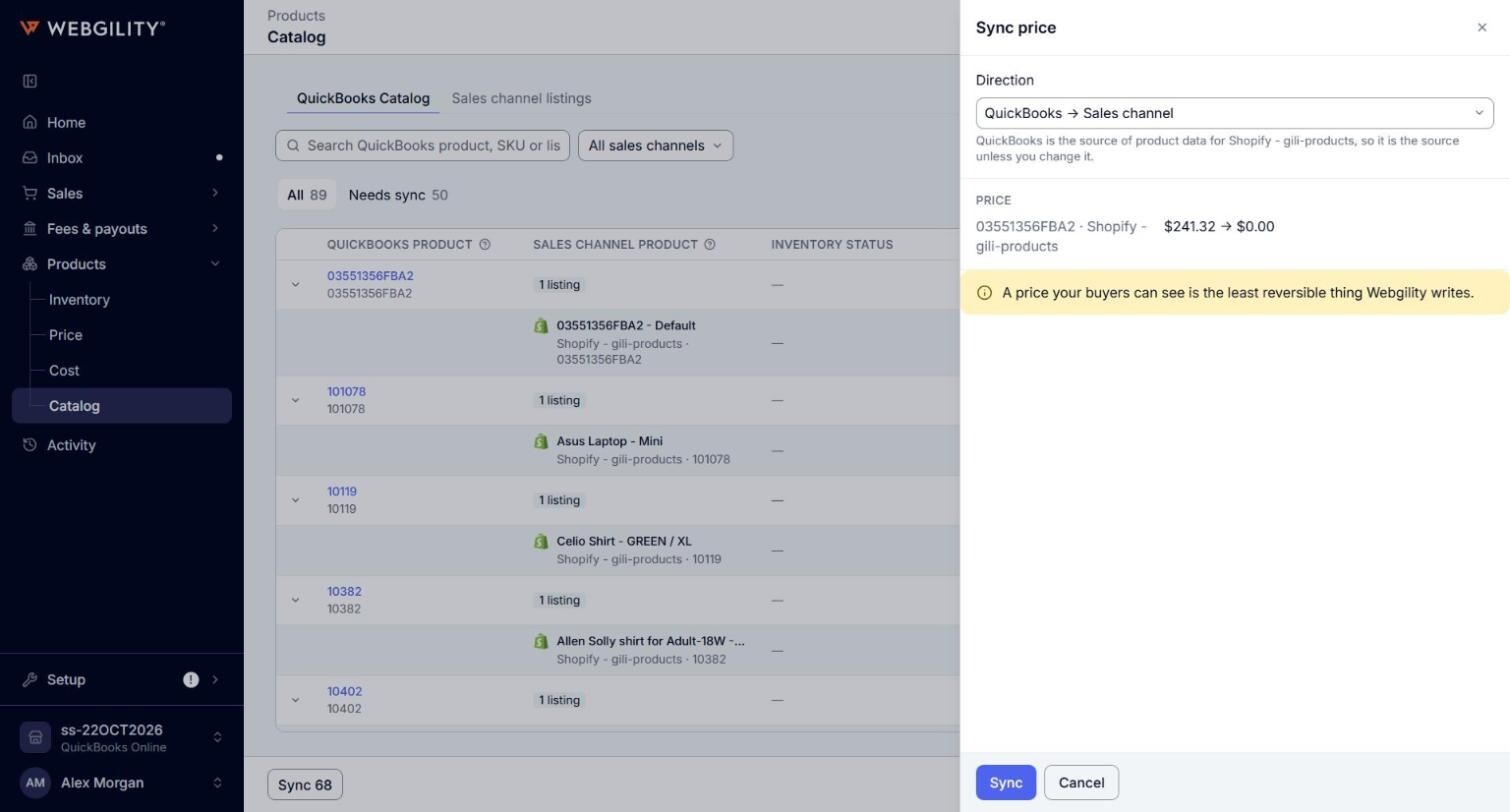
- Sync on a listing line: opens a panel that shows the value that will change. Choose the Direction, QuickBooks → Sales channel or Sales channel → QuickBooks, and click Sync. Sales channel → QuickBooks is not available for some values.
- Review on a listing line: opens the Inventory, Price or Cost page on its Held tab at that listing, where you can see why the value is held.
- A listing line with more than one action: the button opens Choose what to sync, where you select the values to sync now.
- Sync at the bottom of the page: shows how many values it can send across all pages of the current search and filter, for example Sync 12. It opens a panel that lists the QuickBooks Online values it will send to the sales channels. Check them, then confirm. It is unavailable when there is nothing to send.
Note: A manual Sync sends the price QuickBooks Online has, even when it is $0.00. Before you sync prices with QuickBooks → Sales channel, check each price in the panel, and correct any $0.00 price in QuickBooks Online first. A price your buyers can see is the hardest change to undo.