
Overview
If your Shopify order moves to the Errors tab and shows “Error while creating new item. The accounting period has closed,” check the Inventory Start Date in Webgility Online. When that date falls within a closed accounting period, QuickBooks Online can block the item from being created and stop the order from posting.
Option 1 — Update the inventory start date- In Webgility Online, go to Sync Settings → Products. Under Create a New Item in QuickBooks (Inventory), note the current Inventory Start Date setting, then select a date after the QuickBooks Online closing date and save. View the product setup guide.
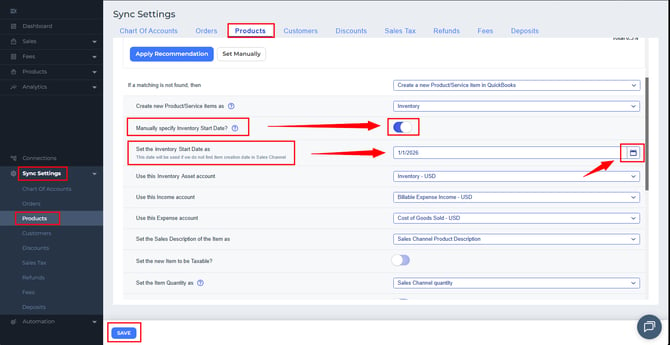
- Repost the affected order from the Errors tab. Once it appears in the Posted tab, restore the original Inventory Start Date setting and save.
Option 2 — Temporarily reopen the accounting period
If you need to keep the item’s original inventory start date, check with your accountant before changing the QuickBooks Online closing date. Note the current closing date, then follow the guide to move it to a date before the item’s Inventory Start Date. Repost the order and restore the original closing date once the order posts.
If you have any questions or need more help, please contact our support team.