
Error Prompt:
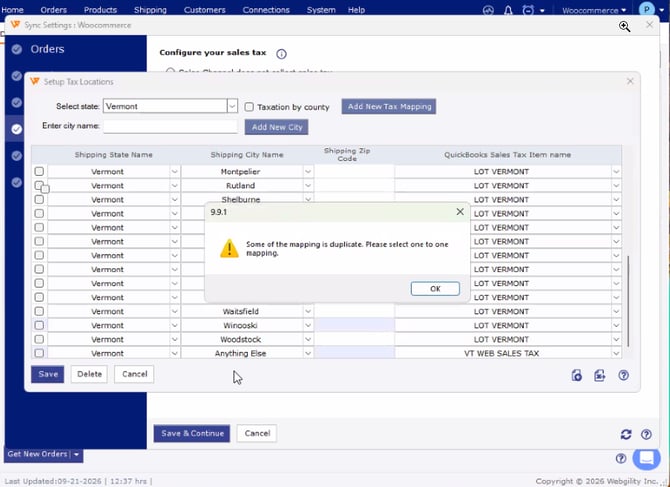
Troubleshooting:
- Verify any active duplicates in the CSV file, you may use the built-in Highlight Duplicate feature in Excel or use Chat GPT or any other AI tool to remove duplicates.
- Once duplicates are removed, import the CSV file into Webgility Desktop. You may also refer to How to Import Tax Mapping Through CSV File in Webgility Desktop.
- If you're still getting the same error when you're trying to save the mapping make sure there are no duplicate enteries in the entire list, attached SS below for reference.
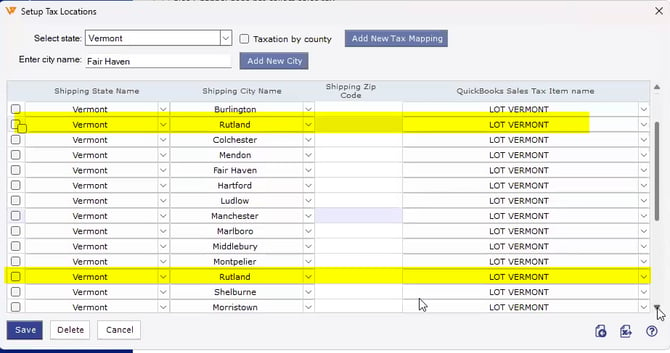
- If you find any duplicate enteries as shown in the SS above, select one Entry from the Checkbox & click on Delete.
- Save the mapping & resume posting the orders and verify the Tax items in your QuickBooks Transactions.
If the issue still persists please reach out to Webgility Support or Chat Support for further assistance