
Overview
This error can occur when the account selected for a payout deposit in Webgility is inactive in QuickBooks or isn’t an Expense account. Check the From Account in the deposit setup, save the change, and try posting the payout again.
Steps
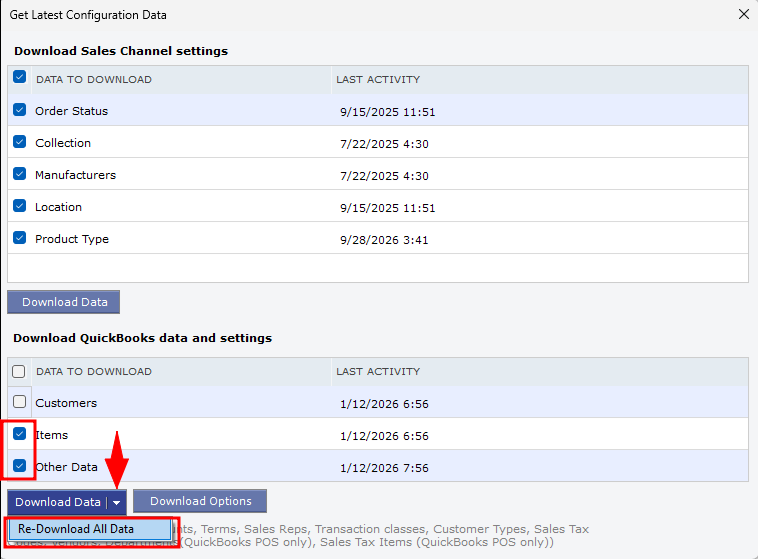
- In Webgility Desktop, go to Connections > Get Latest Data & Settings and download the latest QuickBooks data. For more information, see How to Download the Latest Accounting Data from Scratch.
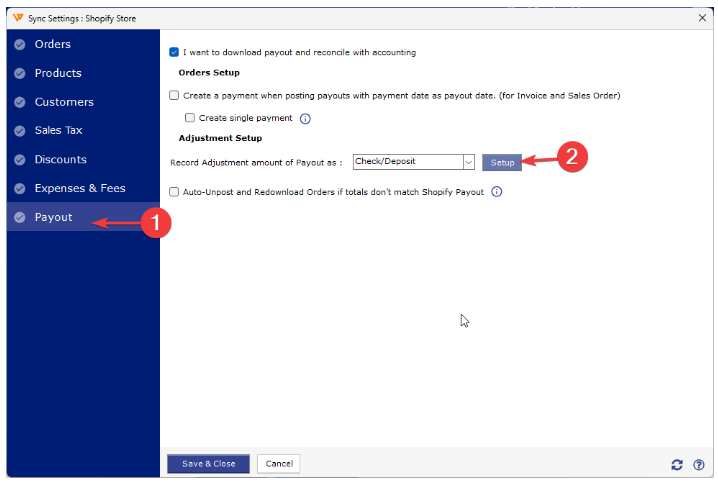
- Go to Connections > Sync Settings. Under Payouts > Adjustment Setup, select Check/Deposit Setup.
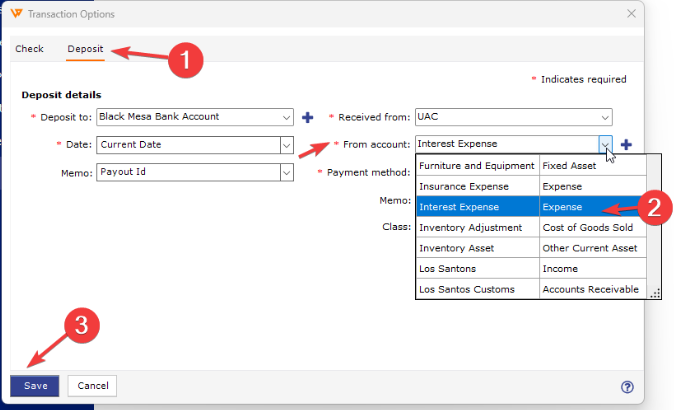
- Open the Deposit tab. Check the From Account and select an active QuickBooks account with the Expense account type. Click Save, then Save & Close.
- Go to Orders > Shopify > Payouts, select the payout, and click Post to QuickBooks. For more about Shopify payout settings, see Shopify Payout Reconciliation in Webgility Desktop.
If you have any questions or need more help, please contact our support team.