
Overview
Shopify consolidated payouts may fail to post when the payout total differs from the combined order amounts in Webgility Desktop. Configuring a Group Item Adjustment item and excluding incomplete orders can help resolve these discrepancies.
Resolution Steps
1. Create the Group Item Adjustment Item in QuickBooks Desktop
Create an item named Group Item Adjustment in QuickBooks Desktop and map it to the appropriate income account for recording payout adjustments.
- Open the Item List. Go to Lists > Item List. You can also use Vendors > Item List or Customers > Item List.
- Start a new item. Click the Item button at the bottom left of the list and choose New (or press Ctrl + N).
- Choose the item type.
- Service: work you charge for, such as consulting or labor.
- Inventory Part: products you buy, stock, and resell, with quantities tracked.
- Non-inventory Part: products you buy and sell but don’t track stock for.
- Other Charge: shipping, handling, or similar fees.
- Group / Subtotal / Discount / Payment / Sales Tax Item: for bundling, subtotaling, or adjustments.
- Fill in the details.
- Item Name/Number: the name that appears on forms. You can check Subitem of to nest it under a parent item.
- Description: this shows on sales forms (and on purchase forms for items you buy).
- Rate/Price: your selling price.
- Tax Code: taxable or non-taxable.
- Income Account: where sales of this item are recorded.
- For inventory parts, also set:
- Cost and COGS Account.
- Preferred Vendor.
- Inventory Asset Account.
- Reorder Point and On Hand quantity (with the as-of date).
- Save. Click OK to save and close, or Next to save and add another item.
2. Configure the Adjustment Item in Webgility Desktop
Open Webgility Desktop and navigate to Connections > Accounting/POS/ERP > Sync Settings > Orders > Optional Settings.
- Check the box for “Post group item price same as QuickBooks.” This makes the group item post to QuickBooks at the price set in QuickBooks, rather than the price from the order.
- Choose how to handle the difference. The QuickBooks group price may not match the order total, so use the options below the checkbox to adjust the difference amount.
- Set the adjustment under the option that fits how you want the difference recorded.
- Select the adjustment item from the dropdown. Choose Group Item Adjustment in the adjustment item field.
- Click Save.
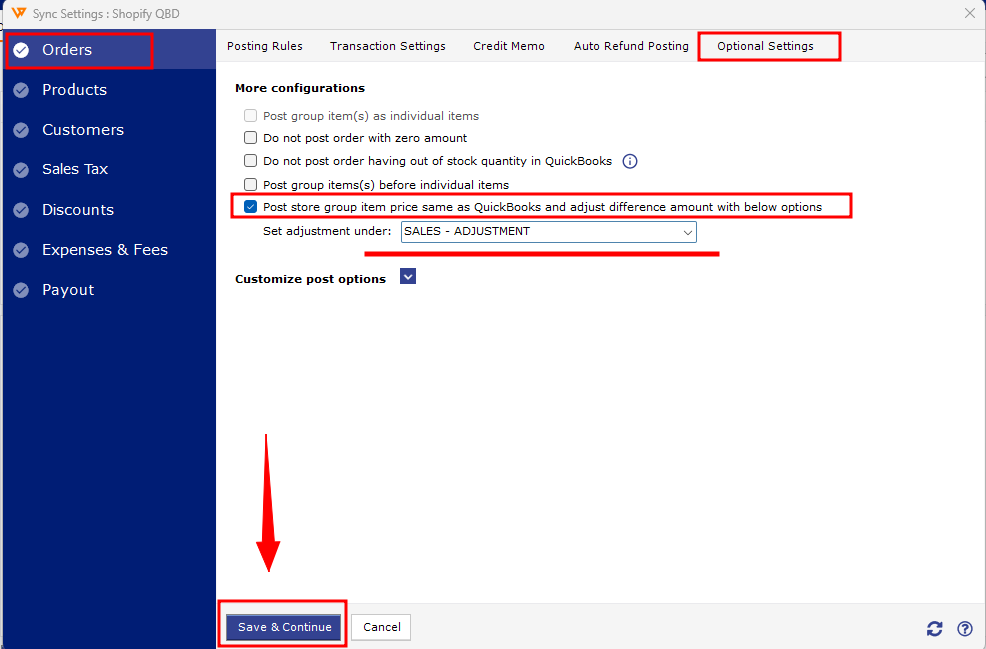
Note: Create the item in QuickBooks Desktop before configuring it in Webgility so it appears in the available item list.
3. Download Only Eligible Shopify Orders
Configure the Shopify sales channel to download only orders that meet your required fulfillment and payment criteria. This helps prevent incomplete orders from contributing to payout discrepancies.
For instructions, see How to Download Only Paid-and-Shipped Orders in Webgility Desktop From Shopify.
4. Resync Orders and Retry the Payout
Unsync and redownload the affected orders included in the payout. Then retry posting the payout to QuickBooks Desktop.
If the discrepancy persists, verify the adjustment mapping and confirm that the orders and payout amounts match.
Important: If you use multiple Shopify sales channels, configure the Group Item Adjustment item for each applicable channel.
If you have any questions or need more help, please contact our support team.