
Overview
Unfulfilled, archived, or open Shopify orders are downloaded into Webgility and may be posted to QuickBooks despite the standard order-status filters.
Resolution Steps
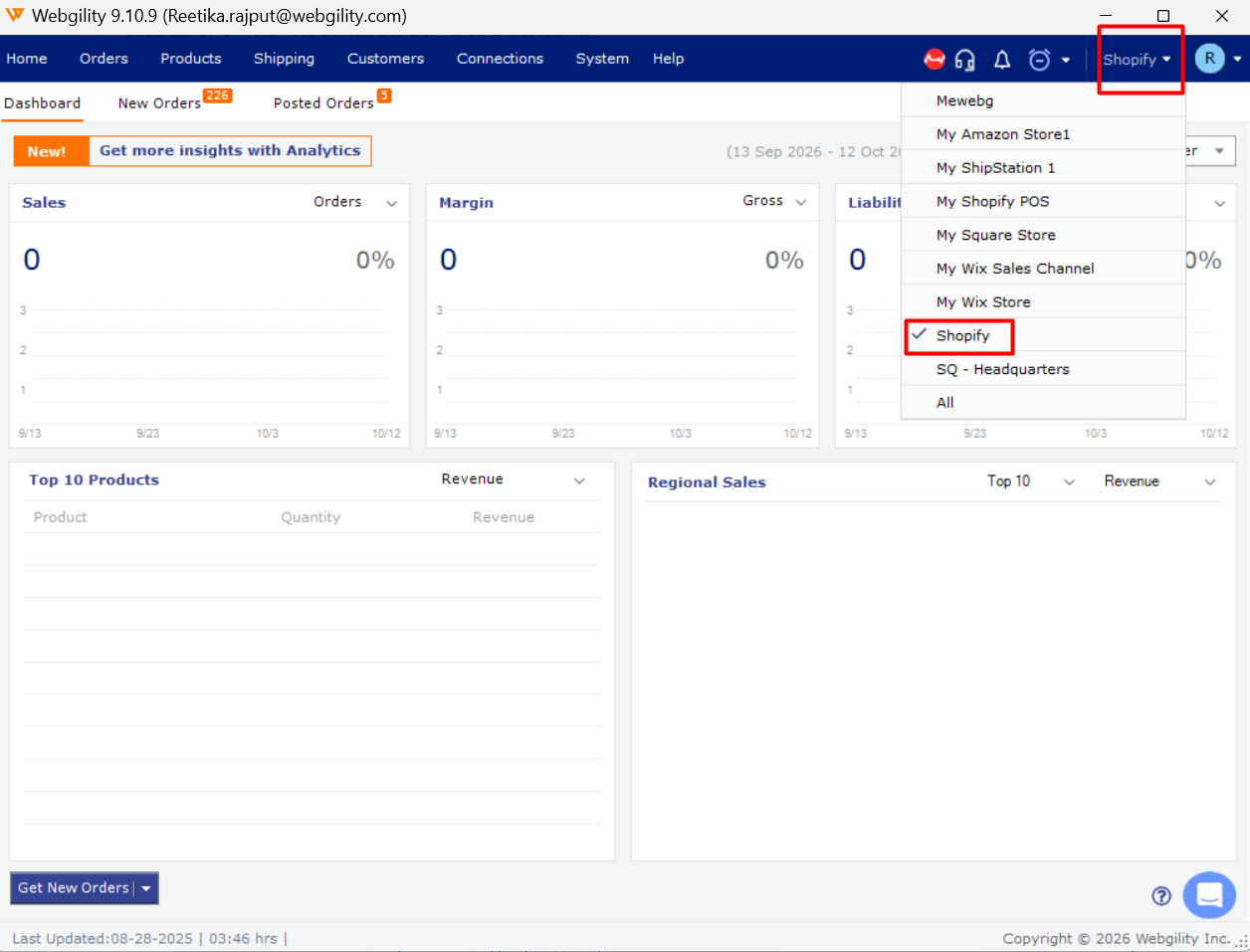
- Select the Shopify store: In Webgility Desktop, choose your Shopify store using the sales channel selector.
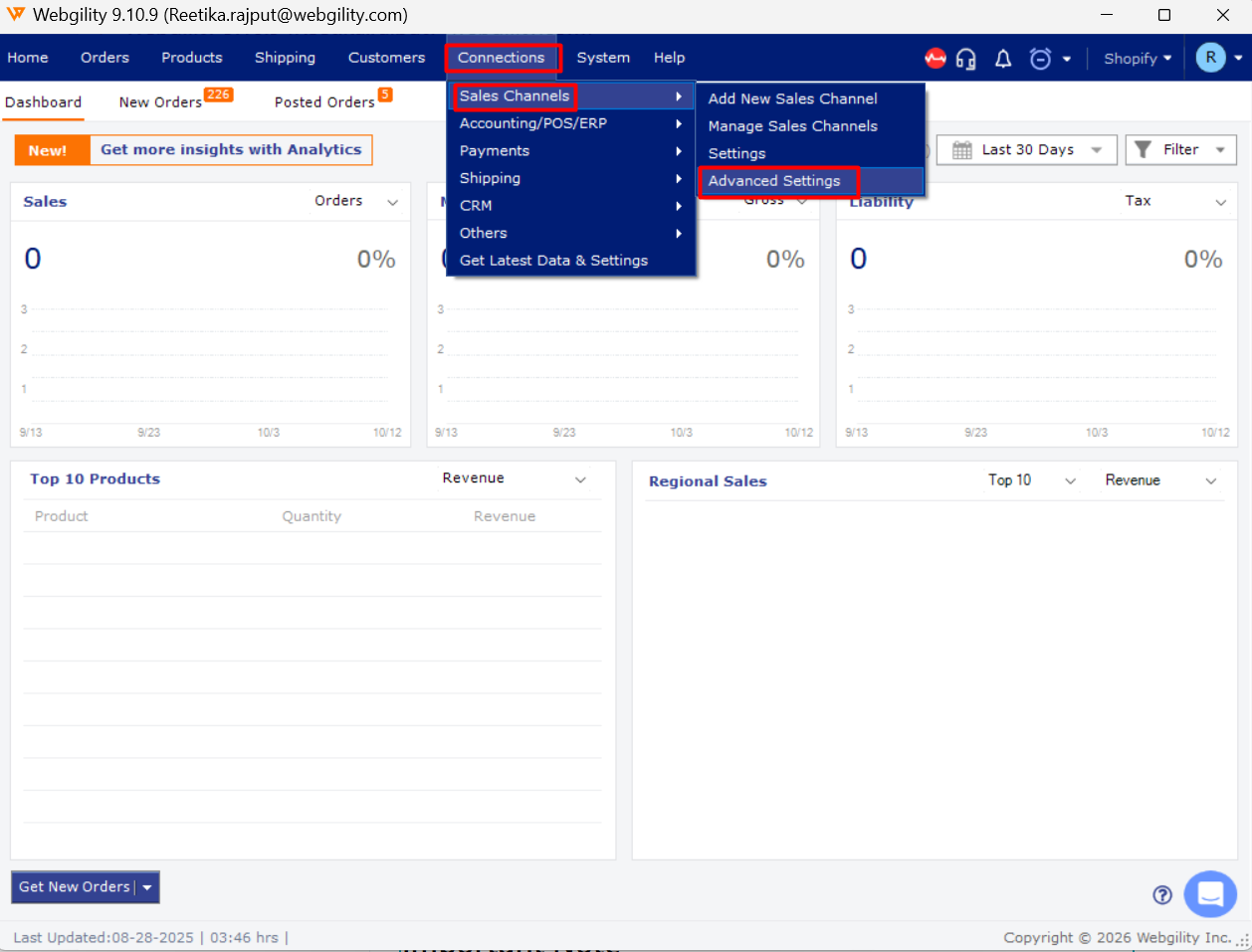
- Open Advanced Settings: Navigate to Connections > Sales Channels > Settings > Advanced Settings.
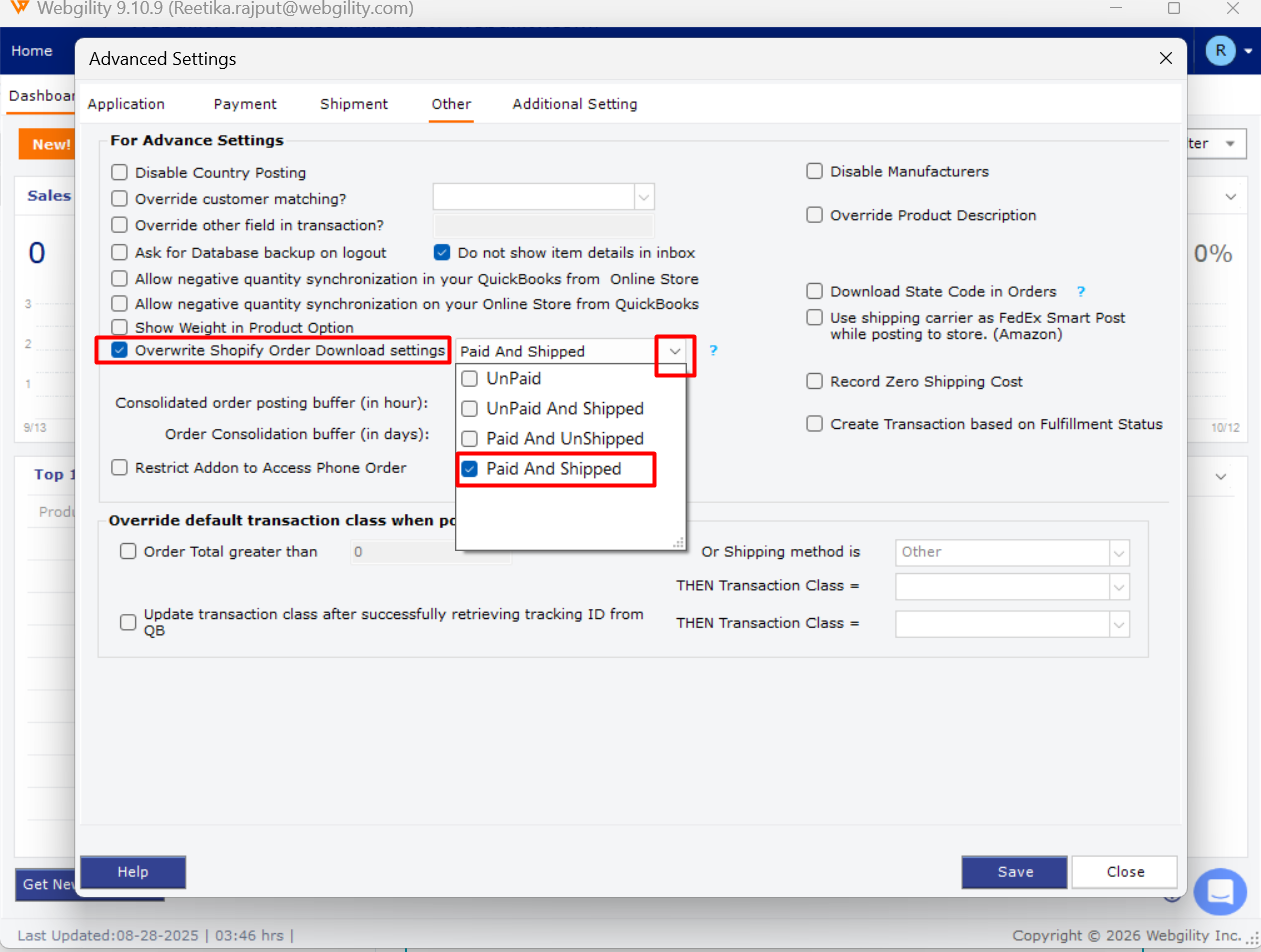
- Select 'Overwrite Shopify Order Download Settings' option: Turn on the option to download only orders that are both Paid and Shipped, then save the settings. Refer to Advanced Settings in Webgility Desktop.
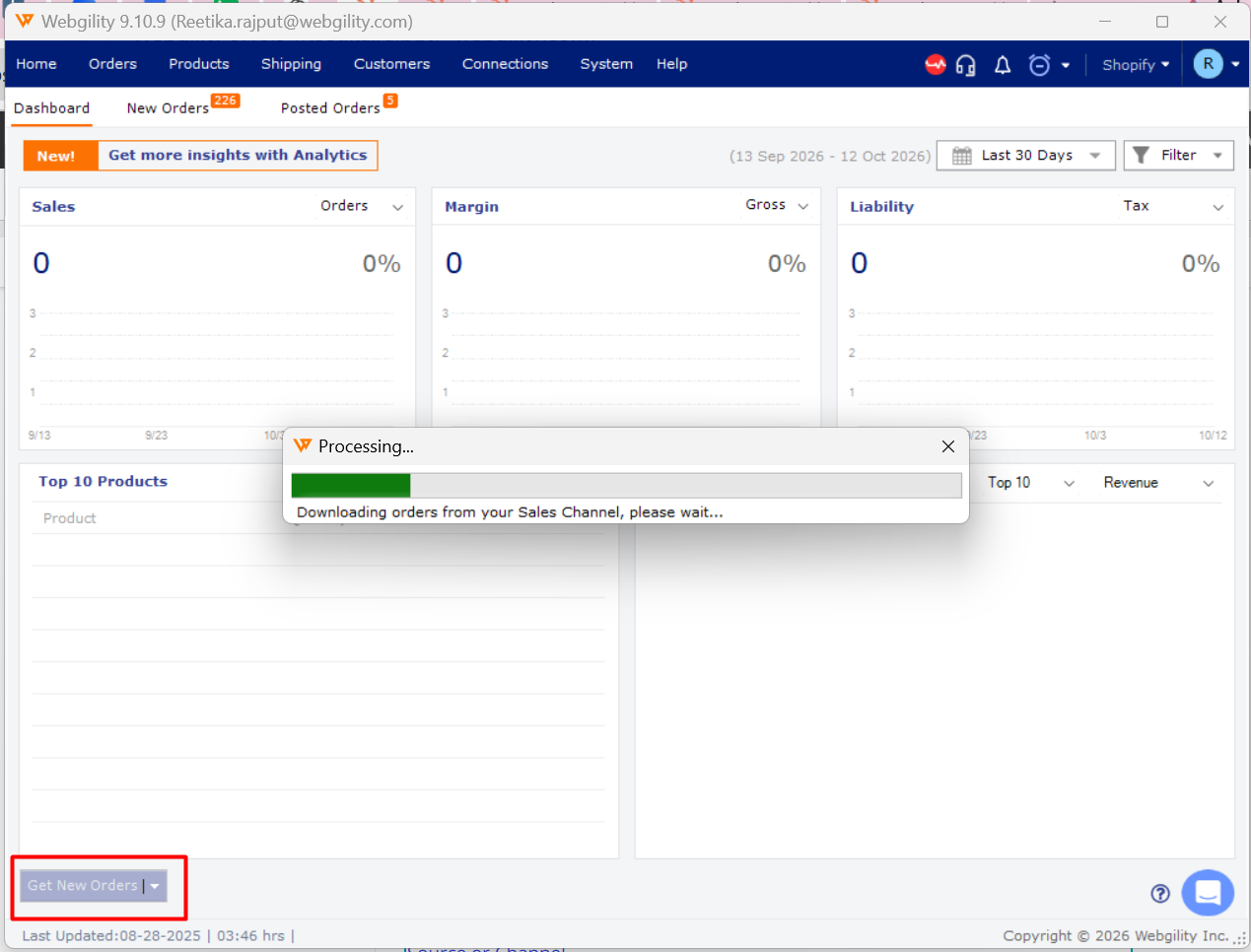
- Download orders again: Run a fresh order download for the Shopify channel.
- Verify the results: Confirm that eligible paid-and-shipped orders appear and sample unfulfilled orders are excluded.
For more information, see How to Filter Downloads of Specific Orders From a Source or Channel.
Important Note
The Advanced Settings override takes precedence over the standard order-status filters. Disable the override if you need to download unfulfilled or draft orders.
Best Practice
Use a separate workflow, such as direct integration or CSV upload, for special order groups like fundraising or pre-orders that require different processing rules.
Additional Support
If unfulfilled orders continue to download, contact Webgility Support with your Shopify store name, a screenshot of Advanced Settings, and two or three affected order numbers.