
Overview:
If BigCommerce orders are not downloading into Webgility Desktop and posting back to the store fails with an authentication exception, check the current Webgility Desktop version and the BigCommerce connection status.
- Error message:Error while posting to store: Error While Updating OrderStatus. Authentication Exception
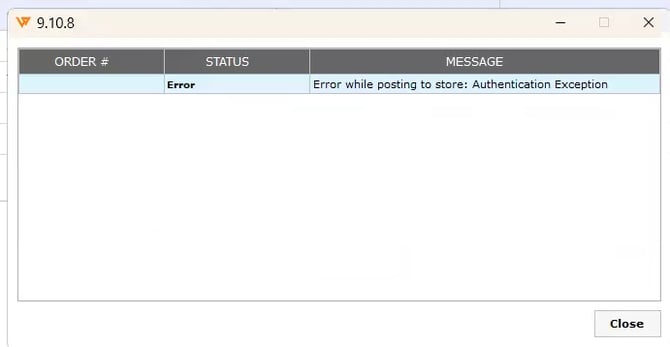
In the documented case, the issue was caused by an outdated Webgility Desktop version and a BigCommerce store connection that needed to be re-authenticated.
Steps to follow:
-
Update Webgility Desktop to the latest version Update Webgility Desktop Using Check for Updates Option.
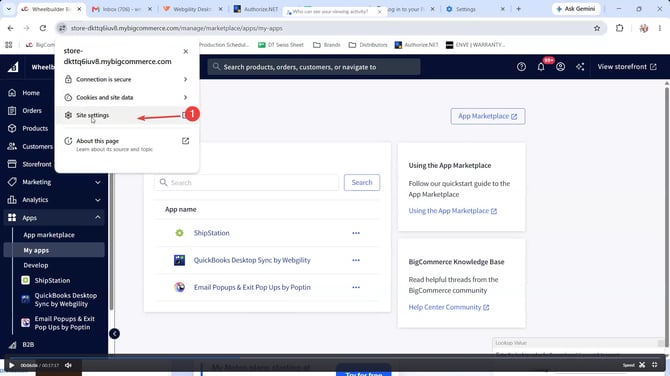
- Log in to BigCommerce; on the upper right-hand side click on Settings then go to Site Settings.
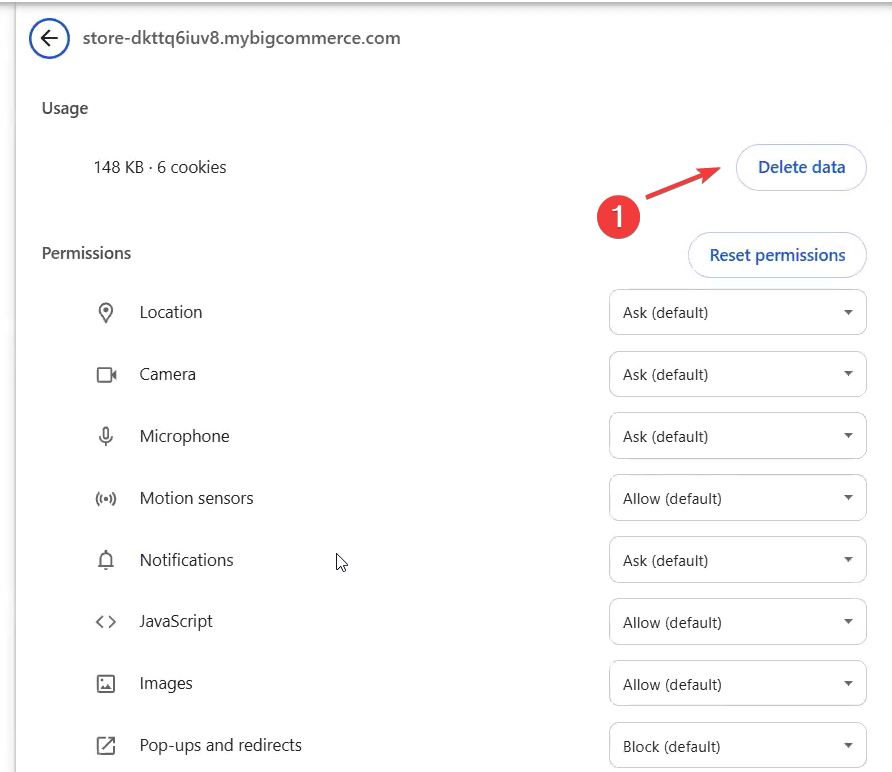
- Under Site Settings, on the upper right-hand side, click on Delete Data; this will delete the Cache & Data for the BigCommerce website in your Browser.
-
Once the Site Data is deleted in Webgility Desktop go to Connections, then Sales Channels, click on Manage Sales Channels then click on the Edit icon for BigCommerce, and click on Connect to BigCommerce.
- You will be redirected to the BigCommerce Login page, login with your credentials. When the Successfully Connected Prompt is shown, go back to Webgility & retry posting the order back to the store.
Feel free to reach out to us at support@webgility.com.