
Overview
If Webgility Desktop disappears or no longer launches after using Check for Updates, reinstall the application using the latest installer from the Webgility portal. Before proceeding, ensure you have a recent database backup to protect your existing data and settings.
Steps to Reinstall Webgility Desktop- Sign in to the Webgility portal: Go to portal.webgility.com and sign in with your Webgility account.
- Download the installer: Open Downloads and download the latest Webgility Desktop installer.
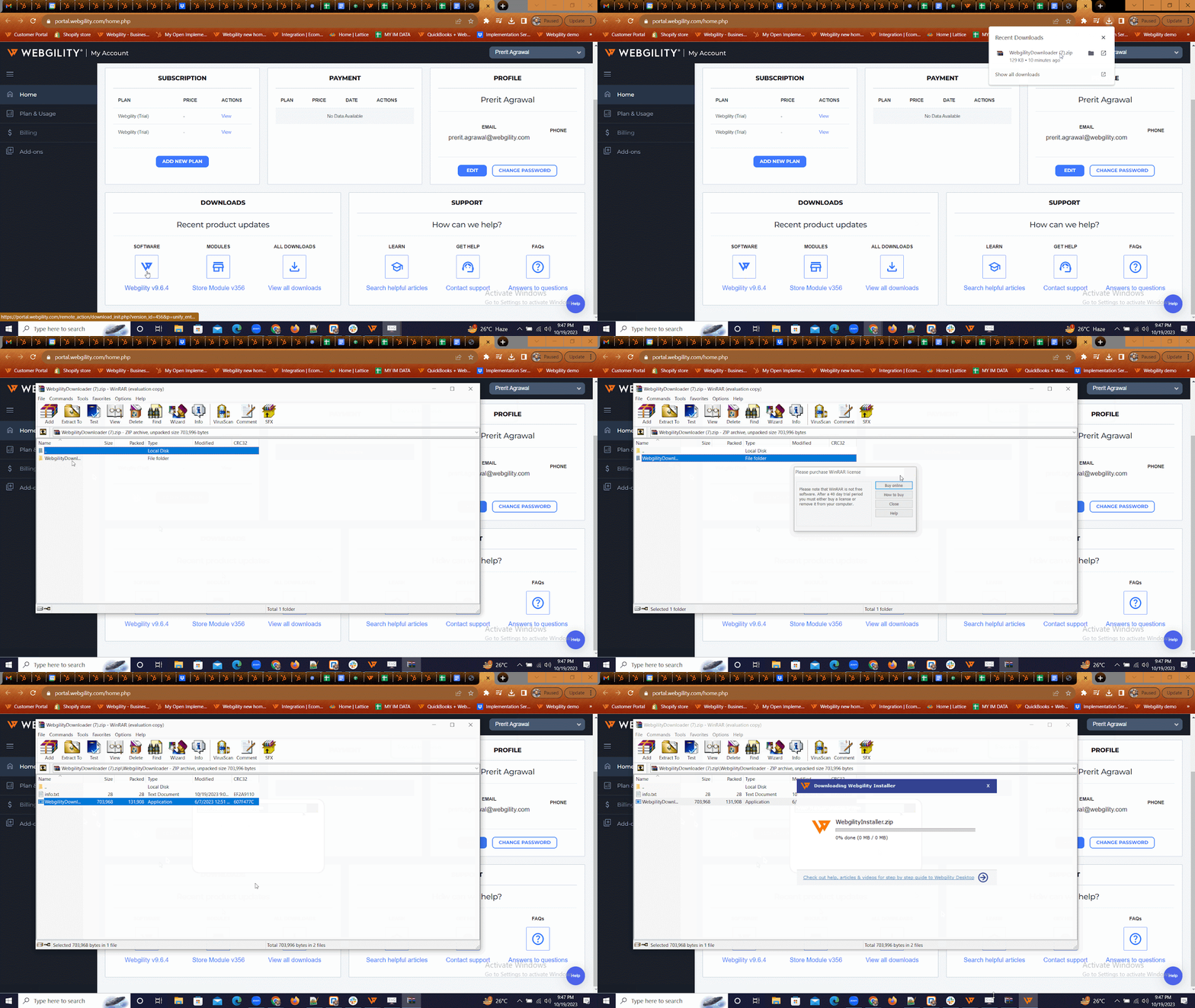
- Run the installer: Extract the downloaded ZIP file, then right-click the Webgility Downloader application and select Run as administrator.
- Complete the installation: Follow the on-screen instructions to finish installing Webgility Desktop. For detailed instructions, refer to the Installation Guide for Webgility Desktop.
- Verify the application: Launch Webgility Desktop, sign in, and confirm that your existing database, sales channels, and accounting connection are available.
Do not manually delete the Webgility installation folder or perform a clean installation unless instructed by Support. If your existing database is not detected after reinstalling, contact Webgility Support before creating a new database or reconnecting your sales channels.