
Reconnect when Amazon sync fails and orders stop downloading, using the Manage Sales Channel screen in Webgility Desktop's Connections menu.
If your Amazon store stops syncing in Webgility Desktop, you can reconnect it in a few minutes from the Manage Sales Channel screen. This also confirms whether inventory syncing is part of your current plan.
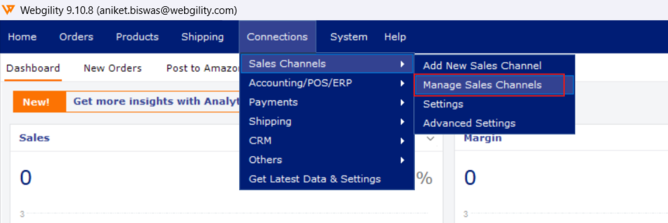
- Go to Connections > Sales Channel > Manage Sales Channel.
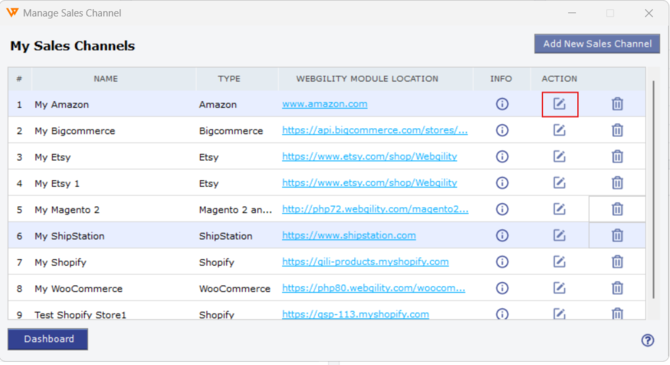
- In the My Sales Channels list, find your Amazon row and click the pencil icon in the Action column. If the connection shows repeated errors beyond a simple reconnect, Resolve Sales Channel Connection Issues with Webgility Desktop covers broader troubleshooting.
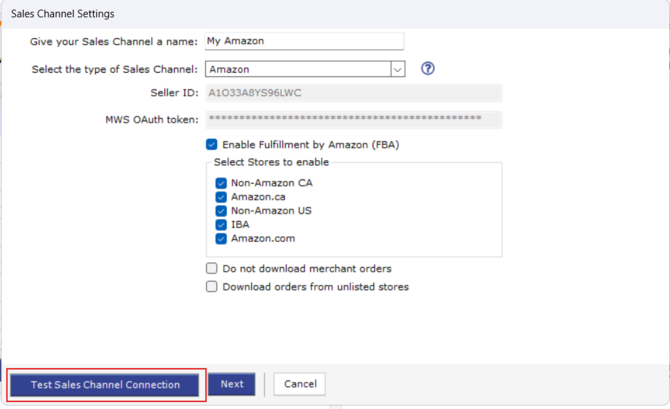
- In the Sales Channel Settings dialog, click Connect to Amazon and sign in to Amazon when prompted to complete the authorization.
- Back in Webgility Desktop, open Connections > Sales Channels > Settings for Amazon and check whether any inventory-sync option is turned on.
- If your Webgility plan does not include inventory syncing, leave that option off; Webgility will continue downloading and posting orders without sending inventory quantities to Amazon.
Your Amazon store should now show as connected in the Manage Sales Channel list, and orders will resume downloading.
If you need any further assistance, please contact Webgility Support. We’ll be happy to help.