
Overview
If an order was deleted directly in QuickBooks, Webgility Desktop may still show it as posted. Remove the order from Webgility Desktop and its Trash before downloading it again.
Steps
- In Webgility Desktop, go to Orders > Search Orders and find the affected order. See How to Search Orders in Webgility Desktop.
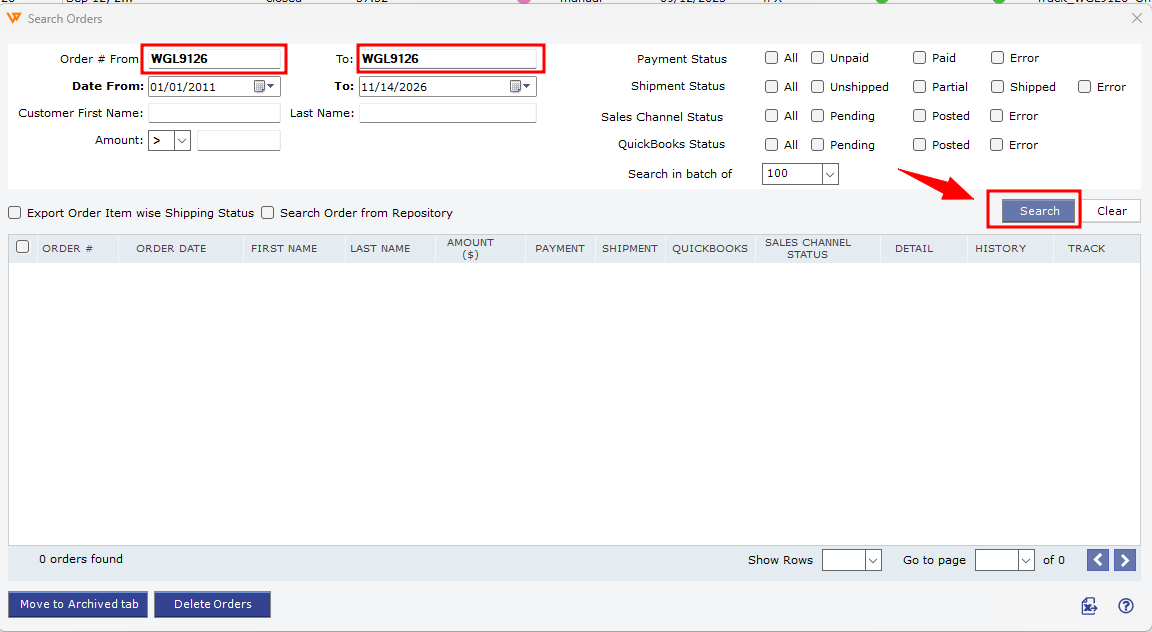
- Delete the order from Webgility Desktop. See How to Permanently Delete Orders in Webgility Desktop.
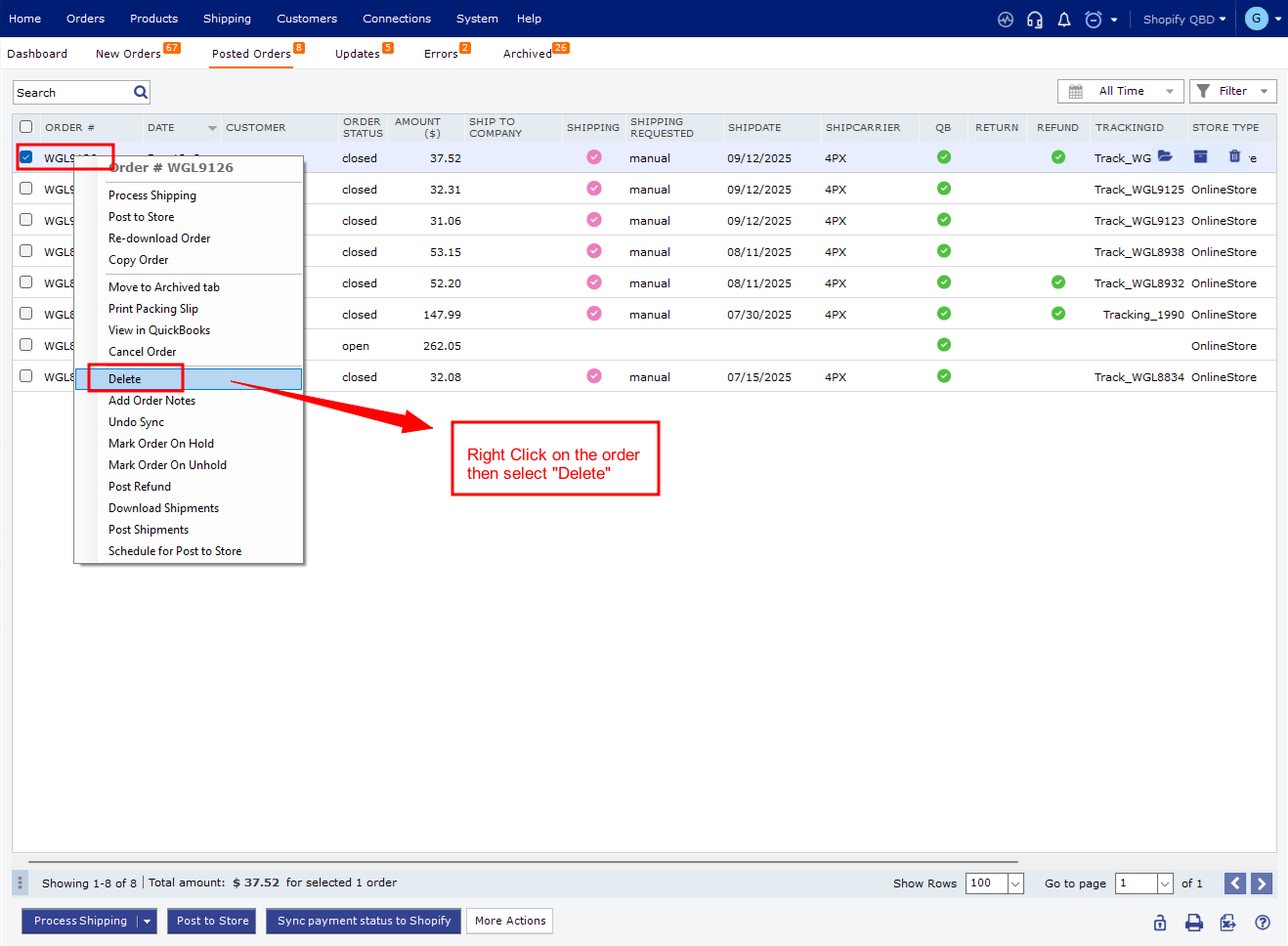
- Open Trash and select Empty Trash to permanently remove the order from Webgility.
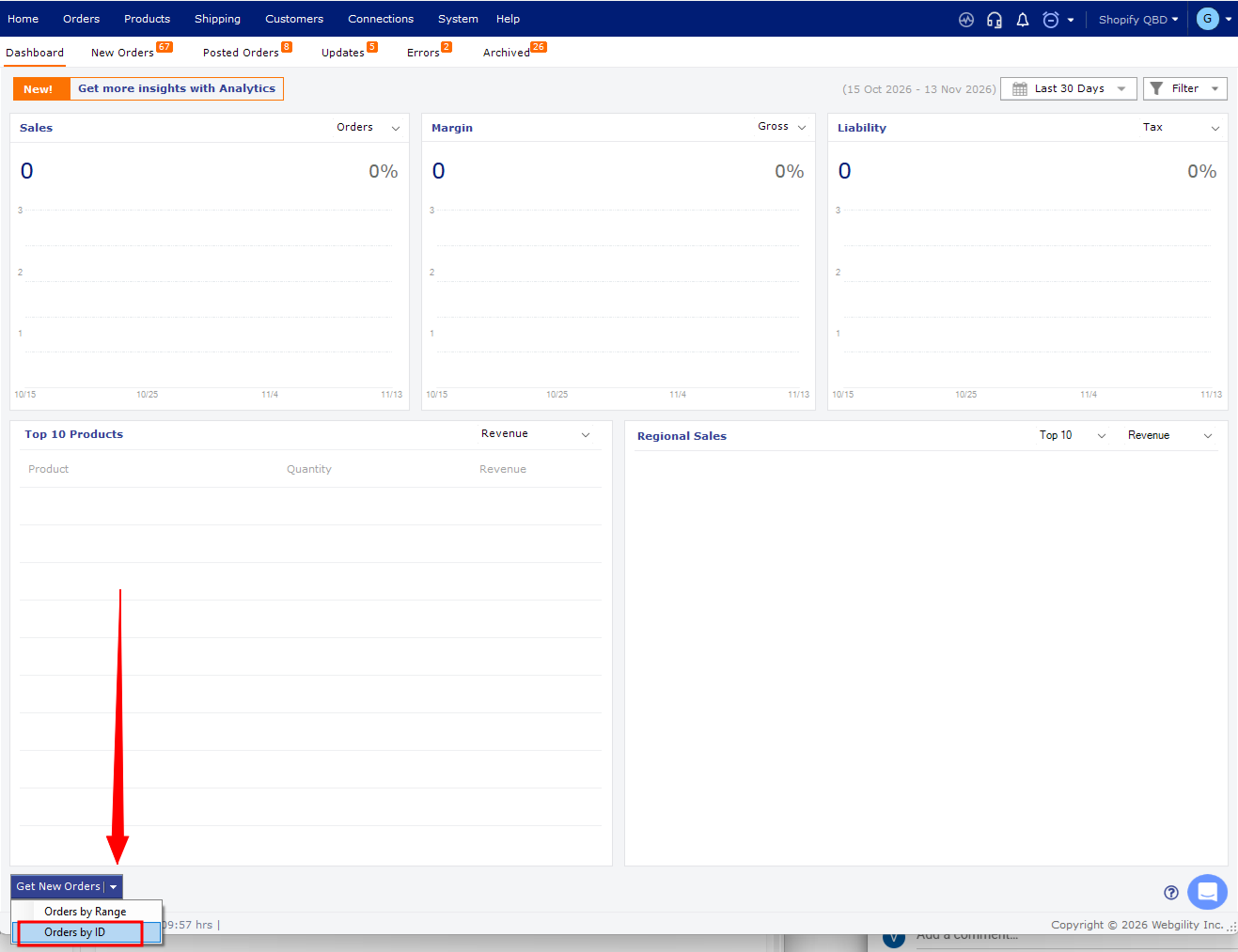
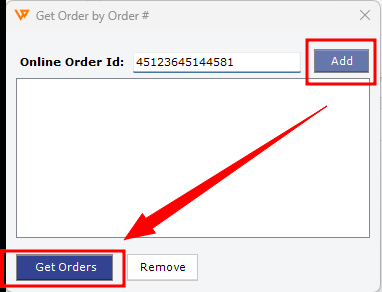
- From Get New Orders, choose Orders by ID. Enter the order ID, click Add, then Get Orders. See How to Manually Download New Orders in Webgility Desktop.
- Find the downloaded order under New Orders and post it to QuickBooks.
If you can’t find the order in the sales channel, confirm that it is still available there before downloading.
If you have any questions or need more help, please contact our support team.