
Part of How to Configure Your Channel Settings in Webgility i.
Products tab
This tab sets how Webgility i matches the products of your orders to QuickBooks Online products and services, and what it does when there is no match.
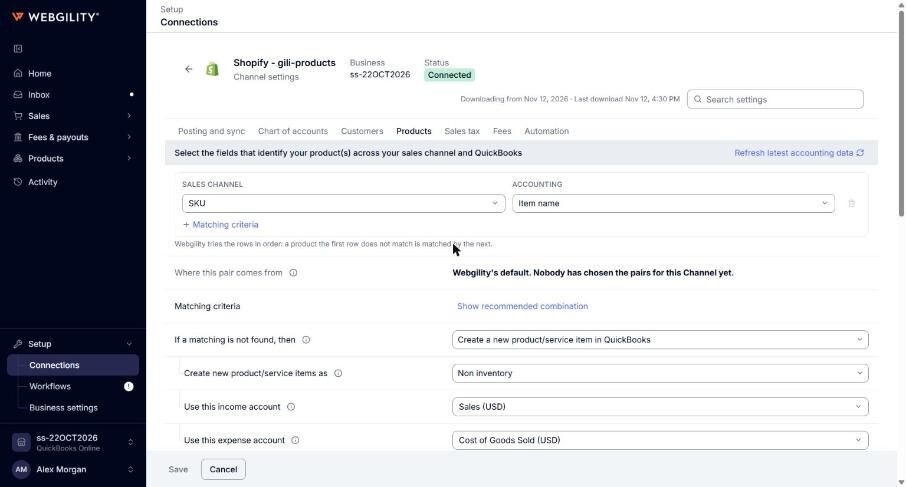
Select the fields that identify your product(s) across your sales channel and QuickBooks
- Sales channel and Accounting: each row is a pair of fields Webgility i compares to match a product to a QuickBooks Online item. Rows are tried in order. Click Matching criteria to add a row. A change applies to products matched from now on. Products already matched keep their match.
- If a matching is not found, then: Options: Create a new product/service item in QuickBooks, Use a standard item instead, Flag the order with an error, Give an option to match it manually.
- Create missing item while posting order using automation?: shows with Give an option to match it manually. When off, an order with an unmatched product shows an error with a link to map the product. When on, automatic posting creates the missing item. Options: on or off.
- Use this standard item:: shows with Use a standard item instead. The QuickBooks Online item used for every unmatched product.
- Create new product/service items as: shows with Create a new product/service item in QuickBooks. Options: Non inventory, Inventory. An Inventory item is created only when the asset account and expense account below are set.
- Manually specify inventory start date? and Set the inventory start date as: the start date of a new Inventory item. When no date is set, the item starts on 1 January of the current year.
- Manage purchase information?: on QuickBooks Online Plus and higher. Saved, but not used yet.
- Use this inventory asset account, Use this income account and Use this expense account: the QuickBooks Online accounts of a new item. The expense account is also used for the fee items and the refund item Webgility i creates.
- Set the sales description of the item as: Options: Sales channel product description, Sales channel product name, Item title. Webgility i uses the sales channel product description on a new item.
- Set the purchase description as: Saved, but not used yet.
- Set the new item to be taxable?: United States companies only. Options: on or off. Outside the United States, Inclusive of tax? and Tax show instead.
- Set the item quantity as: Options: Sales channel quantity, 0. Webgility i creates a new Inventory item with a quantity of 0.
- Use secondary item matching criteria if the primary is found blank on your sales channel?: when the matching field is blank on the order, uses the secondary criteria to create the missing item, so the order can post. When off, the order waits until you map the product. Options: on or off.
- Set inactive items to "Active" when they appear on a new order: when on, an inactive QuickBooks Online item is made active when the order posts. When off, the order does not post and Webgility i says why. Options: on or off.
Inventory quantity sync
- Inventory adjustment account: the QuickBooks Online account that records the change in inventory value each time a quantity is adjusted. Default: Inventory shrinkage (default).
- Shopify quantity field for inventory sync: Shopify only. The Shopify field that inventory sync updates. On hand is your physical count. Available is on hand less the quantity committed to open orders. Options: Available, On hand. Default: Available.
Create new item(s) in products & services
Some sales channels only. The settings of an item Webgility i creates in QuickBooks Online from the Catalog page: Track inventory, Income account, Inventory asset account, Expense account, Manually specify inventory start date?, Set inventory start date as, Set sales description as, Set purchase description as, Taxable, Inclusive of tax?, Tax and Set item quantity as. Saved, but not used yet.
Product sync
- Enable handling time (in days) and Use handling time during product sync (in days): Amazon only. The handling time, from 1 to 15 days, sent to Amazon with each product. Saved, but not used yet.