
Overview
Webgility Desktop can automatically create a new item in QuickBooks when an order contains a product that does not match an existing QuickBooks item.
If you want to manage QuickBooks items manually and prevent Webgility from creating new items during order posting, turn off the Create Missing Items in QuickBooks While Posting Orders setting.
How to Disable Automatic Item Creation- Open Webgility Desktop.
- Go to Connections > Accounting/POS/ERP and select Sync Settings for your QuickBooks connection.
- Open the Products tab.
- Turn off Create Missing Items in QuickBooks While Posting Orders.
- Click Save.
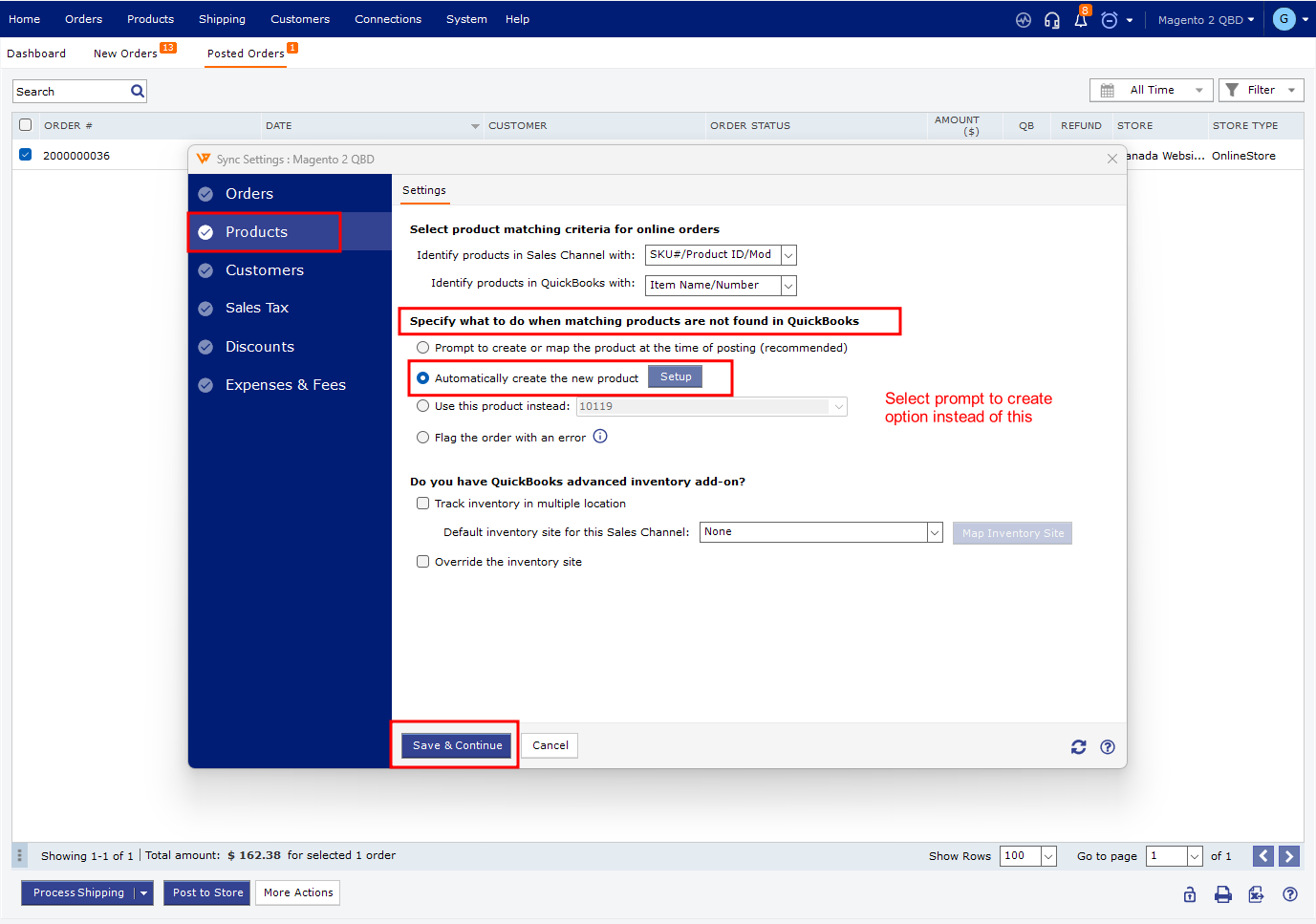
After this setting is disabled, Webgility will not automatically create a new QuickBooks item when a matching item is unavailable during order posting.
Instead, review the unmatched product and map it to an existing QuickBooks item.
For detailed instructions, see How to Map Products While Posting Orders.
If you intentionally need to create missing products in QuickBooks through Webgility, see Create Missing Products in QuickBooks Desktop with Webgility Desktop.
Important
This setting only affects future order postings. Items that were already created in QuickBooks remain there unless they are removed manually.
If an order was previously posted with an unwanted item, refer to How to Unpost Transactions from Webgility Desktop with Undo Sync before reposting the order.
If you have any questions or need more help, please contact our support team.