
Error Prompt: 
Troubleshooting Steps
Step 1: Review the Sales Rep selected for new customers in Webgility Desktop
- Open Webgility Desktop.
- Download the latest QuickBooks Data (customers from scratch); please refer to How to Download the Latest Accounting Data from Scratch - Webgility Desktop
- Go to Connections, then Accounting, go to Sync Settings and Customers.
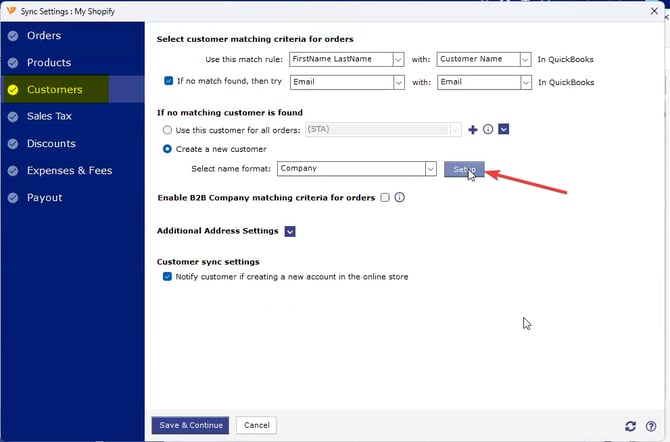
- Open Setup for a new customer, and check the Sales Rep selected. If it's none, then select a Sales Rep & click Save.
- After saving the settings, then click Save & Continue and retry posting the order.
Step 2: Verify The Transaction Setup (Invoices, Sales Orders or Estimate)
If you still see the message after verifying the Customer Sync Settings, then we need to check the Sales Rep selected in Transaction Setup for Invoices.
- Open Webgility Desktop.
- Go to Connections, then Accounting, go to Sync Settings, and click on Transaction Setup.
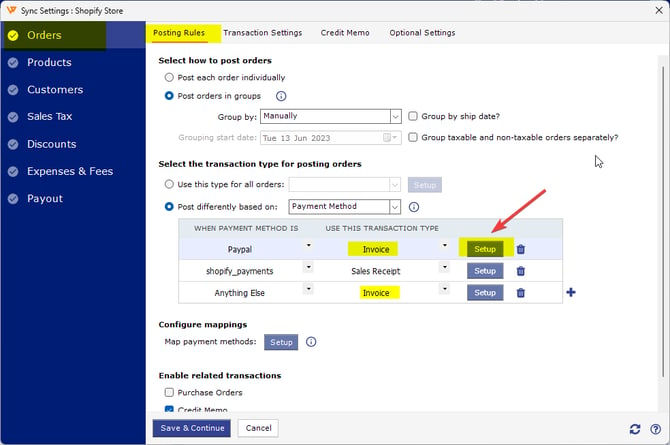
- Under Transaction Setup, verify the Sales Rep.
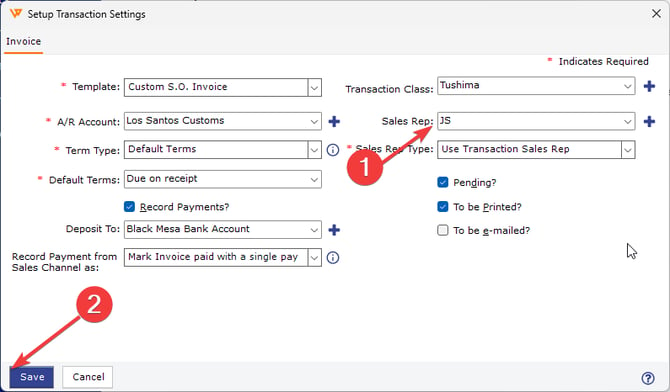
- Once done, save the settings and click on Save & Continue, close the Sync Settings & retry posting the same order.
- If you're using Sales Receipts as transaction, then the Sales Rep option will not show in the setup.
Feel free to reach out to us at support@webgility.com