
Webgility Desktop can stamp each Amazon credit memo with the current system date or with the date the related settlement was deposited. When the current date is used for a credit memo tied to a prior-period settlement, the refund posts into the wrong month and your month-end close shows a mismatch. The setting lives per-marketplace under the Expense and fee tab and must be set on every tab that exposes a Credit Memo Setup button.
When This AppliesUse these steps when Amazon credit memos are posting with the current date in QuickBooks (for example, September settlement refunds appearing with an October 1 transaction date), and you need all credit memos to land on the settlement deposit date so your period close is accurate.
How It WorksEach Amazon marketplace sub-tab under Sync Settings > Expense and fee carries its own date source for refund transactions. A Setup button next to Credit Memo opens the date-source selector, which defaults to Current date. Switching every marketplace tab's Credit Memo Setup to Settlement deposit date aligns future credit memos with the deposit date Amazon reports.
Important Note: "Not every marketplace sub-tab exposes a Credit Memo Setup button. Open every tab you post refunds for (Amazon.com, Amazon.ca, Non-Amazon US, Non-Amazon CA, and any other Amazon marketplace you use) and configure the Setup only on the tabs where it is present."
Steps to Change the Credit Memo Date Source
Step 1: In Webgility Desktop, open Connections > Accounting/POS/ERP > Sync Settings and select the Expense and fee sub-tab.
Step 2: On the first marketplace tab (for example, Amazon.com), scroll down to the refund-transactions section and click the Setup button next to Credit Memo.
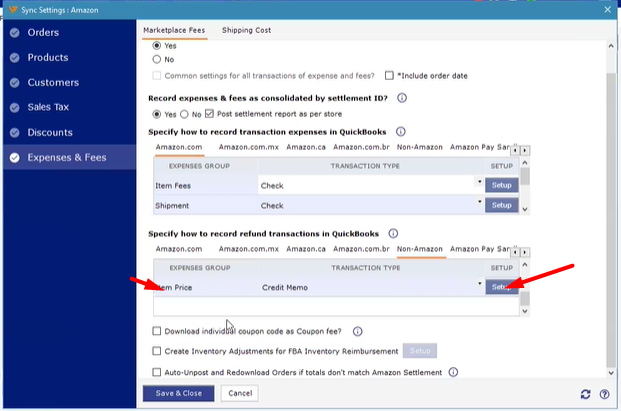
Step 3: In the Setup dialog, change the date source from Current date to Settlement deposit date, then save and close the dialog.
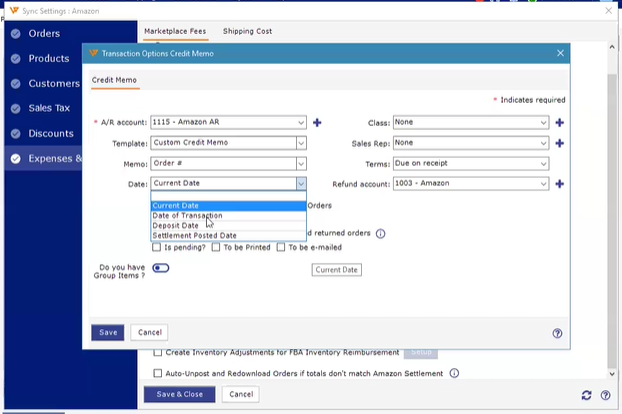
Step 4: Open every other marketplace sub-tab (Amazon.ca, Non-Amazon US, Non-Amazon CA, and any other Amazon marketplace you use) and repeat Steps 2 and 3 wherever a Credit Memo Setup button is shown; skip tabs that do not expose that button.
Step 5: Click Save on the Expense and fee panel so the per-tab Setup changes are retained.
Step 6: To correct credit memos already posted with the current date, open Orders, select the affected Amazon Settlement Report in the Posted tab, click the view icon on the right-hand side, choose Detailed view, filter Transaction type to Refund and Amount type to Item Price, select the credit memo transactions, unpost them, and repost so they pick up the new deposit date — the sibling Credit Memo tab walk-through is in How to Process Returns and Refunds with Webgility Desktop.
Key RecommendationAfter the first corrected credit memo posts, open QuickBooks and confirm the transaction date matches the Amazon settlement deposit date, then proceed with the remaining settlement reports in month order so your period-end credit memo totals reconcile cleanly.
Additional SupportIf a credit memo still posts with the current date after Step 6, contact Webgility Support at support@webgility.com with the credit memo number, the Amazon settlement deposit date you expected, the marketplace sub-tab in question, and a screenshot of your Sync Settings > Expense and fee > [marketplace] > Credit Memo Setup dialog.