
Steps to Resolve
1. Test the Shopify Connection
First, verify that Webgility is successfully connected to your Shopify store.
- Open Webgility Desktop.
- Go to Connections > Sales Channels.
- Select Manage Sales Channel.
- Find your Shopify connection and click the Edit icon.
- Click Test Store Connection.
- Confirm that the connection test is successful.
2. Test the QuickBooks Connection
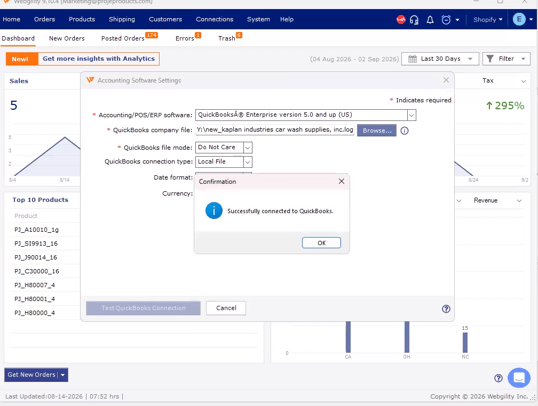
Next, verify that Webgility can connect to QuickBooks successfully.
- Go to Connections > Accounting/POS/ERP.
- Select your QuickBooks connection and click Edit Connection.
- Click Test QuickBooks Connection.
- Confirm that the connection test is successful.
3. Verify the Shopify Location Settings
Make sure the correct Shopify location is selected for inventory synchronization.
- Go to the Products tab.
- Open Settings.
- Select Sync Settings.
- Review the selected Sync Location.
- Confirm that the correct location is selected for inventory sync.
- Save the changes if you make any updates.
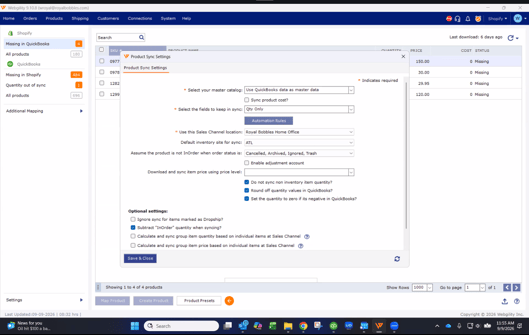
Tip: If you manage inventory across multiple Shopify locations, make sure the location selected in Webgility matches the location where the inventory is actually maintained.
4. Manually Sync the Product
After verifying the connections, location settings, and product status, download the latest items from the Sales Channel and QuickBooks from scratch. Please refer to the following help article:
How to Download the Latest Sales Channel Data & Products in Webgility Desktop
Once the data has been downloaded, follow the steps below to sync the products:
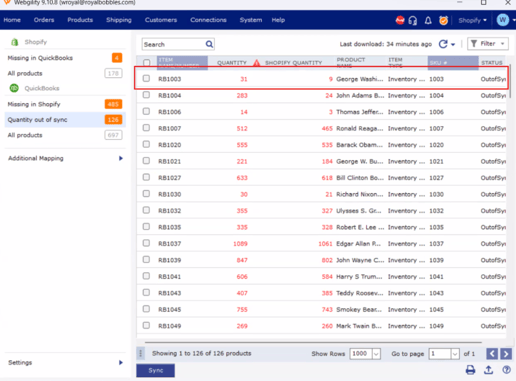
- Go to 'Quantity Out of Sync'.
- Select the product and Sync.
- Wait for the sync to complete.
- Verify that the inventory quantity is updated correctly in Shopify and Webgility.
Still having trouble?
If the issue continues after following these steps, contact Webgility Support.