
Symptoms
Orders are not being downloaded automatically through the Webgility Scheduler. However, the orders can be downloaded successfully when using the Get New Orders button and searching by a specific date range or Order ID.
Resolution
Follow the steps below to verify that the Webgility Scheduler is running and configured correctly to download new orders automatically.
Step 1: Check the Scheduler Status
-
First, check whether the Webgility Scheduler is currently turned On or Off.
-
To check the Scheduler status, look for the clock icon in the upper-right corner of the Webgility application.
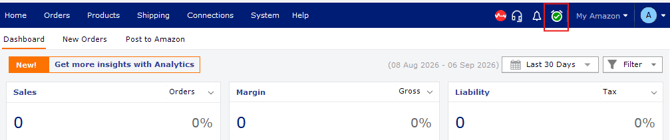
- If the clock icon is green, the Scheduler is turned On.
- If the Scheduler is turned Off, continue to Step 3 to turn it back on and review its configuration.
Step 2: Review the Scheduler Settings
If the Scheduler is turned on, review the Scheduler settings to ensure that automatic order downloading is enabled.
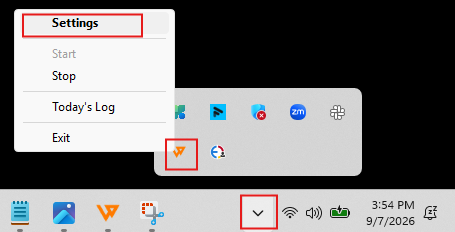
- Go to the system tray on your computer, located in the bottom-right corner of the screen.
- Locate the Webgility icon.
- Click the Webgility icon and select Settings.
-
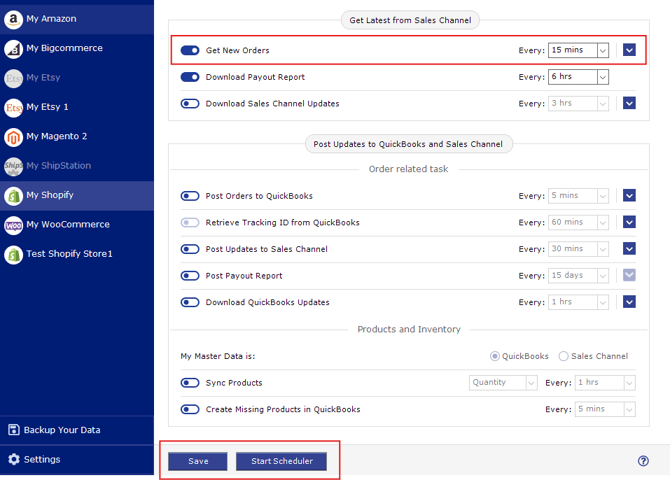
In the Scheduler settings:
- Ensure that the Get New Orders option is enabled.
- Select the appropriate frequency for downloading new orders based on the available options and your business requirements.
Step 3: Turn On the Scheduler
If the Scheduler is currently turned off, you can:
- Click the clock icon to turn the Scheduler on, or
- Click the arrow next to the clock icon to open the Scheduler Settings page and review the configuration before starting the Scheduler.
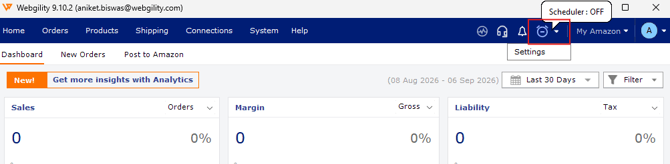
After reviewing or updating the Scheduler configuration:
- Save the changes.
- Start the Scheduler using the available controls on the Scheduler Settings page.
- Allow the Scheduler to run for the configured interval.
- Check Webgility to confirm whether new orders are being downloaded automatically from your sales channel.
If Orders Are Still Not Downloading
If orders are still not downloading through the Scheduler after confirming that the Scheduler is turned on and Get New Orders is enabled, review the Scheduler logs for any errors or additional details.
For instructions on accessing and reviewing the Scheduler logs, refer to this View Scheduler Logs . If you need further assistance after reviewing the logs, please contact Webgility Support