
Overview
If you see “You cannot use the same tax item” when posting an order, QuickBooks Desktop is trying to use the same sales tax item in two places. Webgility uses it on the order’s sales tax line, and QuickBooks uses it in the Tax field based on the customer’s default settings. QuickBooks rejects the order when those items match.
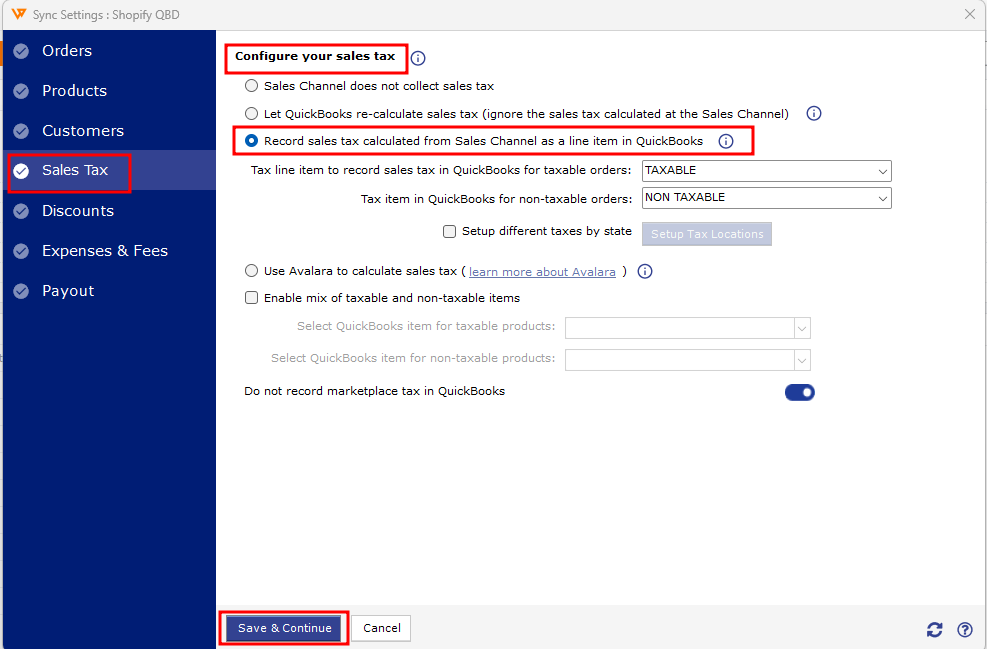
How to fix the error- Confirm how Webgility posts sales tax. Check that your store is set to record sales tax as a line item. See How to Configure Sales Tax Settings in Webgility Desktop.
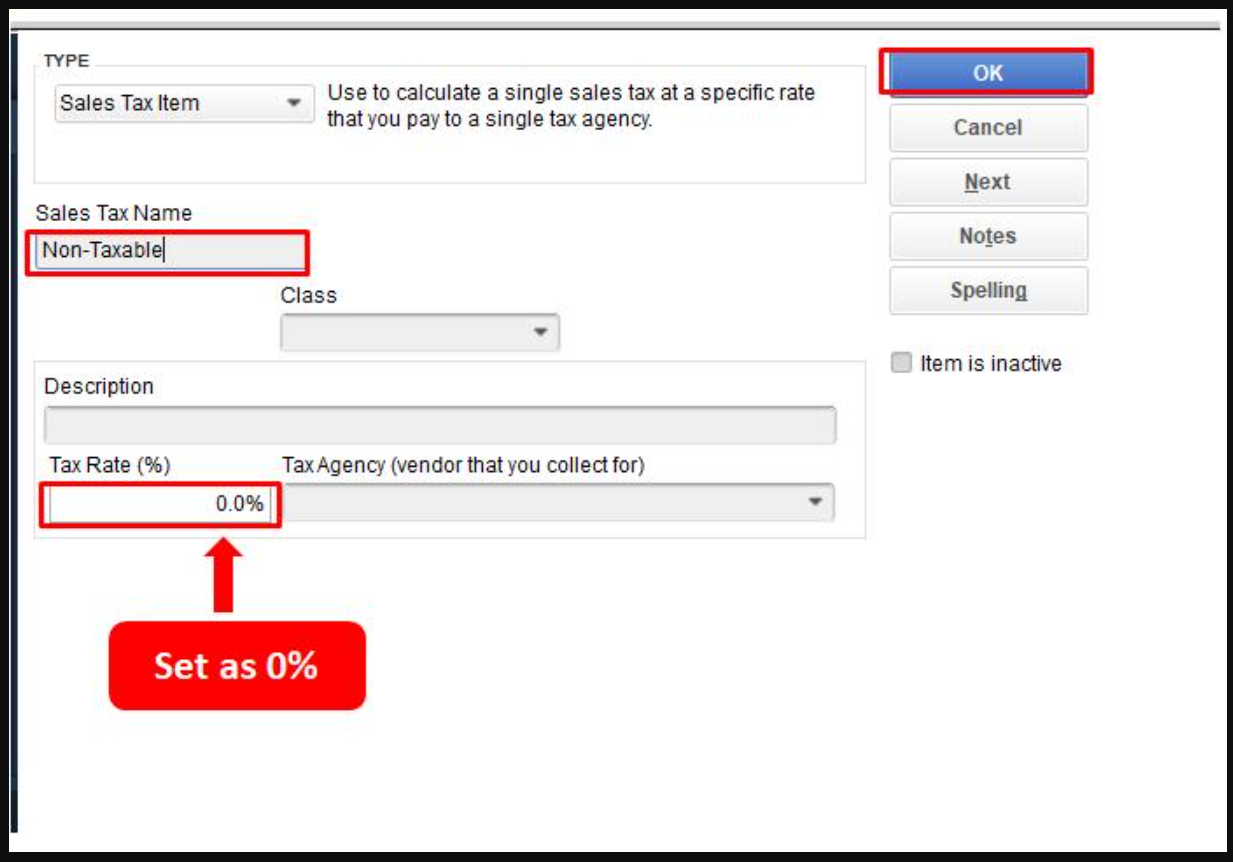
- Update the customer’s default tax item. In the QuickBooks Desktop company file connected to Webgility, go to Customers → Customer Center and double-click the customer whose order failed. Open Sales Tax Settings (called Additional Info in older versions). In the Tax Item field, select a separate 0% sales tax item and click OK.
- Retry the order and verify the tax. Follow Step 3 in Resolving Common Order Posting Issues in Webgility Desktop to post the failed order manually. Then open the transaction in QuickBooks Desktop and confirm that the sales tax line matches the amount collected by your sales channel.
If you have any questions or need more help, please contact our support team.